

WP Site Migration Plugin Buying Guide: How to Choose the Right Tool
Moving a WordPress website can feel like a high-stakes operation. Whether you're switching hosting providers, moving to a new domain, or pushing a staging site live, the process is filled with potential pitfalls that can lead to downtime, data loss, or broken functionality. Using a quality wp site migration plugin transforms this complex task into a manageable, streamlined process, saving you hours of manual work and technical headaches. These tools are designed to package your entire site—database, media files, themes, and plugins—into a single, portable file that can be easily deployed on a new server.
- Quick Summary
- What Exactly is a WordPress Migration Plugin?
- Key Features to Look For in a Site Migration Tool
- Comprehensive Backup and Restore
- Large Site Handling
- Automatic Search and Replace
- Multisite and Advanced Compatibility
- How to Choose the Right WP Migration Tool for Your Needs
- 1. Assess Your Technical Skill Level
- 2. Consider Your Site's Size and Complexity
- 3. Define Your Budget
- 4. Check Your Web Host First
- Top 5 WP Site Migration Plugins (Tested & Compared)
- A Step-by-Step Guide to Using a Migration Plugin
- 1. Create a Full Backup
- 2. Install the Plugin on Both Sites
- 3. Export Your Site Data
- 4. Import to the New Site
- 5. Perform Post-Migration Checks
- Potential Pitfalls and How to Avoid Them
- Frequently Asked Questions
- Is it safe to use a WordPress migration plugin?
- Can I migrate a WordPress site for free?
- How long does a site migration take?
- Will migration affect my SEO?
- Final Thoughts: Making Your Decision
This guide will walk you through everything you need to know about choosing the right WordPress migration plugin. We'll compare the top options, highlight key features to look for, and provide a decision-making framework to help you select the perfect tool for your specific needs, site size, and technical comfort level. By the end, you'll be able to migrate your site with confidence.
Quick Summary
- Check Your Host First: Many managed WordPress hosts like WP Engine and SiteGround offer free, proprietary migration plugins that are optimised for their servers, often making it the easiest option.
- Functionality Varies: A good site migration tool should offer more than just a transfer. Look for features like comprehensive backups, large site handling, and automatic search-and-replace for URLs.
- Match the Tool to Your Skill Level: Plugins like All-in-One WP Migration are excellent for beginners due to their simplicity, while tools like Duplicator and WP Migrate offer more control for developers and advanced users.
- Free vs. Paid: Free plugins are often sufficient for small sites, but they typically have file size limitations. For larger or business-critical websites, a premium plugin is a worthwhile investment for reliability and support.
What Exactly is a WordPress Migration Plugin?
A WordPress migration plugin is a specialised tool designed to automate the process of moving a WordPress site from one location to another. Think of it as a professional moving service for your website. Instead of manually packing every box (file) and piece of furniture (database table), the plugin handles the entire process for you, ensuring nothing gets lost or broken along the way.
Traditionally, migrating a WordPress site was a highly technical task. It involved using an FTP client to download all your website files, exporting the MySQL database via phpMyAdmin, uploading everything to the new server, and then carefully editing configuration files and running search-and-replace queries on the database to update URLs. A single mistake in this manual process could render your site inaccessible.
A WordPress migration plugin eliminates nearly all of this manual labour. It works by creating a complete, self-contained copy of your site. This package typically includes:
- Your Database: All your posts, pages, comments, user data, and settings.
- Your Media Library: Every image, video, and document you've uploaded.
- Your Themes and Plugins: The code that controls your site's appearance and functionality.
- Your WordPress Core Files: The underlying engine of your website.
The plugin then bundles these components into a single archive file. You simply upload this file to your new location, and the plugin's installer script handles the rest—unpacking the files, importing the database, and automatically configuring everything to work in the new environment. This makes it an indispensable site migration tool for users of all skill levels.
Key Features to Look For in a Site Migration Tool

Not all migration plugins are created equal. When evaluating your options, it's important to look beyond the basic transfer function and consider the features that ensure a smooth, reliable, and secure move. A robust WP migration tool will save you time and prevent common migration-related issues.
Comprehensive Backup and Restore
First and foremost, any migration tool should also function as a solid backup solution. The migration process always carries a small risk, so having a complete, restorable backup is non-negotiable. The plugin should allow you to create a full site backup before you begin the migration, giving you a safety net to fall back on if anything goes wrong.
Large Site Handling
One of the most common issues during migration is server timeouts, especially with large websites. Free plugins often struggle with sites over 500MB because they run the process on your own server's resources. Look for plugins that are specifically designed to handle large sites, either by breaking the migration into smaller chunks or by processing the migration on their own external servers, which bypasses your hosting limitations entirely.
Automatic Search and Replace
When you move a site to a new domain, every internal URL in your database needs to be updated. This includes links in your posts, image paths, and settings stored in serialized data arrays. A manual search-and-replace can easily corrupt this serialized data. A quality migration plugin handles this automatically and intelligently, ensuring all links are updated correctly without breaking your site's functionality.
Multisite and Advanced Compatibility
If you run a WordPress multisite network or have a complex setup (like a large WooCommerce store), you'll need a more powerful tool. Check if the plugin explicitly supports multisite migrations, as this is a more complex process than moving a standard single-site installation. Similarly, ensure it's compatible with your hosting environment and PHP version.
Pro Tip: Before starting a migration, check your new host's PHP memory limit and max file upload size. If the limits are low, you might run into errors. A plugin like Migrate Guru, which processes the migration on its own servers, can help you avoid these issues completely.
How to Choose the Right WP Migration Tool for Your Needs
Selecting the best plugin depends entirely on your unique situation. A developer building client sites has very different needs from a blogger moving their personal site for the first time. Here’s a framework to help you make the right choice.

1. Assess Your Technical Skill Level
Be honest about your comfort with WordPress and web servers.
- For Beginners: If you're not comfortable with terms like FTP or phpMyAdmin, you need a plugin that prioritises simplicity. Look for tools with a drag-and-drop interface and a clear, guided process. All-in-One WP Migration is a popular choice for this reason.
- For Advanced Users & Developers: If you need more control, such as the ability to exclude certain files or tables, or if you're migrating between staging and production environments, a more advanced tool like Duplicator Pro or WP Migrate is a better fit. These offer granular control over the migration process.
2. Consider Your Site's Size and Complexity
- Small Blogs & Brochure Sites (Under 500MB): A free plugin will likely be sufficient. Most free versions of popular plugins can handle smaller sites without issue.
- Large E-commerce Stores & Media-Heavy Sites (Over 1GB): You will almost certainly need a premium solution. The free upload limits on many plugins will be a major roadblock. Invest in a tool known for handling large sites, like Migrate Guru (which is free for up to 200GB) or a premium version of another plugin.
3. Define Your Budget
- Free: If your budget is zero, there are excellent free options available. However, be aware of their limitations, which usually revolve around site size and a lack of dedicated support.
- Premium (One-Time or Subscription): Paying for a plugin gets you higher size limits, dedicated customer support, and advanced features like cloud backups and multisite support. For any business website, the cost of a premium plugin is a small price to pay for peace of mind and a successful migration.
4. Check Your Web Host First
This is the most important step and can often save you time and money. Many top-tier managed WordPress hosting companies provide their own free and highly effective migration solutions. These tools are built specifically for their platform, ensuring the highest chance of success.
For example, hosts like WP Engine and Kinsta have their own automated migration plugins that make moving a site to their platform incredibly simple. Similarly, SiteGround offers a WordPress Migrator plugin that handles the process for you. Before you even look at third-party plugins, log in to your new hosting account and check their knowledge base for a proprietary migration tool. It's often the best and easiest path.
Top 5 WP Site Migration Plugins (Tested & Compared)
After considering the key features and your own needs, it's time to look at the top contenders. Here are five of the best and most popular WordPress migration plugins, each suited for different use cases.
| Feature | All-in-One WP Migration | Migrate Guru | Duplicator | UpdraftPlus | WP Migrate |
|---|---|---|---|---|---|
| Best For | Beginners | Large Sites (Free) | Advanced Users | All-in-One Backup | Developers |
| Free Version Limit | 512MB (can be increased) | 200GB | Yes (no large site support) | Backup only | Database only |
| Ease of Use | Very Easy | Very Easy | Moderate | Easy | Moderate/Advanced |
| Handles Large Sites? | Premium Only | Yes (excellent) | Premium Only | Premium Only | Premium Only |
| Multisite Support? | Premium Extension | No | Premium Only | Premium Only | Premium Only |
| Price | Free / Premium from $69 | Free | Free / Pro from $49.50 | Free / Premium from $70 | Free / Pro from $49 |
1. All-in-One WP Migration
Best for: Beginners and non-technical users.
All-in-One WP Migration is famous for its simplicity. It simplifies the entire process into two steps: export and import. You install the plugin, click 'Export' to bundle your site into a single .wpress file, then on the new site, you install the plugin and drag-and-drop that file into the 'Import' screen. It's about as straightforward as it gets.
Pros
- Incredibly user-friendly interface.
- Bypasses many server configuration issues.
- Supported by a vast number of hosting providers.
Cons
- The free version has a restrictive upload limit (typically 512MB), which makes it unsuitable for larger sites without purchasing the unlimited extension.
2. Migrate Guru
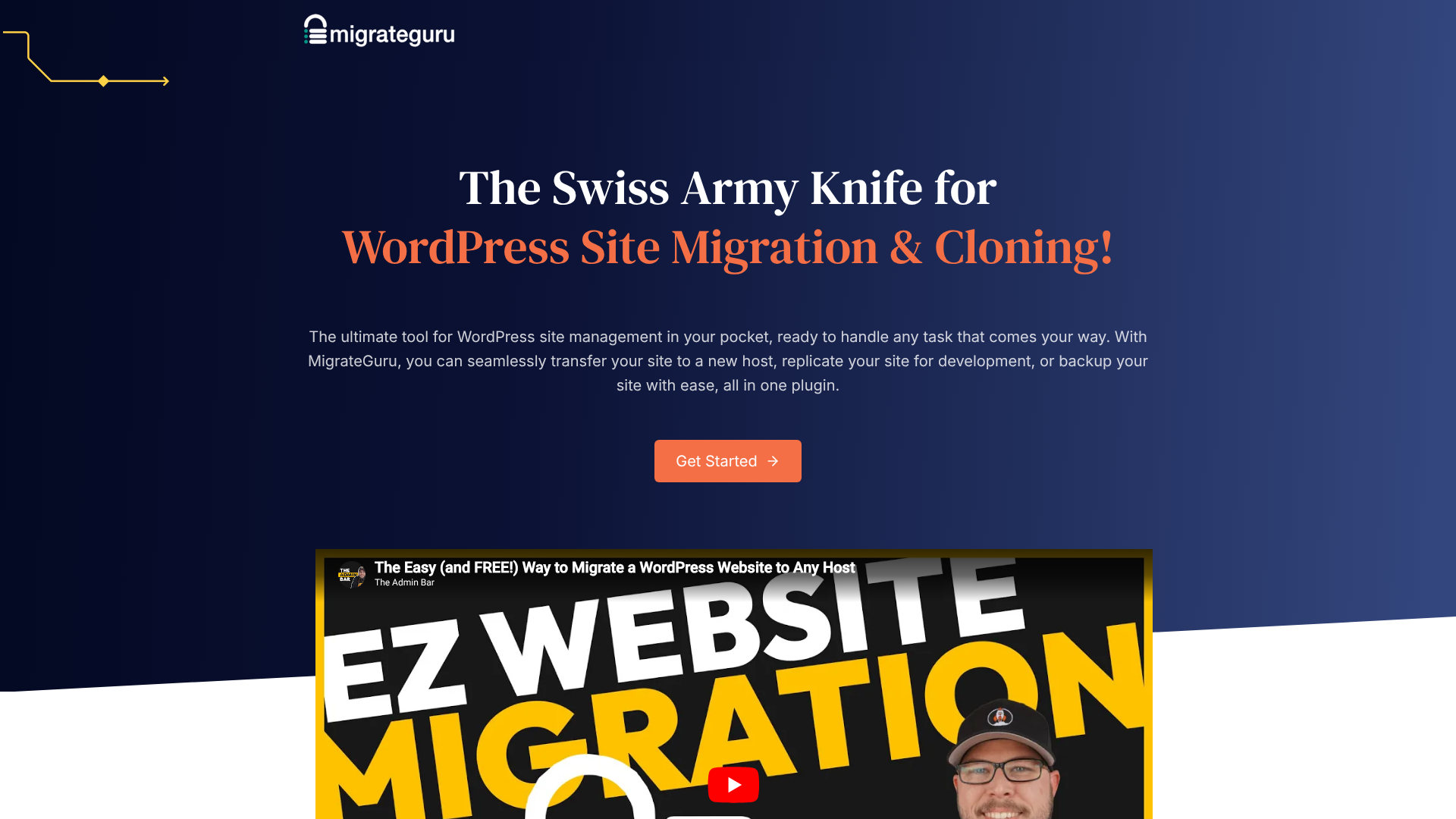
Best for: Migrating large websites for free.
Migrate Guru is a unique and powerful tool. Its key advantage is that it handles the entire migration process on its own servers, not yours. This means it's not constrained by your server's execution limits or upload restrictions. It can handle massive sites up to 200GB completely free of charge, making it an unbeatable option for large-scale moves.
Pros
- Completely free with no size limits (up to 200GB).
- No risk of overloading your server.
- Very fast and reliable for large, complex sites.
Cons
- Does not support migration to or from a local server (localhost).
- Lacks support for migrating WordPress multisite installations.
3. Duplicator
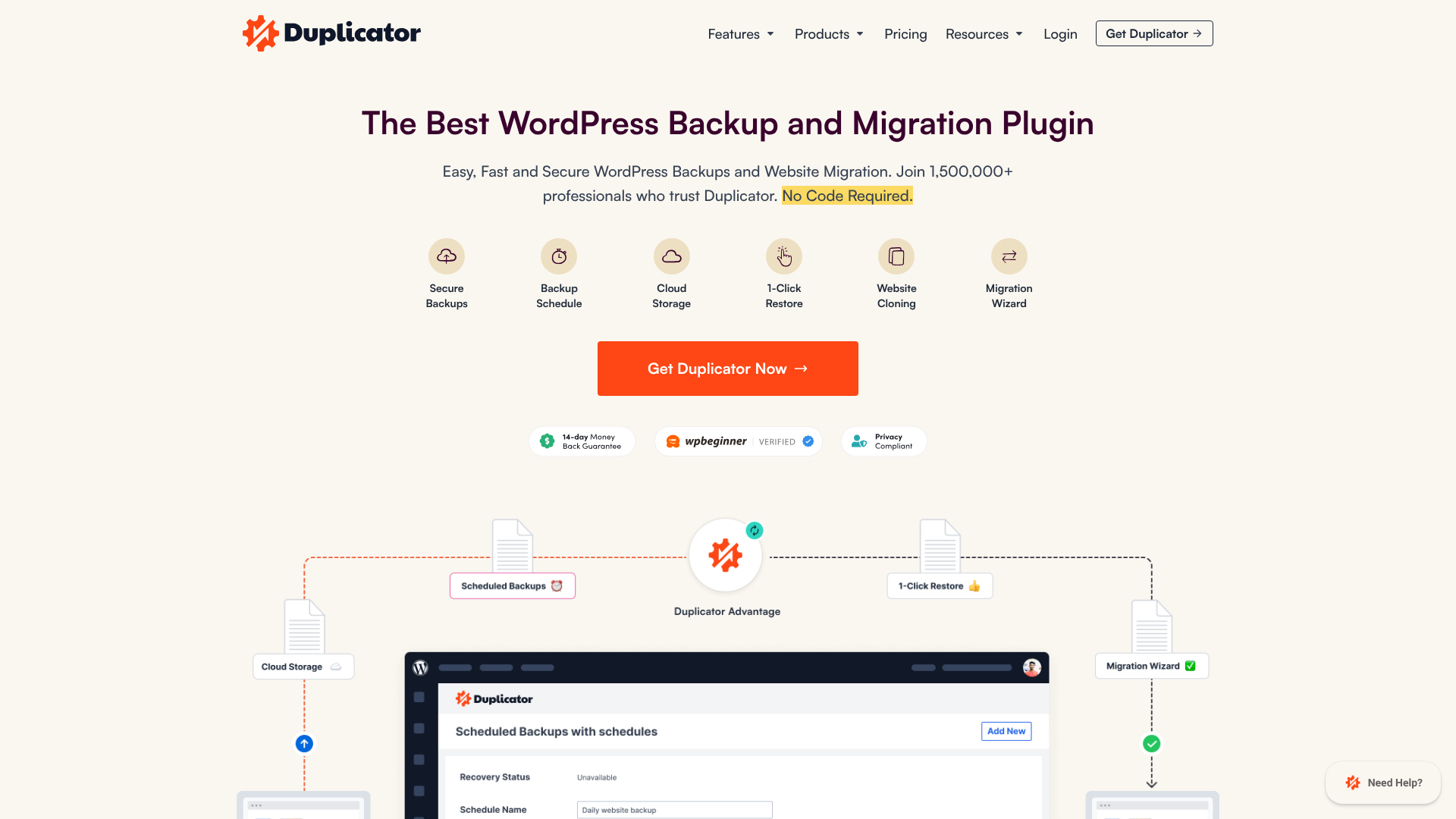
Best for: Technical users and developers needing more control.
Duplicator is a long-standing favourite among developers. It works a bit differently by bundling your site into a 'package' (a zip file and an installer script). You upload these two files to your new server's root directory and run the installer by visiting the URL. This means you don't even need WordPress installed on the destination server to start.
Pros
- Allows for migration to a completely empty server.
- Pro version offers scheduled backups, cloud storage, and multisite support.
- Gives users granular control over the migration process.
Cons
- The process is more technical than other plugins and can be intimidating for beginners.
- The free version may struggle with larger sites or restrictive server settings.
4. UpdraftPlus Migrator
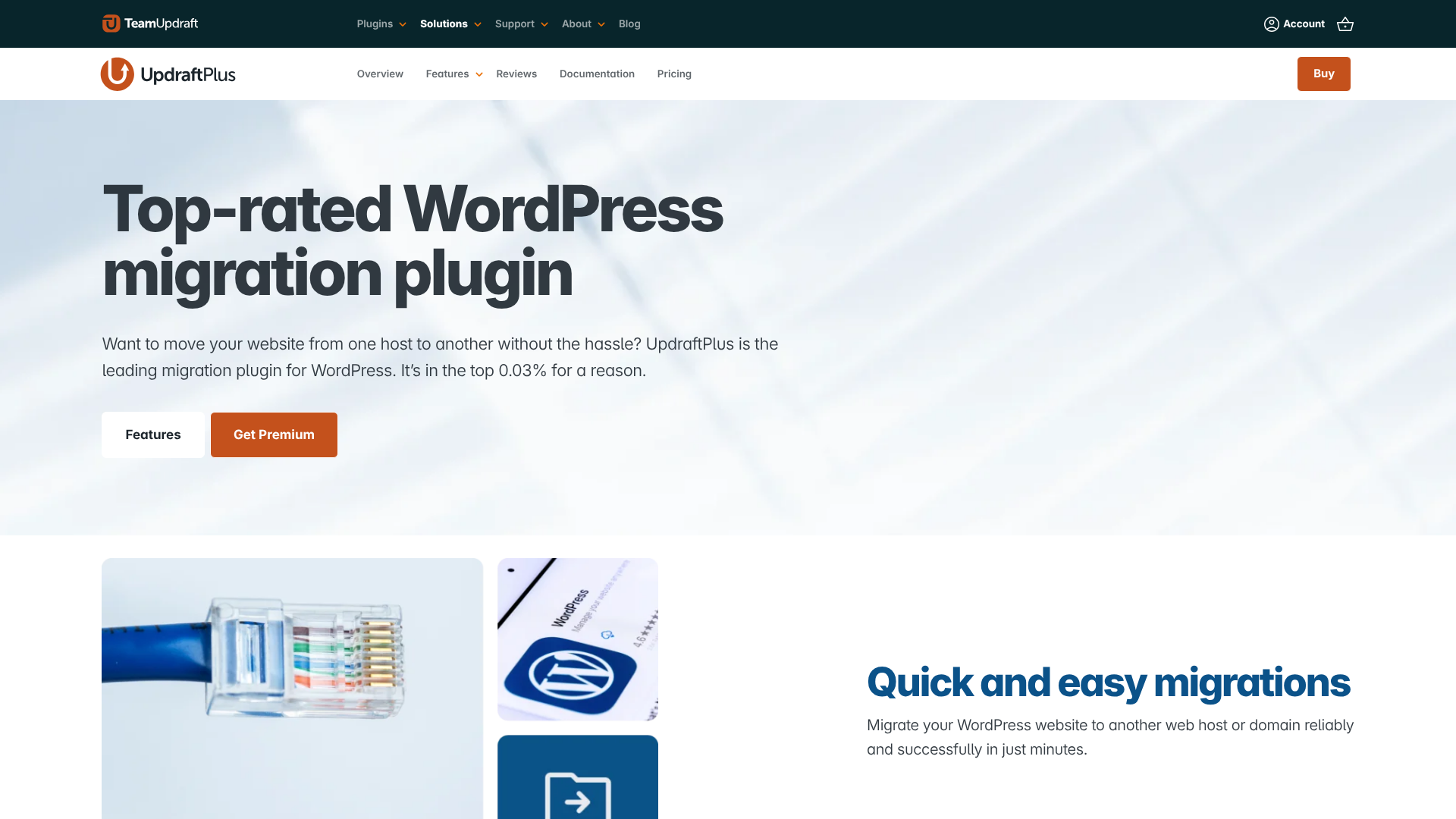
Best for: Users who want an integrated backup and migration solution.
UpdraftPlus is one of the most popular WordPress backup plugins in the world. While its core function is backup, its premium version includes a powerful Migrator add-on. This allows you to easily clone your site and move it to a new domain or host. If you're already using UpdraftPlus for backups, upgrading to use its migration feature is a logical step.
Pros
- Combines a world-class backup solution with a reliable migration tool.
- Supports incremental backups to save server resources.
- Migrates to a wide range of cloud storage destinations.
Cons
- Migration is a premium feature; the free version is for backup/restore on the same site only.
- Can be slightly more expensive than dedicated migration-only plugins.
5. WP Migrate
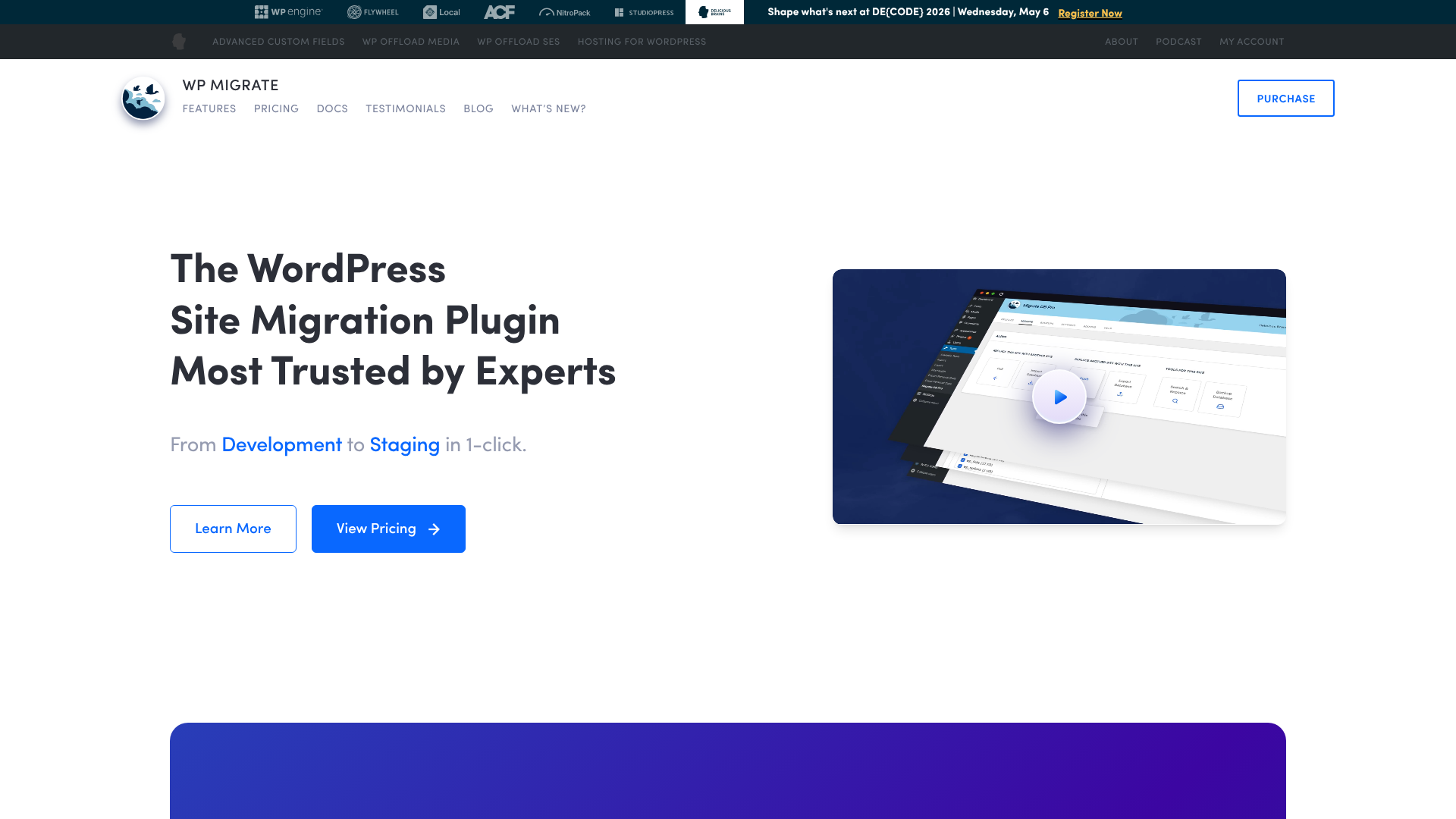
Best for: Developers managing staging and production workflows.
WP Migrate (formerly WP Migrate DB) is a developer-focused tool designed for moving databases and files between WordPress installs. It's particularly useful for workflows where you need to pull a live database down to a local development environment or push local changes up to a staging server. It excels at database manipulation with a superior find-and-replace feature.
Pros
- Excellent for developer workflows (push/pull between environments).
- Advanced control over what gets migrated (e.g., specific database tables, media files).
- Handles serialized data with precision.
Cons
- The free version only handles the database, not files, themes, or plugins.
- The full power of the plugin is only available in the Pro version.
A Step-by-Step Guide to Using a Migration Plugin
While the exact steps can vary slightly between plugins, the general process for migrating your site is remarkably consistent. Here’s a typical workflow you can expect to follow.
1. Create a Full Backup
Before you do anything else, make a complete backup of your current site. You can use your migration plugin for this, your hosting provider's backup tool, or a separate backup plugin. Store this backup file in a safe, off-site location like Google Drive or Dropbox.
2. Install the Plugin on Both Sites
Install and activate your chosen migration plugin on both your original website (the one you're moving) and the new, clean WordPress installation at your destination.
3. Export Your Site Data
On your original site, navigate to the plugin's interface and find the 'Export' option. The plugin will then process your files and database and compile them into a single downloadable package. This might take a few minutes for larger sites. Download the resulting file to your computer.
4. Import to the New Site
Now, go to the WordPress dashboard of your new site. Navigate to the same plugin's interface and find the 'Import' option. Upload the package file you downloaded in the previous step. The plugin will handle the rest, unpacking your files, importing the database, and running the necessary search-and-replace operations.
5. Perform Post-Migration Checks
Once the import is complete, your work isn't quite done. It's crucial to perform a few checks:
- Log In: Your old username and password should now work on the new site.
- Reset Permalinks: Go to
Settings > Permalinksand click 'Save Changes' twice. This rebuilds your site's URL structure and prevents 404 errors. - Check for Broken Links: Browse your site, clicking on internal links and checking images to ensure everything loads correctly.
- Update DNS: If you've changed hosts but kept the same domain, you'll now need to update your domain's DNS records to point to the new server.
Potential Pitfalls and How to Avoid Them
Even with a great plugin, migrations can sometimes hit a snag. Being aware of common issues can help you troubleshoot them quickly.
- Server Timeouts: This happens when the migration process takes longer than your server's maximum execution time. The best way to avoid this is by using a plugin like Migrate Guru that runs on external servers or a premium plugin designed to work around these limits.
- Upload Size Restrictions: Many hosts limit the maximum size of a file you can upload through the WordPress dashboard. If your migration package is larger than this limit, the import will fail. You can sometimes ask your host to increase the limit, or use a plugin that uploads the file via FTP or another method.
- DNS Propagation: After you update your DNS records to point to a new host, it can take anywhere from a few minutes to 48 hours for the change to take effect globally. During this time, some visitors might see the old site while others see the new one. Plan for this and try to migrate during a low-traffic period.
Pro Tip: Use a tool like whatsmydns.net to check your DNS propagation status from multiple locations around the world. This will give you a clear picture of when the migration is complete for all users.
Frequently Asked Questions
Here are answers to some common questions people have about using a WP site migration plugin.
Is it safe to use a WordPress migration plugin?
Yes, it is generally very safe, especially when using a well-regarded and updated plugin. These tools are used to migrate millions of websites successfully. The most critical safety step is to always create a complete, independent backup of your site before you begin the migration process. This ensures that no matter what happens, you have a clean copy of your site to restore.
Can I migrate a WordPress site for free?
Absolutely. For small to medium-sized websites, free plugins like the basic version of All-in-One WP Migration or Duplicator are often perfectly adequate. For very large sites, Migrate Guru offers a completely free solution that can handle sites up to 200GB. The main limitations of free tools are typically file size caps and a lack of dedicated customer support.
How long does a site migration take?
The duration depends heavily on the size of your site and the speed of your internet connection and servers. A small blog might take only 10-15 minutes from start to finish. A large e-commerce site with gigabytes of data could take an hour or more to export and import. The DNS propagation phase, if you're changing hosts, can add several hours before the new site is visible to everyone.
Will migration affect my SEO?
If done correctly, a site migration should have minimal to no negative impact on your SEO. The key is to ensure all your old URLs redirect properly to your new ones using 301 redirects, especially if you are changing your domain name. Most modern migration plugins handle URL updates automatically, but it's always wise to use a tool like Screaming Frog to crawl your new site and check for any broken links (404 errors) after the move.
Final Thoughts: Making Your Decision
Choosing the right wp site migration plugin is about balancing your site's needs, your technical confidence, and your budget. For most users, the process is far less intimidating than it seems, thanks to the powerful and user-friendly tools now available.
To recap your decision-making process:
- Always check your hosting provider first. A free, purpose-built tool from a host like WP Engine or SiteGround is often your best and simplest option.
- For beginners with small sites, All-in-One WP Migration offers an unmatched level of simplicity.
- For large sites on a budget, Migrate Guru is the clear winner, handling massive migrations for free.
- For developers and technical users, Duplicator Pro or WP Migrate provide the power and granular control needed for complex workflows.
By investing a little time in choosing the right site migration tool, you can ensure your website's move is smooth, secure, and stress-free, letting you focus on what matters most: growing your online presence.