

How to Integrate Leadpages with Mailchimp: A Step-by-Step Guide for Marketers
Connecting your marketing tools is the key to building an efficient, automated system that nurtures leads and drives sales. For many businesses, the combination of a powerful landing page builder and a reliable email marketing platform is the engine of their growth. This is where the leadpages integration with mailchimp becomes essential, creating a direct pipeline from lead capture to lead nurturing without any manual effort.
- What You'll Learn
- What is the Leadpages and Mailchimp Integration?
- Key Benefits of Connecting Leadpages to Mailchimp
- Automate Your Lead Flow
- Improve Lead Nurturing Sequences
- Enhance Audience Segmentation from the Start
- Maintain Data Accuracy and Integrity
- Step-by-Step Guide: Leadpages Mailchimp Setup
- Prerequisites
- Part 1: Connecting Your Accounts at the Account Level
- Part 2: Connecting a Specific Landing Page or Pop-Up Form
- Advanced Integration Options and Best Practices
- Using Zapier for More Complex Workflows
- Double Opt-In vs. Single Opt-In
- Tagging Strategies for Better Segmentation
- Understanding the Costs: Leadpages and Mailchimp Pricing
- Pros and Cons of the Mailchimp Leadpages Connection
- Troubleshooting Common Integration Issues
- Issue: Leads Are Not Appearing in Mailchimp
- Issue: Form Fields Are Not Mapping Correctly
- Issue: Re-authentication Errors
- Frequently Asked Questions (FAQ)
- Why are people leaving Mailchimp?
- Who is Mailchimp's biggest competitor?
- Is Mailchimp used for lead generation?
- What are the two types of Mailchimp integrations?
- Final Thoughts
This guide provides a comprehensive walkthrough of the entire process. We'll cover everything from the initial connection to advanced tagging strategies and troubleshooting common issues. By the end, you'll have a clear understanding of how to make these two powerful platforms work together to grow your email list and your business.
What You'll Learn
- Direct Connection: The integration between Leadpages and Mailchimp is native, meaning you can connect them directly without needing third-party tools for basic functions.
- Automated Lead Flow: Once set up, the connection automatically sends new leads from your Leadpages forms, pop-ups, and alert bars straight into your designated Mailchimp audience.
- Enhanced Segmentation: The
mailchimp leadpages connectionallows you to add specific tags to new subscribers, enabling you to segment your audience and send targeted campaigns from day one. - Advanced Workflows: For more complex, multi-step automations, you can use services like Zapier to extend the capabilities of the native integration.
What is the Leadpages and Mailchimp Integration?
Think of the Leadpages integration with Mailchimp as a digital handshake between two specialist tools. Leadpages excels at one thing: creating high-converting landing pages, pop-ups, and alert bars designed to capture visitor information. Mailchimp, on the other hand, is a master of email marketing, helping you communicate with, nurture, and convert those leads into customers.
The integration is the bridge that connects them. When a visitor fills out a form on your Leadpages asset, the integration instantly and automatically sends their details—like their name and email address—over to your Mailchimp account. This data is added to a specific audience (formerly called a list) that you choose.
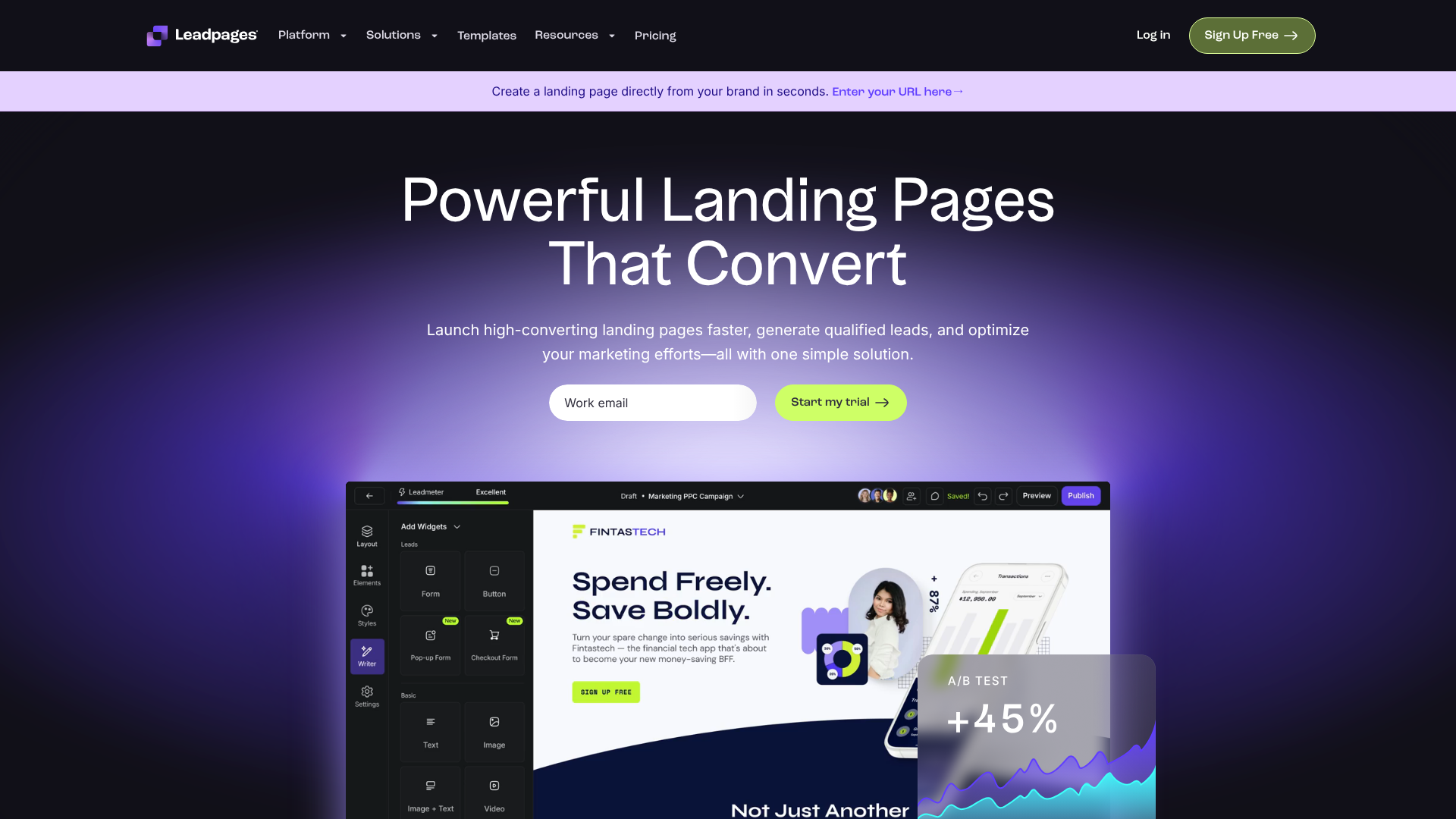
Without this connection, you would be stuck in a cycle of manual work. You'd have to periodically export a CSV file of new leads from Leadpages and then manually import it into Mailchimp. This process is not only time-consuming but also prone to human error, leading to lost leads and delayed follow-ups. The integration eliminates this friction, making your marketing funnel seamless and efficient.
Key Benefits of Connecting Leadpages to Mailchimp
Establishing a solid mailchimp leadpages connection does more than just save you time; it unlocks strategic advantages that can significantly impact your marketing effectiveness. It transforms a simple lead capture form into the starting point of a fully automated customer journey.
Automate Your Lead Flow
The most immediate benefit is the complete automation of your lead management process. When a lead is captured, it appears in your Mailchimp audience within seconds. This real-time transfer means you can engage with new subscribers while their interest is at its peak, rather than hours or days later after a manual import.
This immediacy is crucial. A lead who downloads an ebook expects to receive it right away. An automated connection ensures your Mailchimp welcome email, containing the download link, is triggered the moment they hit 'subscribe'.
Improve Lead Nurturing Sequences
An automated lead flow is the foundation of effective lead nurturing. Once a new contact is in Mailchimp, you can use its powerful automation features to begin a relationship. You can enrol them in a welcome series, a free email course, or a targeted promotional sequence.
For example, if a user signs up for a webinar through a Leadpages landing page, the integration can add them to a 'Webinar Registrants' audience in Mailchimp. This can automatically trigger a series of reminder emails leading up to the event and follow-up emails afterwards, all without you lifting a finger.
Enhance Audience Segmentation from the Start
Effective marketing relies on sending the right message to the right person. The integration allows you to apply tags to subscribers based on how and where they signed up. This gives you powerful segmentation capabilities from the very beginning.
You can create different Leadpages landing pages for different lead magnets (e.g., a marketing checklist vs. a sales guide). By tagging subscribers based on which lead magnet they downloaded, you gain immediate insight into their interests. This allows you to send highly relevant content that resonates with their specific needs, increasing engagement and conversions.
Maintain Data Accuracy and Integrity
Manual data entry is a recipe for errors. Typos, formatting issues, or accidentally importing the wrong file can corrupt your email list and lead to lost opportunities. By automating the data transfer, you eliminate the risk of human error.
Every email address and name is transferred exactly as the user entered it. This ensures your data remains clean and reliable, which is essential for maintaining high email deliverability and building a healthy, engaged subscriber list.
Step-by-Step Guide: Leadpages Mailchimp Setup
The process to integrate leadpages with mailchimp is straightforward. The native integration is designed to be user-friendly, allowing you to get everything connected in just a few minutes. Follow these detailed steps to get it right.
Prerequisites
Before you begin, make sure you have the following in place:
- An active Leadpages account. Any paid plan will work, as the Mailchimp integration is a standard feature.
- An active Mailchimp account. You'll need your login credentials (username and password) handy.
- At least one Audience created in your Mailchimp account where you want to send your new leads.
Part 1: Connecting Your Accounts at the Account Level
First, you need to establish the main connection between your Leadpages and Mailchimp accounts. This authorises Leadpages to access your Mailchimp data.
- Log in to Leadpages: Open your Leadpages dashboard.
- Navigate to Integrations: In the left-hand navigation menu, click on the 'Integrations' icon.
- Find Mailchimp: Scroll through the list of available integrations or use the search bar to find Mailchimp. Click on it.
- Connect New Account: You will see a button that says 'Connect New Account'. Click this to begin the authorisation process.
- Authorise Leadpages: A pop-up window from Mailchimp will appear, asking you to log in with your Mailchimp username and password. Enter your credentials and click 'Log In'. You will then be asked to grant Leadpages permission to access your account. Click 'Allow'.
- Confirmation: Once authorised, the pop-up will close, and you will see your Mailchimp account listed in the Leadpages integration settings. You can give it a custom name for easy identification if you plan to connect multiple Mailchimp accounts.
Part 2: Connecting a Specific Landing Page or Pop-Up Form
Once the main account connection is active, you need to tell each individual form where to send the leads.
- Open the Leadpages Builder: Navigate to the landing page, pop-up, or alert bar you want to connect. Open it in the Leadpages editor.
- Edit Your Form: Click on the call-to-action button on your page. This will typically open the settings for the integrated form. If your button just links to a pop-up, you'll need to edit the pop-up form itself.
- Go to the Integrations Tab: Within the form settings, look for a tab or section labelled 'Integrations' or marked with a plug icon. Click on it.
- Add an Integration: Click the '+ Add an Integration' button and select 'Mailchimp' from the list of options.
- Select Account and Audience: In the next step, you'll be prompted to choose which Mailchimp account to use (the one you just connected). Then, a dropdown menu will appear, listing all the Audiences in your Mailchimp account. Select the specific Audience you want to send these leads to.
- Map Your Form Fields: This is a critical step. Leadpages will show you the fields on your form (e.g., 'Email', 'First Name'). You need to map each one to the corresponding field in Mailchimp. For standard fields, this is usually done automatically, but it's always good to double-check.
- Add Tags (Optional but Recommended): You'll see an option to add tags. This is highly recommended for segmentation. You can add one or more tags that will be applied to every subscriber who signs up through this specific form. For example, you could add the tag
ebook-download-2026. - Save and Update: Once you've configured everything, click 'Save & Close' on the form settings. Finally, click the 'Update' button in the top-right corner of the Leadpages builder to publish your changes.
Your form is now officially connected. It's always a best practice to test it by submitting your own email address to ensure the lead appears in Mailchimp with the correct tags.
Advanced Integration Options and Best Practices
While the native integration is perfect for most use cases, there are ways to extend its functionality and ensure you're following best practices for list growth and management.
Using Zapier for More Complex Workflows
What if you need more than just sending a lead to Mailchimp? What if you want to add them to Mailchimp, notify your sales team in Slack, and add them to a Google Sheet? This is where a third-party automation tool like Zapier comes in.
Zapier acts as a middleman that can create multi-step workflows, called 'Zaps'. The trigger would be 'New Form Submission in Leadpages'. From there, you can add multiple actions. This allows you to build sophisticated automations that the native integration can't handle on its own.
While Zapier has free and paid plans, it's the go-to solution when you need to connect Leadpages to multiple apps simultaneously.
Pro Tip: Use hidden fields in your Leadpages form to pass extra data to Mailchimp for hyper-segmentation. For example, you could create a hidden field that contains the name of the landing page. You can then map this field to a custom field in Mailchimp to know exactly which offer converted each lead.
Double Opt-In vs. Single Opt-In
When a user signs up, you can either add them to your list immediately (single opt-in) or send them a confirmation email they must click before being added (double opt-in). This setting is controlled within your Mailchimp Audience settings, not in Leadpages.
While single opt-in can lead to faster list growth, double opt-in is highly recommended. It confirms that the subscriber's email address is valid and that they genuinely want to hear from you. This results in a higher-quality list, better engagement rates, fewer spam complaints, and helps with compliance for regulations like GDPR.
Tagging Strategies for Better Segmentation
Don't overlook the power of tagging. A well-organised tagging system is the key to effective email marketing. Go beyond a single tag and think strategically about the information you want to capture. Consider using tags for:
- Lead Magnet:
[ebook-name],[checklist-topic],[webinar-title] - Content Pillar:
[topic-seo],[topic-social-media],[topic-email-marketing] - Funnel Stage:
[stage-awareness],[stage-consideration]
By applying these tags directly from the Leadpages form, you build a rich profile of your subscribers from their very first interaction. This allows for incredibly targeted and personalised email campaigns down the line.
Understanding the Costs: Leadpages and Mailchimp Pricing
One of the great things about this integration is that it doesn't add any direct costs to your software stack. However, it's important to understand the pricing structures of both platforms to manage your budget effectively.
Leadpages Pricing
Leadpages offers several pricing tiers, typically a 'Standard' and a 'Pro' plan, with options for monthly or annual billing. The native integration with Mailchimp and other email service providers is included in all of their paid plans. The primary differences between the plans relate to features like A/B testing, online sales and payments, and the number of sites you can publish.
For the most up-to-date information on features and pricing, it's always best to visit the official Leadpages pricing page.
Mailchimp Pricing
Mailchimp's pricing is primarily based on two factors: the number of contacts in your account and the number of emails you send per month. They offer a tiered structure:
- Free Plan: Allows up to 500 contacts and a limited number of email sends, with basic features.
- Essentials Plan: A starting paid tier for more contacts and sends, with access to A/B testing and email templates.
- Standard Plan: The most popular plan, offering advanced automation, audience insights, and optimisation tools.
- Premium Plan: For large teams and advanced marketers, with comprehensive features and priority support.
As your list grows through your Leadpages forms, your Mailchimp plan may need to be upgraded. Be sure to factor this potential growth into your marketing budget.
Are There Hidden Integration Costs?
For the native leadpages mailchimp setup, there are no hidden costs. The functionality is included in your subscriptions. The only time an additional cost would arise is if you choose to use a third-party service like Zapier for more advanced workflows. Zapier has its own free and paid tiers depending on the complexity and volume of tasks you need to run.
Pros and Cons of the Mailchimp Leadpages Connection
While the integration is powerful and highly recommended, it's helpful to have a balanced view of its strengths and weaknesses.
The Advantages (Pros)
- Simplicity and Ease of Use: The native integration is designed for non-technical users. You can connect your accounts and forms in minutes without writing a single line of code.
- Reliability: Because it's an official, first-party integration supported by both companies, it's generally very stable and well-maintained. Updates to one platform are unlikely to break the connection.
- Real-Time Speed: Leads are transferred almost instantly. This enables immediate follow-up and ensures a smooth user experience for your new subscribers.
- Cost-Effective: The feature is built into your existing Leadpages subscription, so there's no extra charge to use it.
The Limitations (Cons)
- One-Way Data Flow: The integration only sends data from Leadpages to Mailchimp. It cannot work in reverse; for example, you can't change something on a Leadpages site based on a subscriber's action in Mailchimp.
- No Complex Conditional Logic: The native integration doesn't support complex rules. For instance, you can't send a lead to different Mailchimp audiences based on which checkbox they tick in a single form. This level of logic requires more advanced tools.
- Platform Dependency: Your lead flow relies on both Leadpages and Mailchimp being operational. While rare, an outage on either platform's API could temporarily interrupt the transfer of new leads.
Troubleshooting Common Integration Issues
Even with a simple setup, you might occasionally run into a snag. Here are solutions to some of the most common problems that can occur with the mailchimp leadpages connection.
Issue: Leads Are Not Appearing in Mailchimp
This is the most frequent issue. If you've tested your form and the lead isn't showing up in your Mailchimp audience, work through this checklist:
- Check the Connection Status: Go to 'Integrations' in Leadpages. Is the Mailchimp integration showing as 'Connected'? Sometimes connections need to be re-authorised.
- Verify the Form Settings: Open the specific Leadpages form in the builder. Double-check that you have selected the correct Mailchimp account and, most importantly, the correct Audience from the dropdown menu.
- Check Mailchimp's Double Opt-In: If you have double opt-in enabled for your Mailchimp audience, the lead will not appear on your list until they click the confirmation link in their email. Check your spam folder for this confirmation email.
- Test with a Different Email: Use a completely new email address that has never been on your list to test the form. Sometimes Mailchimp won't re-add an email that was recently removed or unsubscribed.
Issue: Form Fields Are Not Mapping Correctly
If leads are arriving in Mailchimp but data is missing (like their first name), the problem is likely with field mapping.
- Re-check Field Mapping: Go back into the form's integration settings in Leadpages. Carefully review the mapping. Ensure the 'First Name' field in Leadpages is mapped to the 'First Name' field in Mailchimp, and so on.
- Check Mailchimp Field Requirements: In Mailchimp, have you made certain fields 'required'? If a required field in Mailchimp is not present on your Leadpages form, the submission may fail. Ensure your form collects all the required information.
Issue: Re-authentication Errors
Occasionally, for security reasons, API connections can expire. If you see an error message in Leadpages about authentication, the fix is simple.
- Disconnect and Reconnect: In the main 'Integrations' section of Leadpages, find your Mailchimp connection. Click to disconnect it. Then, simply follow the steps in Part 1 of our guide to connect it again. This will generate a fresh, secure token and should resolve the issue.
Frequently Asked Questions (FAQ)
Here are answers to some common questions related to using Mailchimp and Leadpages for your marketing efforts.
Why are people leaving Mailchimp?
While Mailchimp remains a very popular platform, some users choose to migrate for a few key reasons. As email lists grow very large, the pricing can become more expensive compared to some competitors. Additionally, marketers who need highly sophisticated and visual automation workflows may find platforms like ActiveCampaign or GetResponse offer more advanced features in that area. Finally, the user interface, while simple for beginners, is sometimes seen as less flexible by power users who prefer more customisation.
Who is Mailchimp's biggest competitor?
Mailchimp faces competition from several strong platforms, each with a different focus. ActiveCampaign is a major competitor known for its powerful marketing automation and CRM features. ConvertKit is very popular among creators and bloggers for its simple-yet-powerful tagging and segmentation. GetResponse competes as an all-in-one marketing platform that includes webinars and website builders, while Omnisend is a strong alternative for e-commerce businesses due to its deep integration with platforms like Shopify.
Is Mailchimp used for lead generation?
Yes, Mailchimp does have its own tools for lead generation. It offers basic landing page and form builders that allow you to capture leads directly within the platform. However, many marketers find these tools to be less robust and customisable than specialised platforms. That's why they use a best-in-class tool like Leadpages for building high-converting, optimised landing pages and then integrate it with Mailchimp to handle the email marketing side.
What are the two types of Mailchimp integrations?
Generally, Mailchimp integrations fall into two categories. The first is native integrations, like the one with Leadpages. These are direct, built-in connections between two apps that are officially supported by the software companies. The second type is third-party integrations, which use a middleware service like Zapier or Make to connect Mailchimp to thousands of other apps that don't have a native connection.
These are more flexible but can sometimes add complexity and cost.
Final Thoughts
Mastering the leadpages integration with mailchimp is a fundamental step towards building a scalable and automated marketing system. By creating a direct link between your lead capture pages and your email platform, you eliminate manual work, reduce errors, and ensure you can engage with new leads the moment they show interest.
The setup process is designed to be simple, but the strategic impact is profound. With automated lead flow, instant nurturing capabilities, and precise segmentation through tagging, you're equipping your business with the tools it needs to build meaningful customer relationships and drive consistent growth.
If you're ready to build high-converting landing pages and automate your email list growth, there's no better time to start. Explore what Leadpages has to offer and see for yourself how easily it connects with Mailchimp to streamline your entire marketing funnel.