
How to Integrate Leadpages with Mailchimp: A Step-by-Step Guide for Marketers
Manually exporting leads from your landing pages and importing them into your email list is a time-consuming task prone to errors. A seamless leadpages integration with mailchimp solves this problem by creating an automated bridge between your lead capture forms and your email marketing platform. This connection ensures every new subscriber is instantly added to your Mailchimp audience, ready for nurturing.
- Quick Summary
- What is the Leadpages and Mailchimp Integration?
- Key Benefits of Connecting Leadpages to Mailchimp
- 1. Complete Automation and Time Savings
- 2. Immediate Lead Nurturing
- 3. Enhanced Segmentation from the Start
- 4. Improved Data Accuracy
- 5. Centralised Lead Management
- Before You Begin: Prerequisites for the Integration
- The Step-by-Step Guide to Integrate Leadpages with Mailchimp
- Step 1: Finding Your Mailchimp API Key
- Step 2: Connecting Mailchimp in Your Leadpages Account
- Step 3: Linking a Specific Form to a Mailchimp Audience
- Step 4: Mapping Form Fields for Richer Data
- Step 5: Using Tags and Groups for Advanced Segmentation
- Step 6: Testing the Mailchimp Leadpages Connection
- Advanced Strategies and Best Practices
- Leveraging Double Opt-In
- Using Hidden Fields for Deeper Segmentation
- Creating a Welcome Automation in Mailchimp
- Understanding the Costs: Leadpages and Mailchimp Pricing
- Pros and Cons of the Native Integration
- Troubleshooting Common Integration Issues
- Frequently Asked Questions
- What do Leadpages integrate with?
- What are the disadvantages of Mailchimp?
- Is Leadpages worth the money?
- Can Leadpages replace a website?
- Is there a better option than Mailchimp?
- Which platform is best for lead generation?
- Final Thoughts
This guide provides a detailed, step-by-step walkthrough of the entire process. We'll cover everything from finding your API key to setting up advanced segmentation and troubleshooting common issues. By the end, you'll have a fully automated system that saves you time and helps you convert more leads into customers.
Quick Summary
- Direct Connection: The integration works by connecting your Leadpages account to Mailchimp using an API key, allowing lead data to pass automatically between the two platforms.
- Automated Lead Transfer: Once set up, any lead captured through a Leadpages form, pop-up, or alert bar is instantly sent to your specified Mailchimp audience, eliminating manual data entry.
- Advanced Segmentation: You can use the integration to add tags and assign subscribers to groups in Mailchimp directly from your Leadpages form, enabling targeted email campaigns from the moment a lead subscribes.
- Simple Setup Process: The connection is straightforward and can be completed within minutes from your Leadpages dashboard without needing any coding knowledge.
- Boosts Nurturing Speed: By instantly adding leads to Mailchimp, you can trigger automated welcome emails and nurture sequences immediately, engaging subscribers while they are most interested.
What is the Leadpages and Mailchimp Integration?
The Leadpages integration with Mailchimp is a direct, native connection that allows you to automatically transfer contact information from your Leadpages assets to your Mailchimp account. Think of it as a digital pipeline. When a visitor fills out a form on your Leadpages landing page, site, pop-up, or alert bar, their details—such as name and email address—are instantly sent to a specific audience (formerly called a list) in Mailchimp.
This automation is the core benefit. Without it, you would need to periodically download a CSV file of your new leads from Leadpages and then manually upload it to Mailchimp. This manual process is not only tedious but also creates a delay between someone subscribing and them receiving their first email from you. In a world where immediate engagement is key, this delay can lead to lost opportunities and disengaged subscribers.
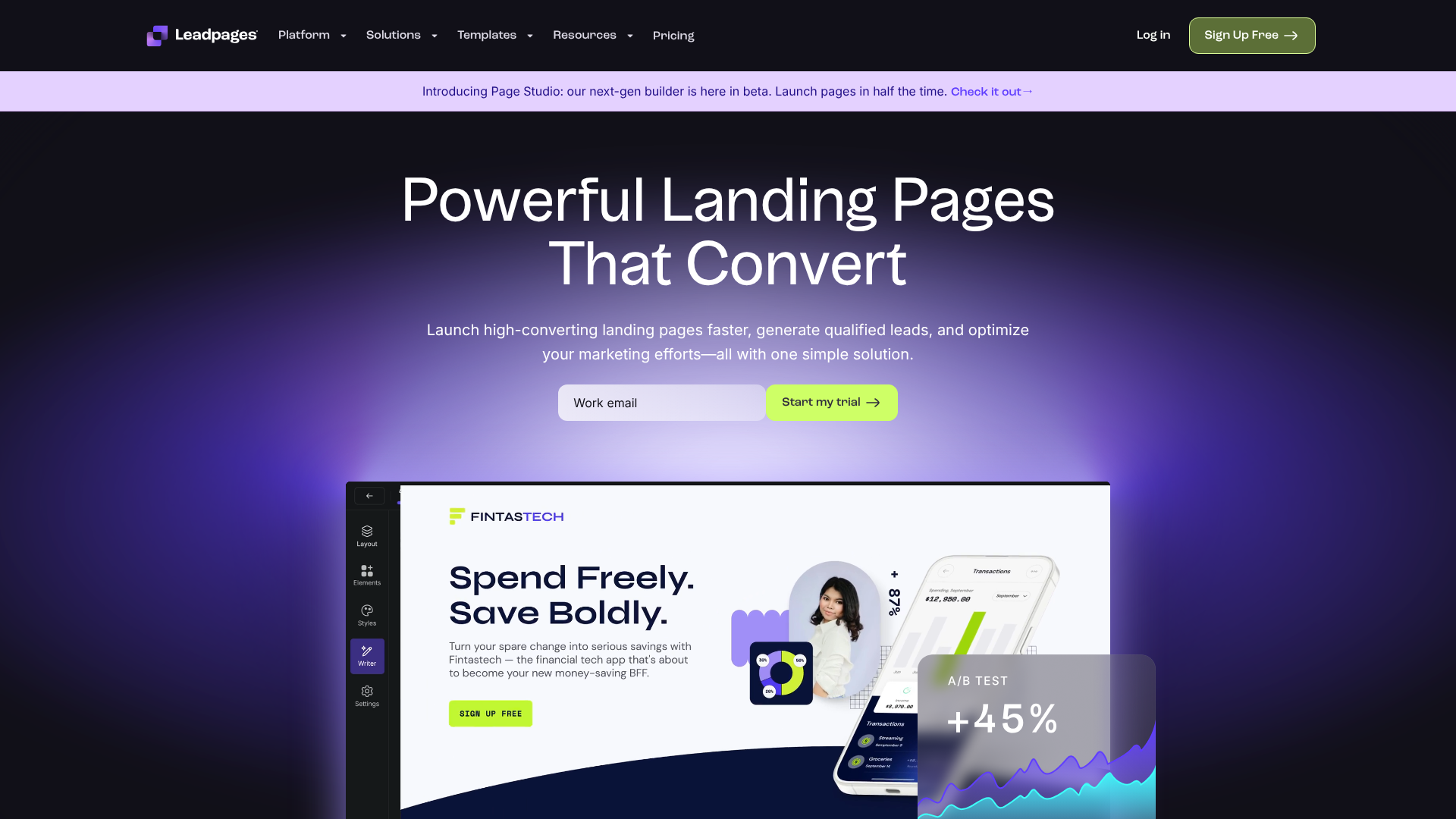
The connection is established using a Mailchimp API key, which acts as a secure password, authorising Leadpages to communicate with your Mailchimp account. Once authorised, you can configure the integration on a per-form basis, deciding exactly which Mailchimp audience and which segments (tags or groups) each new lead should be added to. This level of control makes the mailchimp leadpages connection a powerful tool for organising your email marketing efforts from the point of capture.
Key Benefits of Connecting Leadpages to Mailchimp
Connecting your lead generation efforts with your email marketing platform is fundamental to a successful digital strategy. The direct integration between Leadpages and Mailchimp offers several significant advantages that streamline your workflow and improve your marketing effectiveness.
1. Complete Automation and Time Savings
This is the most immediate benefit. The automated transfer of leads saves countless hours of administrative work. Instead of dealing with spreadsheets, you can focus on creating compelling landing pages and email campaigns. This automation runs 24/7, ensuring no lead is ever missed or delayed, whether they sign up at 3 PM or 3 AM.
2. Immediate Lead Nurturing
Speed is critical in lead nurturing. The integration allows you to trigger Mailchimp's automation workflows the moment a subscriber joins your list. You can send an instant welcome email, deliver a lead magnet (like an ebook or checklist), or start a multi-part email course. This immediate follow-up capitalises on the subscriber's initial interest, leading to higher open rates and better engagement.
3. Enhanced Segmentation from the Start
The integration isn't just about transferring emails; it's about transferring smart data. You can configure your Leadpages forms to apply specific tags or add subscribers to groups in Mailchimp. For example, a form for a "Beginner's Guide to SEO" could automatically tag subscribers with "SEO-Beginner". This allows you to send highly targeted, relevant content from the very first email, increasing its impact.
4. Improved Data Accuracy
Manual data entry is a recipe for typos, formatting errors, and forgotten uploads. Automating the process ensures that the data entered by the user is the exact data that appears in your Mailchimp account. This maintains the integrity of your email list and improves the deliverability and personalisation of your campaigns.
5. Centralised Lead Management
By funnelling all leads from various Leadpages assets (different landing pages, multiple pop-ups) into your organised Mailchimp account, you create a single source of truth for your subscriber data. This makes it easier to track list growth, analyse subscriber behaviour, and manage your overall email marketing strategy without having to check multiple platforms.
Before You Begin: Prerequisites for the Integration
Before you start the leadpages mailchimp setup, it's important to have a few things in place to ensure the process is smooth and successful. Taking a moment to gather these items will prevent interruptions and help you complete the connection quickly.
Here’s a simple checklist of what you’ll need:
An Active Leadpages Account: The integration is available on all Leadpages plans, including Standard, Pro, and Advanced. You will need your login credentials to access the integration settings.
An Active Mailchimp Account: You need a Mailchimp account to connect to. While you can connect a free Mailchimp plan, some advanced features like multi-step automations are only available on paid plans. Ensure you have your Mailchimp login details handy.
Admin-Level Permissions: You must have administrator or owner-level permissions in both your Leadpages and Mailchimp accounts. These permission levels are required to access the integrations area in Leadpages and to generate an API key in Mailchimp.
An Existing Mailchimp Audience: You need at least one audience (list) created in Mailchimp where your new leads will be sent. It's a good practice to name your audience something descriptive, like "Website Newsletter Subscribers" or "Ebook Downloads", so you can easily identify it during the setup process.
Once you have these four items ready, you're prepared to begin the integration. The entire process is handled within the Leadpages user interface, so you won't need any special software or technical skills to complete it.
The Step-by-Step Guide to Integrate Leadpages with Mailchimp
Connecting Leadpages to Mailchimp is a straightforward process that doesn't require any code. Follow these steps carefully to establish a reliable connection and start automating your lead flow. We'll walk through finding your API key, making the connection, and linking your first form.
Step 1: Finding Your Mailchimp API Key
The API key is a unique code that allows Leadpages to securely access your Mailchimp account. Think of it as a special password just for integrations.
- Log in to your Mailchimp account.
- Click on your profile icon in the bottom-left corner and select "Account & billing".
- Navigate to the "Extras" dropdown menu and click on "API keys".
- If you have an existing API key, you can copy it. If not, click the "Create A Key" button.
- Mailchimp will generate a long string of letters and numbers. Give this key a descriptive label, such as "Leadpages Integration", so you remember what it's for. Copy the entire API key to your clipboard.
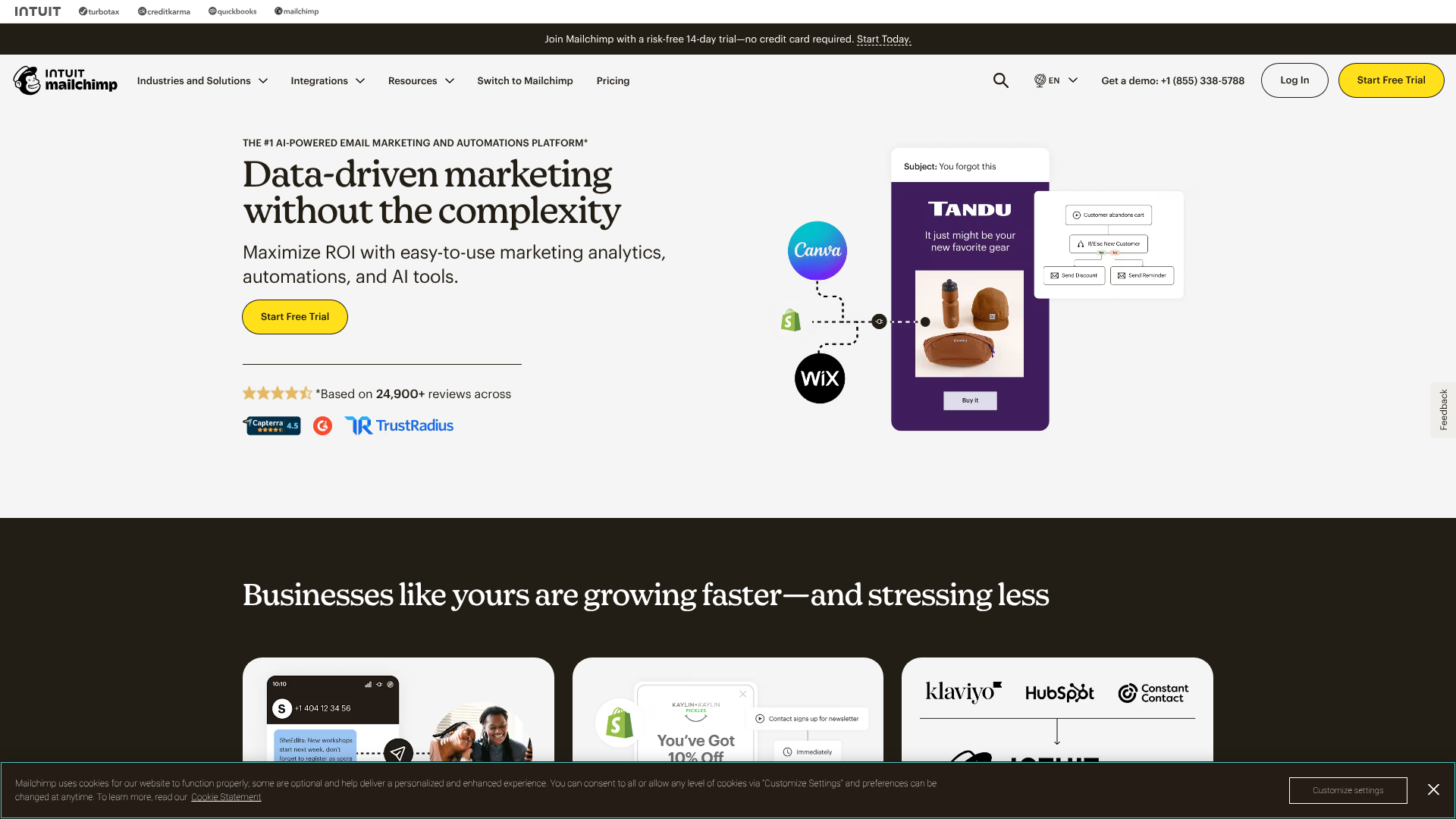
Step 2: Connecting Mailchimp in Your Leadpages Account
Now, you'll use the API key you just copied to link the two platforms inside Leadpages.
- Log in to your Leadpages account.
- In the left-hand navigation menu, click on "Integrations".
- You will see a list of available integration partners. Find Mailchimp in the list or use the search bar at the top.
- Click on the Mailchimp icon. A window will appear asking for your Mailchimp API Key.
- Paste the API key you copied from Mailchimp into the provided field and click "Connect".
Leadpages will verify the key. Once successful, you'll see a green checkmark or a connected status next to the Mailchimp logo, indicating the accounts are now linked at the account level.
Step 3: Linking a Specific Form to a Mailchimp Audience
With the accounts connected, you now need to tell each individual Leadpages form where to send its leads.
- Open the Leadpages builder for the landing page, site, pop-up, or alert bar you want to connect.
- Click on your form widget to open its settings. You should see an "Integrations" tab or button. Click on it.
- Click "Add an Integration" and select Mailchimp from the list of your connected integrations.
- A new set of options will appear. In the "Send lead to…" dropdown, select the Mailchimp audience you want to send subscribers to.
- After selecting the audience, click "Next". This is where you will map your form fields.
Step 4: Mapping Form Fields for Richer Data
Field mapping tells Leadpages which information from your form should go into which field in Mailchimp.
- On the field mapping screen, you'll see your Leadpages form fields on the left and dropdowns for your Mailchimp fields on the right.
- For the standard email field, ensure it is mapped to the "Email Address" field in Mailchimp. This is usually done automatically.
- If you have other fields, like "First Name" or "Phone Number", map them to the corresponding fields in Mailchimp. If a field doesn't exist in Mailchimp yet, you may need to create it first in your Mailchimp audience settings.
- Once all fields are mapped correctly, click "Next" or "Save".
Step 5: Using Tags and Groups for Advanced Segmentation
This optional but powerful step helps you organise your subscribers automatically.
- After mapping fields, you may see options to add subscribers to Groups or apply Tags.
- Groups: If you have predefined groups in your Mailchimp audience (e.g., for interests like "Marketing" or "Sales"), you can choose to have subscribers from this form automatically added to one or more of those groups.
- Tags: You can specify one or more tags to be applied to every subscriber from this form. For example, you could add the tag
ebook-download-2026to track the source of the lead.
Step 6: Testing the Mailchimp Leadpages Connection
Finally, always test your form to make sure everything is working as expected.
- Save and publish your Leadpages asset.
- Open the live page and fill out the form with test information (e.g., use a secondary email address you have access to).
- Log in to your Mailchimp account, navigate to the correct audience, and check if the test contact has been added. Verify that their name is correct and any tags or groups you set have been applied.
If the test contact appears correctly, your integration is complete and working perfectly.
Advanced Strategies and Best Practices

Once you've mastered the basic leadpages mailchimp setup, you can implement more advanced strategies to get even more value from the connection. These best practices help improve list quality, deepen your understanding of subscribers, and create a better experience for your new leads.
Leveraging Double Opt-In
Mailchimp's double opt-in feature requires subscribers to confirm their email address by clicking a link in a confirmation email. While single opt-in (where subscribers are added instantly) can lead to faster list growth, double opt-in has significant advantages.
- Improved List Quality: It ensures that the email address provided is valid, active, and owned by the person who subscribed. This reduces bounce rates and keeps your list clean.
- Higher Engagement: Subscribers who take the extra step to confirm are generally more engaged and more likely to open your future emails.
- GDPR and Compliance: In many regions, double opt-in is a best practice for demonstrating clear consent, helping with compliance regulations like GDPR.
You can enable double opt-in for any Mailchimp audience within your Mailchimp settings. When a Leadpages form is connected to an audience with double opt-in enabled, Mailchimp will automatically handle sending the confirmation email.
Pro Tip: Customise your double opt-in confirmation email and thank you page in Mailchimp. Instead of the generic message, use it as another opportunity to reinforce your brand and set expectations for the content they will receive.
Using Hidden Fields for Deeper Segmentation
Hidden fields are a powerful tool for tracking lead sources without cluttering your form. A hidden field is part of your form, but it's not visible to the user. You can pre-populate it with specific information, which is then passed to Mailchimp along with the user's visible entries.
For example, you could create a hidden field called "LeadSource". On a landing page promoted via Facebook Ads, you could set the value of this field to "Facebook-Ad-Campaign-X". When the lead arrives in Mailchimp, this data is saved with their contact record. This allows you to track the ROI of different marketing channels and campaigns with precision.
You can set up hidden fields within the Leadpages form builder and map them to a corresponding text field in Mailchimp.
Creating a Welcome Automation in Mailchimp
Your first email is your best chance to make a great impression. Don't just let new subscribers sit on your list. Use Mailchimp's automation features to create a welcome sequence that triggers as soon as they join via your Leadpages form.
Your welcome automation could include:
- An Immediate Welcome Email: Delivers the promised lead magnet, thanks them for subscribing, and introduces your brand.
- A Follow-Up Email (2-3 days later): Shares your most popular content or a helpful tip related to the topic they subscribed for.
- A Third Email (5-7 days later): Asks a question to encourage a reply or introduces a low-cost product or service.
This automated sequence nurtures the relationship from the very beginning, building trust and moving subscribers further down your marketing funnel without any manual effort after the initial setup.
Understanding the Costs: Leadpages and Mailchimp Pricing
When considering the leadpages integration with mailchimp, it's important to understand the costs associated with both platforms. The integration itself is free—there is no extra charge from Leadpages or Mailchimp to connect the two services. However, your access to features on both platforms depends on the subscription plans you choose.
Leadpages Pricing Tiers
Leadpages offers several pricing plans, typically a Standard and a Pro plan. The ability to integrate with email service providers like Mailchimp is a core feature and is available on all plans.
- Standard Plan: This entry-level plan is perfect for small businesses and solopreneurs. It includes the ability to create one site, landing pages, pop-ups, alert bars, and comes with free hosting. It fully supports the Mailchimp integration.
- Pro Plan: This plan adds features like online sales and payments, unlimited A/B split testing, and email trigger links. These features can complement your Mailchimp strategy, for example, by split testing landing pages to see which one generates more qualified subscribers.
For the most current pricing, it's always best to visit the official Leadpages pricing page, as plans and features can change.
Mailchimp Pricing Tiers
Mailchimp's pricing is primarily based on the number of contacts in your audience and the level of features you need. They offer a range of plans:
- Free Plan: This plan is great for beginners and allows up to 500 contacts and 1,000 email sends per month. You can connect it to Leadpages, but it has limitations on automation and support.
- Essentials Plan: This is a paid plan that offers more contacts, A/B testing, and removes Mailchimp branding from your emails. It's a good starting point for growing businesses.
- Standard Plan: This plan unlocks more powerful automation features, like multi-step customer journeys and send-time optimisation, which are ideal for nurturing leads from Leadpages effectively.
- Premium Plan: Aimed at larger teams, this plan offers advanced segmentation, multivariate testing, and dedicated support.
Again, you should always check Mailchimp's official website for the latest pricing details, as costs scale with your contact count.
So, Is the Integration Free?
Yes, the act of connecting the two platforms is free. You are only paying for your respective Leadpages and Mailchimp subscriptions. A business could potentially start with a Standard Leadpages plan and a Free Mailchimp plan, making the initial cost of this automated setup quite low. As your list grows and your marketing needs become more sophisticated, you would then upgrade your Mailchimp plan accordingly.
Pros and Cons of the Native Integration
While the native mailchimp leadpages connection is powerful and convenient, it's helpful to look at its strengths and weaknesses to understand if it's the right fit for your specific needs. Here's a balanced overview.
Pros
- Extremely Easy to Set Up: The primary advantage is its simplicity. You don't need to be a developer or use a third-party tool. The entire setup is handled with a few clicks inside the Leadpages dashboard.
- Reliable and Stable: Because it's a native, officially supported integration, it's generally very reliable. The connection is maintained by Leadpages, ensuring it stays up-to-date with any changes to Mailchimp's API.
- Instant Data Transfer: Leads are sent to Mailchimp in real-time. This immediacy is crucial for triggering time-sensitive automations and delivering lead magnets without delay.
- Supports Key Features: The integration supports the most important functions needed for effective email marketing, including mapping custom fields, adding tags, and assigning subscribers to groups.
Cons
- Limited Conditional Logic: The integration is direct and straightforward. It cannot perform complex conditional actions. For example, you can't set up a rule like, "If a user checks this box, add Tag A; if they don't, add Tag B." All subscribers from one form receive the same tags and are added to the same groups.
- One-Way Sync Only: The data flows in one direction: from Leadpages to Mailchimp. The integration cannot update a Leadpages form based on data from Mailchimp. It is purely for lead capture and transfer.
- Dependent on a Single Trigger: The integration triggers only when a form is submitted. It cannot trigger based on other actions, such as a page visit or a button click (unless that button opens a form).
For most users, the pros far outweigh the cons. The native integration handles the essential task of getting leads from your landing page into your email system efficiently and reliably. If your needs are more complex and require conditional logic, you might need to explore an alternative like Zapier.
Troubleshooting Common Integration Issues
Even with a simple setup, you might occasionally run into issues. Most problems with the leadpages integration with mailchimp are easy to fix. Here are some of the most common issues and how to resolve them.
Leads Not Appearing in Mailchimp
This is the most frequent problem. If you've tested your form and the lead isn't showing up in your Mailchimp audience, try these steps:
- Check the Double Opt-In Setting: If your Mailchimp audience has double opt-in enabled, the subscriber will not appear on your list until they have clicked the confirmation link in their email. Check your test email account's inbox (and spam folder) for the confirmation email.
- Re-check Field Mapping: Go back to the form's integration settings in Leadpages. Ensure that the email field in your form is correctly mapped to the "Email Address" field in Mailchimp. An incorrect mapping here will cause the sync to fail.
- Refresh the Integration: Sometimes the connection needs a refresh. In Leadpages, go to the integration settings for your form, click the "Refresh list" or similar button to pull the latest data from your Mailchimp account. Save the form again.
Incorrect Audience or Tags
If leads are appearing but are in the wrong audience or don't have the correct tags, the issue is almost always in the form-level settings.
- Edit the Specific Form: Remember that each form's integration is configured individually. Open the specific Leadpages asset (page or pop-up) where the issue is occurring. Click into the form's integration settings and verify that you have selected the correct Mailchimp audience, groups, and tags. It's easy to duplicate a page and forget to update the new form's settings.
API Key Connection Errors
If Leadpages shows an error when you first try to connect your account, or if the integration suddenly stops working for all forms, the problem might be with the API key.
- Verify the API Key: Go back to the API Keys section in your Mailchimp account. Ensure the key is still active and hasn't been deleted. Copy it again and paste it into the Leadpages integration settings to make sure there were no typos or extra spaces.
- Generate a New Key: If you suspect the key has been compromised or is corrupted, you can disable the old key in Mailchimp and generate a new one. Then, update the API key in your Leadpages account settings.
Pro Tip: When troubleshooting, always publish your changes in Leadpages after making an adjustment. Then, test the live form using a new, unique email address to ensure you're seeing the results of your fix.
Frequently Asked Questions
Here are answers to some of the most common questions people have about using Leadpages and its integration with Mailchimp.
What do Leadpages integrate with?
Leadpages offers a wide range of native integrations beyond just Mailchimp. It connects with most major email service providers like ActiveCampaign, ConvertKit, and GetResponse. It also integrates with webinar platforms like WebinarGeek, CRM systems, and analytics tools like Google Analytics. For anything not covered by a native integration, Leadpages can connect to thousands of other apps through Zapier.
What are the disadvantages of Mailchimp?
While Mailchimp is very popular, it has some disadvantages. Its pricing can become expensive as your contact list grows, especially compared to some competitors. The automation features on the lower-tiered plans are quite basic. Additionally, some users find the audience-based structure (where contacts in different audiences are counted as separate subscribers) can be confusing and costly if not managed carefully.
Is Leadpages worth the money?
For most businesses focused on lead generation, Leadpages is absolutely worth the investment. Its drag-and-drop builder is incredibly user-friendly, allowing you to create high-converting landing pages quickly without needing a designer or developer. The platform is optimised for conversions, with features like A/B testing and fast-loading pages. When you consider the cost of custom web development, Leadpages provides significant value.
Can Leadpages replace a website?
Yes, for many businesses, it can. With the Leadpages Site Builder, you can create a full, multi-page website with a homepage, about page, contact page, and blog. This is an excellent option for service businesses, coaches, consultants, and anyone whose primary goal is to generate leads and showcase their offerings. If you require complex e-commerce functionality or a member portal, a more traditional platform like WordPress or Shopify might be a better fit.
Is there a better option than Mailchimp?
"Better" depends on your specific needs. For beginners, Mailchimp's user-friendly interface is hard to beat. However, for users who need more advanced automation and segmentation at a competitive price, platforms like ActiveCampaign or ConvertKit are often considered superior. ConvertKit is particularly popular with creators and bloggers, while ActiveCampaign offers powerful CRM and automation capabilities for small to medium-sized businesses.
Which platform is best for lead generation?
Leadpages is widely regarded as one of the best platforms specifically for lead generation. Its entire feature set is built around creating and optimising landing pages, pop-ups, and other assets designed to capture contact information. While other platforms like Unbounce and Instapage are also strong competitors, Leadpages offers a great balance of features, ease of use, and affordability, making it a top choice.
Final Thoughts
Automating the flow of leads from your capture point to your nurturing system is not just a convenience; it's a critical component of a modern marketing strategy. The leadpages integration with mailchimp provides a simple, reliable, and powerful way to build this bridge. By following the steps outlined in this guide, you can eliminate manual data entry, engage new leads instantly, and segment your audience for more effective communication.
Taking the time to set up this connection properly will pay dividends in the long run, freeing you up to focus on what truly matters: creating valuable content and building relationships with your audience. Whether you're just starting out or looking to optimise your existing workflow, this integration is a foundational step towards a more efficient and successful marketing funnel.
If you're ready to start building high-converting landing pages and automating your lead management, explore what Leadpages has to offer. Its intuitive platform and seamless integrations provide the tools you need to grow your business.