
How to Set Up Leadpages Integration with Mailchimp: A Beginner's Guide
Manually exporting leads from your landing pages and importing them into your email marketing platform is a time-consuming task that can lead to errors and delays. By setting up a leadpages integration with mailchimp, you can completely automate this process, ensuring new subscribers are added to your audience in real-time. This direct connection is essential for efficient lead nurturing and rapid list growth.
- What You'll Learn
- What is the Leadpages Integration with Mailchimp?
- Key Benefits of Connecting Leadpages and Mailchimp
- Fully Automated List Growth
- Immediate Lead Nurturing
- Powerful Audience Segmentation
- Significant Time and Resource Savings
- Before You Begin: Prerequisites for the Mailchimp Leadpages Setup
- How to Integrate Leadpages with Mailchimp: A Step-by-Step Guide
- Advanced Tips for Your Leadpages and Mailchimp Connection
- Use Hidden Fields for Deeper Insights
- Leverage Mailchimp's Double Opt-In
- Create Unique Thank You Pages
- Pricing and Cost Considerations
- Pros and Cons of the Native Integration
- Frequently Asked Questions (FAQ)
- Can I connect one Leadpages form to multiple Mailchimp audiences?
- Does the integration support Mailchimp tags and groups?
- What happens if I change my Mailchimp password?
- Can I use this integration with a free Mailchimp account?
- How do I disconnect Mailchimp from Leadpages?
- Final Thoughts
This guide will walk you through every step of the process, from connecting your accounts to mapping form fields and testing the connection. We'll cover the key benefits, prerequisites, and even some advanced tips to help you get the most out of this powerful combination. Whether you're a small business owner or a seasoned marketer, this integration will streamline your workflow.
What You'll Learn
- Direct Connection: The native integration automatically sends new leads from your Leadpages forms, pop-ups, and alert bars directly to a specified Mailchimp audience.
- Workflow Automation: Connecting the two platforms automates your list-building efforts, saving you significant time and eliminating the need for manual data entry.
- Enhanced Data Mapping: You can map custom form fields from Leadpages to corresponding fields in Mailchimp, allowing you to collect richer data for better segmentation.
- Code-Free Setup: The entire Mailchimp leadpages setup is completed within the Leadpages dashboard and requires no coding knowledge, making it accessible for all users.
What is the Leadpages Integration with Mailchimp?
The Leadpages integration with Mailchimp is a direct, native connection between the two platforms. It acts as a digital bridge, allowing data to flow automatically from one service to the other. When a visitor fills out a form on your Leadpages landing page, pop-up, or website, their information is instantly and securely sent to your Mailchimp account.
This process eliminates the need for manual workarounds like downloading CSV files of your new leads and then uploading them into Mailchimp. Instead, the integration works silently in the background. As soon as a user clicks 'submit' on your form, their email address, name, and any other information you've collected are added to the Mailchimp audience you designated.
This real-time transfer is crucial for modern marketing. It means you can trigger Mailchimp's automated welcome emails, deliver lead magnets, or start a nurturing sequence the moment a user shows interest. This immediate engagement is far more effective than a delayed follow-up and provides a much better experience for your new subscribers.
Key Benefits of Connecting Leadpages and Mailchimp
Connecting your lead generation tool directly to your email marketing platform offers more than just convenience. It creates a more efficient and effective marketing system. Here are the core benefits you'll gain when you integrate leadpages with Mailchimp.
Fully Automated List Growth
This is the most significant advantage. Once the integration is active, your email list grows on autopilot. Every lead captured through your high-converting Leadpages assets is automatically added to Mailchimp. You can focus your energy on driving traffic to your landing pages, confident that the backend process is completely handled.
Immediate Lead Nurturing
Speed is critical in email marketing. The integration allows you to capitalise on a new lead's interest immediately. You can configure Mailchimp to send a welcome email, deliver a requested PDF, or start a multi-day email course the instant a new subscriber is added. This immediate follow-up boosts engagement and builds a stronger relationship from the start.
Powerful Audience Segmentation
You can connect different Leadpages forms to different Mailchimp audiences or apply specific tags. For example, leads who download an ebook can be tagged 'ebook-lead', while webinar registrants are tagged 'webinar-lead'. This allows you to send highly targeted and relevant campaigns, which dramatically improves open rates and conversions.
Significant Time and Resource Savings
Consider the time spent each week or month on manual list management. Exporting, cleaning, and importing data is tedious and prone to human error. Automating this task frees up valuable hours that you can reinvest into more strategic activities like content creation, campaign analysis, or customer research.
Before You Begin: Prerequisites for the Mailchimp Leadpages Setup
Before you start the integration process, it's helpful to have a few things in place. Ensuring these prerequisites are met will make the setup smooth and quick. You won't need any technical skills, just access to your accounts.
Here’s a simple checklist of what you'll need:
- An Active Leadpages Account: You must have a subscription to Leadpages. The good news is that the Mailchimp integration is available on all plans, including the Standard and Pro tiers.
- An Active Mailchimp Account: You'll also need a Mailchimp account. The integration works perfectly with both free and paid Mailchimp plans.
- A Mailchimp Audience: Inside your Mailchimp account, you need at least one 'Audience' (this is what Mailchimp used to call a 'List'). This is the destination where your new leads will be stored.
- A Leadpages Asset with a Form: You need something in Leadpages to connect, such as a published landing page, a pop-up, or an alert bar that contains a form widget. This is the source of your leads.
Having these four items ready will allow you to complete the leadpages Mailchimp connect process in just a few minutes without any interruptions.
How to Integrate Leadpages with Mailchimp: A Step-by-Step Guide
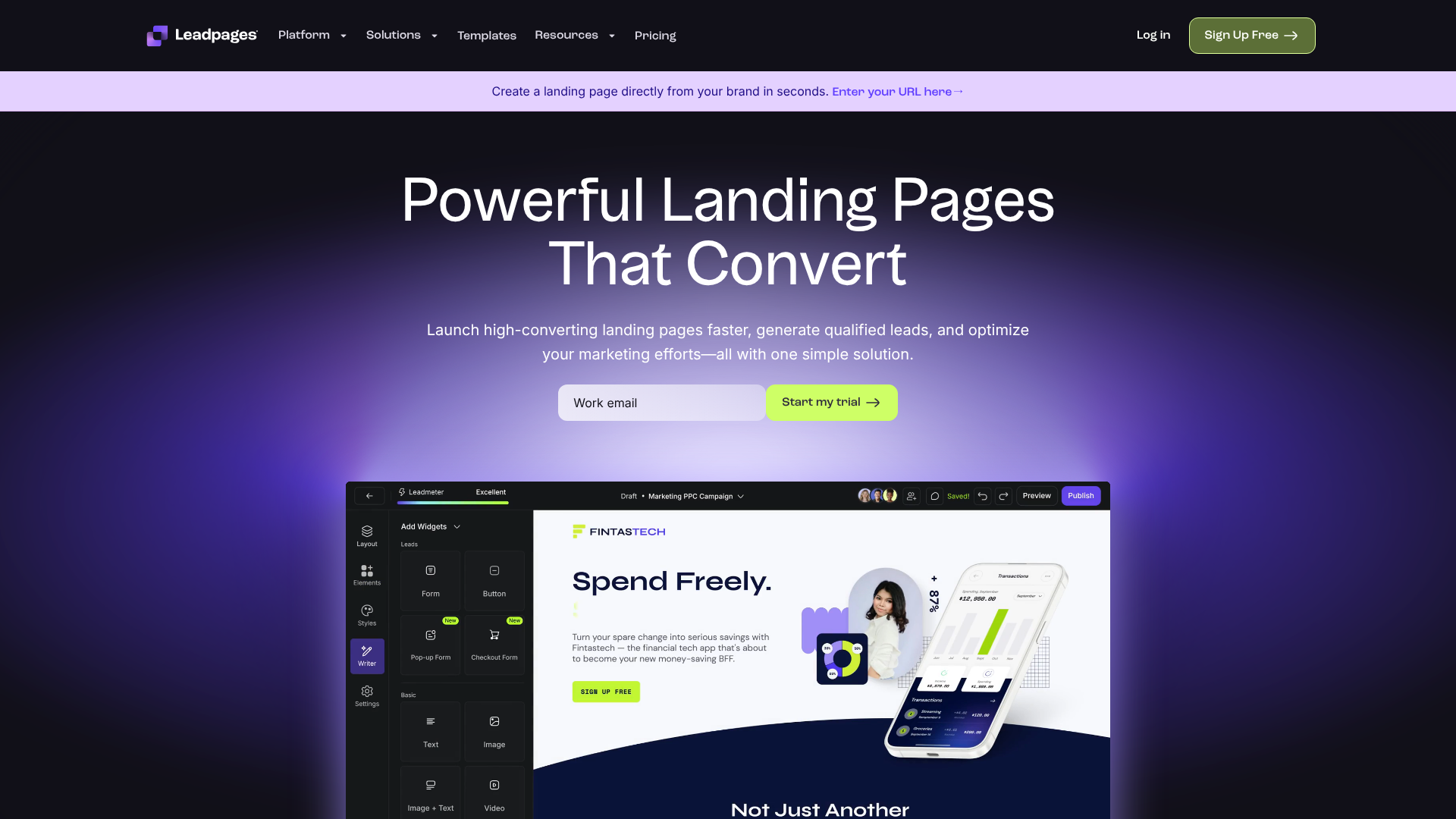
Connecting your accounts is a straightforward process that you can complete directly within your Leadpages dashboard. Follow these steps carefully to ensure a successful connection. We’ve broken it down into two main parts: the initial account connection and then linking a specific form.
Part 1: Connecting Your Accounts
- Navigate to Integrations: Log in to your Leadpages account. In the left-hand navigation menu, click on the 'Integrations' section.
- Find and Select Mailchimp: You will see a list of available integration partners. Scroll through the list or use the search bar to find Mailchimp and click on it.
- Authorise the Connection: A pop-up window will appear prompting you to log in to your Mailchimp account. Enter your Mailchimp username and password, then click 'Log In'. You will then be asked to grant Leadpages permission to access your account. Click 'Allow' to complete the authorisation.
Once authorised, you will see a confirmation message, and Mailchimp will appear in your list of active integrations. Now you're ready to connect your forms.
Part 2: Linking a Form to a Mailchimp Audience
- Open Your Leadpages Editor: Go to the landing page, pop-up, or site where your form is located and open it in the Leadpages editor.
- Select Your Form: Click directly on the form widget on your page. This will open the form settings in the left-hand sidebar.
- Add an Integration: In the form settings, click on the 'Integrations' tab. Then, click the '+ Add an Integration' button.
- Choose Mailchimp: A dropdown menu will appear. Select 'Mailchimp' from the list of available integrations.
- Select Your Audience: In the next dropdown, you will see a list of all the Audiences in your connected Mailchimp account. Choose the specific Audience where you want to send the new leads from this form.
- Apply Tags (Optional but Recommended): You can now add one or more tags to be applied to every new subscriber coming from this form. This is excellent for segmentation. For example, you could add a tag like
free-guide-download. - Map Your Form Fields: This is a critical step. You need to tell Leadpages which form field corresponds to which Mailchimp field. For example, map the 'Email' field in Leadpages to the 'Email Address' field in Mailchimp. Do the same for 'First Name' and any other custom fields you've created.
- Save and Update: Once you've finished mapping your fields, click 'Done'. Then, be sure to click the 'Save' button in the form settings and finally, click the 'Update' button in the top-right corner of the editor to publish your changes.
- Test Your Form: Always test your integration. Go to the live URL of your page, fill out the form with test information, and check your Mailchimp audience to confirm the new contact was added correctly with the right tags.
Pro Tip: When testing, use an email address that is not already in your Mailchimp audience. This ensures you are testing the 'new subscriber' workflow accurately. Using a variation of your own email, like yourname+test1[[@gmail](https://[twitter](https://twitter.com/gmail).com/gmail).com](https://www.(https://www.instagram.com/gmail.com/).com/gmail.com/), works perfectly for this.
Advanced Tips for Your Leadpages and Mailchimp Connection
Once you've mastered the basic setup, you can use a few advanced strategies to make the integration even more powerful. These tips will help you improve your segmentation, data quality, and overall marketing effectiveness.
Use Hidden Fields for Deeper Insights
Hidden fields are a powerful feature in Leadpages forms. You can use them to pass static information to Mailchimp without the user needing to fill anything in. For example, you could create a hidden field called 'Lead Source' and set its value to 'Summer Campaign Landing Page'.
When you map this hidden field to a corresponding text field in Mailchimp, every lead from that page will be automatically categorised. This gives you granular data on which campaigns and pages are performing best, allowing you to make smarter marketing decisions.
Leverage Mailchimp's Double Opt-In
To ensure a high-quality email list and comply with regulations in some regions, you might want to enable double opt-in. This setting is managed within your Mailchimp Audience settings, not in Leadpages. When enabled, any new subscriber added via the Leadpages integration will receive a confirmation email from Mailchimp.
They must click the link in that email to be officially added to your audience. While this can add an extra step for the user, it results in a more engaged list and better email deliverability in the long run. Decide if this trade-off is right for your business.
Create Unique Thank You Pages
Instead of just showing a generic success message, configure your Leadpages form to redirect users to a custom 'Thank You' page after they subscribe. This page is a valuable marketing opportunity. You can use it to:
- Tell new subscribers what to expect next (e.g., "Check your inbox for the download link!").
- Offer a low-cost tripwire product or an exclusive discount.
- Invite them to follow you on social media or join a community.
This simple step turns a transactional moment into a relationship-building opportunity, all powered by the seamless integration.
Pricing and Cost Considerations
One of the best aspects of the native leadpages integration with mailchimp is that there is no additional cost for the connection itself. The ability to integrate is included in your subscriptions for both platforms.
For Leadpages, the integration is available on all of their paid plans, which typically include a Standard and a Pro plan. You don't need to be on a higher-tier plan to access this functionality. For the most current pricing and feature breakdown, it's always best to visit the official Leadpages website.
On the Mailchimp side, the integration works with all account levels, including their free plan. However, the primary cost consideration is tied to your list size. As your Leadpages forms successfully capture more leads, your Mailchimp audience will grow. Mailchimp's pricing is based on the number of contacts in your audiences, so as you cross certain thresholds, you may need to upgrade your Mailchimp plan.
This is a good problem to have, as it means your marketing efforts are working.
Pros and Cons of the Native Integration
While the direct integration is powerful and suitable for most users, it's helpful to understand its strengths and limitations. This allows you to decide if it meets all of your needs or if you might require a more advanced solution in the future.
Pros
- No Extra Cost: The feature is built-in and included with your Leadpages and Mailchimp subscriptions. You don't need to pay for a third-party service to connect them.
- Simple and Fast Setup: The entire process takes only a few minutes and is handled through a user-friendly interface. No API keys to copy and paste, and no code is required.
- Reliable and Supported: Because it's a native integration, it's officially supported by Leadpages. It's generally very stable and reliable for its core purpose of adding new subscribers.
- Real-Time Data Transfer: Leads are sent to Mailchimp instantly, enabling immediate automated follow-ups and improving the new subscriber experience.
Cons
- Limited Functionality: The integration is designed to do one thing well: add new contacts to an audience. It lacks the complex conditional logic that a tool like Zapier might offer (e.g., "if a user checks this box, add them to Audience A; otherwise, add them to Audience B").
- No Contact Updating: The native integration cannot update existing contacts in Mailchimp with new information. If a current subscriber fills out a form, their existing record in Mailchimp will not be changed.
- One-Way Sync: The data flows in one direction only: from Leadpages to Mailchimp. It cannot pull information from Mailchimp back into Leadpages.
Pro Tip: If you find you need more advanced logic, such as updating existing contacts or triggering complex workflows across multiple apps, a tool like Zapier can be used as a 'middleman'. However, for 90% of users, the direct native integration is the perfect solution.
Frequently Asked Questions (FAQ)
Here are answers to some of the most common questions about the Leadpages and Mailchimp integration.
Can I connect one Leadpages form to multiple Mailchimp audiences?
No, each individual form in Leadpages can only be connected to one specific Mailchimp audience. If you need to send leads to different audiences, you would need to create separate forms on different pages or pop-ups, each linked to its respective audience.
Does the integration support Mailchimp tags and groups?
The integration fully supports Mailchimp tags, which is the platform's modern and flexible way to segment contacts. You can specify which tags should be applied to new subscribers directly within the Leadpages form settings. Support for Mailchimp's older 'Groups' feature is limited, so using tags is the recommended approach.
What happens if I change my Mailchimp password?
If you change your Mailchimp password, it will invalidate the authorisation token that Leadpages uses to connect to your account. Your integration will stop working. To fix this, you'll need to go back to the 'Integrations' section in Leadpages, disconnect Mailchimp, and then reconnect it using your new password.
Can I use this integration with a free Mailchimp account?
Yes, absolutely. The integration works perfectly with Mailchimp's free plan. You can connect your Leadpages account and send leads to your Mailchimp audience without needing a paid Mailchimp subscription, as long as you stay within the limits of the free plan (e.g., number of contacts).
How do I disconnect Mailchimp from Leadpages?
To disconnect the two accounts, simply log in to Leadpages and navigate to the 'Integrations' section from the main menu. Find Mailchimp in your list of connected apps and click the 'Disconnect' button. This will revoke Leadpages' access to your Mailchimp account, but it will not affect any leads that have already been sent over.
Final Thoughts
Automating your lead generation workflow is one of the most impactful changes you can make to your marketing strategy. The leadpages integration with mailchimp provides a simple, reliable, and cost-effective way to do just that. By connecting these two best-in-class tools, you eliminate manual data entry, engage new leads instantly, and build a foundation for powerful, segmented email marketing.
The setup process is designed to be accessible to everyone, regardless of technical skill. In just a few clicks, you can ensure that every lead you generate is put to work immediately, nurturing them from a curious visitor into a loyal customer. This efficiency allows you to focus on what truly matters: growing your business.
If you're ready to streamline your marketing and accelerate your list growth, there's no better time to connect your accounts. Get started with Leadpages today and see how a seamless integration can transform your lead management process.