

How to Use Microsoft Project for Construction Scheduling (2026 Guide)
Managing a construction project timeline is a complex puzzle of dependencies, resources, and deadlines. Get one piece wrong, and the entire project can face costly delays. Many firms turn to Microsoft Project for construction scheduling, using its powerful features to map out everything from groundbreaking to final handover. However, as a general project management tool, it requires specific knowledge to adapt it effectively for the unique demands of the building industry.
- What You'll Learn
- Understanding Microsoft Project for Construction Scheduling
- Core Features of Microsoft Project for Builders
- Gantt Charts and Visual Timelines
- Critical Path Method (CPM)
- Resource Management and Allocation
- Cost Tracking and Budgeting
- Step-by-Step: Setting Up Your First Construction Schedule in MS Project
- Step 1: Define Project Information and Calendars
- Step 2: Create Your Work Breakdown Structure (WBS)
- Step 3: Add Tasks and Durations
- Step 4: Link Task Dependencies
- Step 5: Assign Resources and Costs
- Step 6: Identify and Review the Critical Path
- Step 7: Set a Baseline
- Step 8: Track Progress and Update the Schedule
- Choosing the Right Microsoft Project Version
- Pros and Cons: Is MS Project the Best Construction Scheduling Software?
- Top Alternatives and Complements to MS Project for Construction
- BrickControl: The All-in-One Construction Management Solution
- HammerTech: For Safety, Quality, and Site Operations
- Frequently Asked Questions (FAQ)
- Does Microsoft have a construction scheduling tool?
- Can you use MS Project for scheduling?
- Is MS Project being phased out?
- What is MS Project used for in construction?
- What is replacing Microsoft Project?
- Which software is popular for construction scheduling?
- Final Thoughts
This guide provides a step-by-step walkthrough on how to set up and manage your building projects using this software. We'll cover its core features, weigh its pros and cons, and explore how it stacks up against more specialised construction management platforms. Whether you're a project manager, site manager, or small builder, you'll learn how to turn MS Project into a valuable asset for keeping your projects on time and on budget.
What You'll Learn
- MS Project is a Generic Tool: It's a highly capable platform for scheduling but lacks built-in, construction-specific features like RFI or submittal management, requiring careful setup.
- Critical Path is Key: Understanding and identifying the critical path is the most vital function of using Microsoft Project for builders, as it highlights the sequence of tasks that directly impacts the project's completion date.
- Version Choice Matters: The version you choose—Standard, Professional, or the cloud-based Project for the web—significantly affects collaboration capabilities and cost.
- Setup is Everything: A successful construction schedule in MS Project depends on correctly defining calendars, work breakdown structures, and task dependencies from the start.
- Specialised Alternatives Exist: For firms needing more than just scheduling, dedicated construction management software like BrickControl offers an all-in-one solution with industry-specific features.
Understanding Microsoft Project for Construction Scheduling
Microsoft Project is not, by default, a dedicated construction scheduling software. It's a horizontal project management application designed to serve countless industries, from IT to marketing. Its power lies in its flexibility. When configured correctly, it becomes an indispensable tool for planning, executing, and tracking the complex timelines inherent in any building project.
For construction professionals, using MS Project means translating physical work into a digital plan. This involves creating a detailed timeline of every activity, from securing permits and site preparation to installing fixtures and landscaping. Each task is assigned a duration, resources (labour, equipment, materials), and dependencies on other tasks.
The primary goal is to create a realistic and dynamic schedule. This schedule serves as the single source of truth for all stakeholders, including clients, subcontractors, and the internal team. It helps answer critical questions like: "If the concrete pour is delayed by a week, how does that affect the framing start date?" or "Are we on track to meet our completion deadline?"
Core Features of Microsoft Project for Builders
To effectively use MS Project, you need to understand its core components. These features are the building blocks of any robust construction schedule.
Gantt Charts and Visual Timelines
The Gantt chart is the heart of MS Project. It provides a visual, horizontal bar chart representation of your project schedule. Each bar represents a task, and its length corresponds to the task's duration. This visual format makes it easy to see the project's flow, identify overlapping tasks, and understand the overall timeline at a glance.
For builders, this is incredibly intuitive. You can see the entire project lifecycle, from the initial site survey to the final client walkthrough, laid out chronologically. It helps in communicating the plan to team members and clients who may not be familiar with complex scheduling data.
Critical Path Method (CPM)
This is arguably the most important feature for project management for construction. The Critical Path is the longest sequence of dependent tasks that determines the shortest possible duration for the entire project. Any delay in a task on the critical path will directly delay the project's completion date.
MS Project automatically calculates and highlights the critical path based on your task durations and dependencies. This allows project managers to focus their attention on the most crucial activities, ensuring they have the necessary resources and are completed on time. It's the difference between managing proactively and reacting to problems.
Resource Management and Allocation
Construction projects are resource-intensive. You're juggling teams of electricians, plumbers, and carpenters, alongside heavy equipment like cranes and excavators, not to mention a constant flow of materials. MS Project allows you to create a pool of resources and assign them to specific tasks.
The software helps prevent resource over-allocation. For example, it can flag if you've scheduled the same team of electricians to be in two different places at once. This ensures your resource planning is realistic and helps avoid bottlenecks that can bring work to a standstill.
Cost Tracking and Budgeting
Beyond time, MS Project can also manage money. You can assign costs to resources (e.g., hourly rates for labour, purchase costs for materials) and tasks. As the project progresses and you update task completion, the software tracks the actual cost against your budgeted cost.
This provides a real-time view of your project's financial health. You can generate reports to see if you're over or under budget, helping you make informed financial decisions throughout the project lifecycle.
Step-by-Step: Setting Up Your First Construction Schedule in MS Project
Creating a schedule from scratch can seem daunting. Follow these steps to build a solid foundation for your construction project plan.
Step 1: Define Project Information and Calendars
Before adding any tasks, set up the project's framework. Go to the 'Project' tab and select 'Project Information'. Here, you'll enter the project's start date. This is the anchor for your entire schedule.
Next, define your project calendar. Under the 'Project' tab, click 'Change Working Time'. Here you can set standard working hours (e.g., 8 AM to 5 PM, Monday to Friday) and add non-working days like public holidays or planned site closures. This ensures the schedule's calculations are based on actual available work time.
Step 2: Create Your Work Breakdown Structure (WBS)
The WBS is a hierarchical decomposition of the total scope of work. In simple terms, you break the massive project into smaller, more manageable phases or deliverables. These become your summary tasks in MS Project.
A typical construction WBS might look like this:
- 1.0 Pre-Construction
- 2.0 Site Work & Foundation
- 3.0 Superstructure & Framing
- 4.0 Exterior & Roofing
- 5.0 Interior MEP & Finishes
- 6.0 Project Closeout
In MS Project, you'll create these as summary tasks. All subsequent, more detailed tasks will be indented underneath them. A solid WBS, as defined by standards from organisations like the Project Management Institute, is crucial for an organised schedule.
Step 3: Add Tasks and Durations
Under each WBS heading, start listing the individual tasks. Be specific. Instead of just "Foundation," break it down into "Excavate Footings," "Pour Concrete Footings," and "Cure Concrete." For each task, estimate its duration in days.
Don't worry about getting the dates perfect at this stage. Just focus on the list of activities and how long you think each will take. The software will calculate the dates later based on dependencies.
Step 4: Link Task Dependencies
This is where your schedule comes to life. Tasks in construction rarely happen in isolation. You must link them to show their relationships. The most common dependency is 'Finish-to-Start' (FS), meaning Task B cannot start until Task A is finished.
For example, you cannot start 'Install Drywall' until 'Complete Electrical Rough-in' is finished.
Select a task, go to the 'Task' tab, and use the 'Link Tasks' feature to connect it to its predecessor. Properly linking tasks is essential for an accurate critical path calculation.
Step 5: Assign Resources and Costs
With your timeline structured, you can now assign resources. Go to the 'Resource Sheet' view to create your list of labour, equipment, and materials. Assign costs to each, such as hourly rates or per-unit costs.
Switch back to the Gantt Chart view and assign these resources to the tasks that require them. As you do this, MS Project will begin to calculate the total cost of your project.
Pro Tip: Create generic resources first, like 'Electrician' or 'Plumber', instead of specific names. This makes it easier to manage the schedule if team members change. You can assign specific people to the generic roles later.
Step 6: Identify and Review the Critical Path
Once tasks, durations, and dependencies are set, MS Project can show you the critical path. In the 'Gantt Chart Format' tab, simply tick the 'Critical Tasks' checkbox. The tasks on the critical path will typically turn red.
Review this path carefully. Does it make sense? These are the tasks that have zero 'float' or 'slack'—any delay to them directly impacts your finish date. This is where your management focus should be.
Step 7: Set a Baseline
Before the project begins, you must save a snapshot of your initial plan. This is called setting the baseline. Go to the 'Project' tab, select 'Set Baseline', and save it. The baseline stores your original start dates, finish dates, durations, and costs.
This is crucial for tracking performance. As the project progresses, you can compare your actual progress against the baseline to see if you are ahead of or behind schedule and over or under budget. Without a baseline, you have no benchmark for success.
Step 8: Track Progress and Update the Schedule
A schedule is a living document. As work is completed, you need to update it regularly (ideally weekly). For each task, you can enter the 'Actual Start' date, 'Actual Finish' date, or simply update its '% Complete'.
When you update progress, MS Project automatically recalculates the rest of the schedule. This shows you the real-time impact of progress and delays, allowing you to forecast a new completion date and make necessary adjustments.


Choosing the Right Microsoft Project Version
Microsoft offers several versions of Project, and choosing the right one depends on your team size, collaboration needs, and budget.
| Feature | Project Standard | Project Professional | Project for the web (Plan 3/5) |
|---|---|---|---|
| Primary Use | Standalone project management | Full project and resource management | Collaborative, cloud-based management |
| Platform | Desktop (PC only) | Desktop (PC only) | Web browser, Teams integration |
| Collaboration | Limited (share files manually) | Syncs with Project Server/Online | Real-time co-authoring and sharing |
| Resource Management | Basic | Advanced (Resource Engagements) | Centralised resource pool |
| Ideal For | Single project managers, small builders | PMOs, larger firms needing integration | Teams needing remote access and collaboration |
Microsoft Project Standard
This is the entry-level, desktop-based version. It has all the core scheduling features needed to create and manage a detailed project plan. However, it operates as a standalone application, making collaboration difficult. It's best suited for a single scheduler who manages the plan and distributes updates as PDF or static files.
Microsoft Project Professional
This desktop version includes all the features of Standard but adds advanced resource management capabilities and, crucially, the ability to connect to Microsoft Project Server or Project Online. This connection enables better collaboration and centralised project portfolio management, making it a better choice for larger organisations.
Project for the web (Cloud-based Plans)
This is Microsoft's modern, cloud-based solution. It's more user-friendly and designed for team collaboration from the ground up. It integrates directly with Microsoft Teams and offers different subscription tiers (Plan 1, Plan 3, Plan 5) with increasing functionality. This is the best option for teams that are geographically dispersed or need real-time updates and co-authoring.
Pros and Cons: Is MS Project the Best Construction Scheduling Software?
MS Project is a powerful tool, but it's not without its drawbacks. Understanding its strengths and weaknesses is key to deciding if it's the right fit for your company.
The Advantages of Using MS Project
- Industry Standard: It is one of the most widely recognised scheduling tools in the world. Many project managers and schedulers are already trained on it, and many contracts specify its use for submitting schedules.
- Powerful and Flexible: Its ability to handle thousands of tasks, complex dependencies, and detailed resource management makes it suitable for even the largest and most complex construction projects.
- Strong Reporting: It has excellent built-in reporting capabilities, allowing you to create dashboards and visual reports to communicate progress to stakeholders easily.
- Microsoft Ecosystem Integration: It integrates well with other Microsoft products like Excel, SharePoint, and Power BI, which can be a significant advantage for companies already invested in that ecosystem.
The Disadvantages and Limitations
- Steep Learning Curve: MS Project is not intuitive. Unlocking its full potential requires significant training and experience. A novice user can easily create a schedule that looks good but is functionally incorrect.
- Not Construction-Specific: It lacks features that are standard in dedicated construction software. There are no built-in modules for managing daily logs, RFIs, submittals, change orders, or safety documentation.
- Cost: The software can be expensive, especially when you factor in the cost of licenses for multiple team members and the potential need for Project Server/Online for effective collaboration.
- Collaboration Can Be Clunky: While the cloud versions have improved this, collaboration with the traditional desktop versions can be difficult, often relying on manually sending files back and forth, which can lead to version control issues.
Top Alternatives and Complements to MS Project for Construction
While MS Project excels at scheduling, many firms find they need more. Specialised platforms can either replace MS Project or complement it by filling in the gaps.
BrickControl: The All-in-One Construction Management Solution
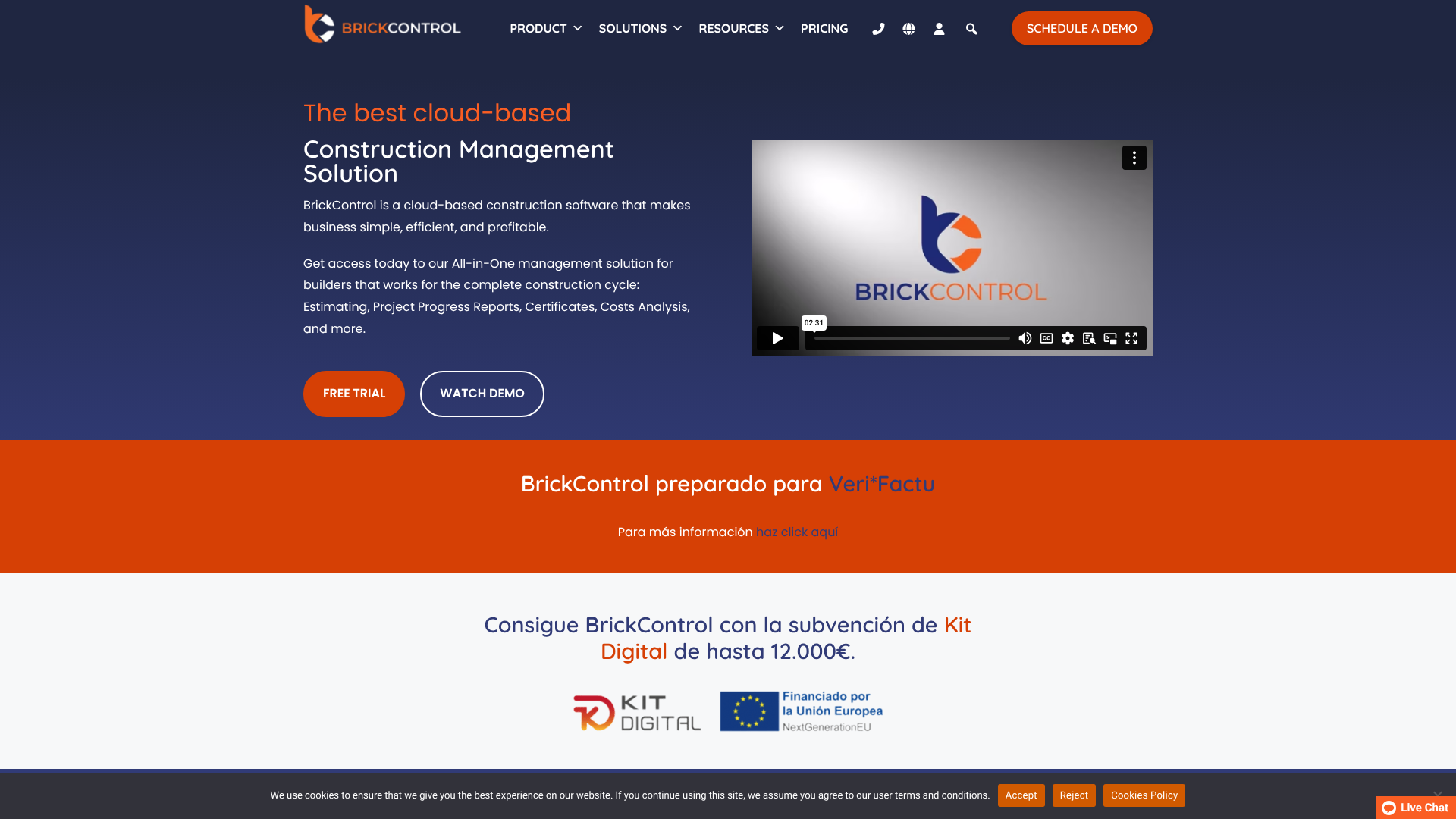
For businesses that find MS Project too generic, BrickControl offers a comprehensive solution built specifically for the construction industry. It goes far beyond scheduling to cover nearly every aspect of managing a construction business.
Instead of just managing a timeline, BrickControl integrates project management with budgeting, estimating, procurement, billing, and warehouse management. This means your schedule is directly linked to your project's financial health. It's designed to be an end-to-end operating system for a construction company, reducing the need to juggle multiple, disconnected software applications.
Pros
- Construction-Specific: Every feature is designed with builders in mind, from managing subcontractors to tracking material costs.
- Fully Integrated: Connects scheduling with financials, procurement, and client management in one platform.
- Improved Collaboration: Cloud-based platform makes it easy for the entire team, from the office to the field, to access the same information.
Cons
- Less Granular Scheduling: May not have the same depth of complex scheduling features (like detailed resource levelling) as a dedicated tool like MS Project or Primavera P6.
HammerTech: For Safety, Quality, and Site Operations

Another approach is to complement MS Project with a tool that handles what it can't: on-site operations. HammerTech is a leading platform for managing safety, quality, and daily field activities. It doesn't replace your scheduler; it enhances it with real-world data.
With HammerTech, site managers and workers can handle safety inductions, complete site inspections, file daily reports, and manage permits directly from a tablet or phone. This information provides a clear picture of what's actually happening on site. Delays due to safety incidents or failed quality inspections can be documented and fed back to the project scheduler to make more accurate updates to the master schedule in MS Project.
Pros
- Focus on Field Operations: Excels at managing the day-to-day realities of a construction site.
- Drives Safety and Compliance: Streamlines safety processes, reducing risk and improving documentation.
- Real-Time Data from the Field: Provides valuable data that can inform schedule updates and risk assessments.
Cons
- Not a Scheduling Tool: It is not a replacement for MS Project; it is a specialised tool that works alongside it.
Frequently Asked Questions (FAQ)
Does Microsoft have a construction scheduling tool?
Yes, Microsoft's tool for this is Microsoft Project. However, it's important to understand that it is a general-purpose project management tool, not one designed exclusively for construction. It is highly effective for scheduling, resource planning, and cost tracking but needs to be customised and properly configured to meet the specific demands of a construction project.
Can you use MS Project for scheduling?
Absolutely. Scheduling is the primary function of MS Project. It allows users to create detailed project timelines using tasks, durations, dependencies, and calendars. Its powerful Gantt chart and Critical Path Method features make it one of the most capable and widely used scheduling applications in the world across many industries, including construction.
Is MS Project being phased out?
No, MS Project is not being phased out. It is evolving. While the traditional desktop application (Standard and Professional) is still fully supported and widely used, Microsoft is heavily investing in its cloud-based version, called 'Project for the web'. This modern version offers better collaboration and integration with the broader Microsoft 365 ecosystem.
So, the platform is shifting towards the cloud, but it is not disappearing.
What is MS Project used for in construction?
In construction, MS Project is primarily used to create, monitor, and control the project schedule. Its key uses include developing a detailed Work Breakdown Structure (WBS), creating a timeline of all activities, linking task dependencies, allocating resources (labour, equipment, materials), calculating the critical path, tracking costs against a budget, and reporting progress to stakeholders.
What is replacing Microsoft Project?
No single tool is directly replacing Microsoft Project, as it remains a dominant player. However, the market has seen a rise in two types of competitors. First, other powerful scheduling tools like Oracle Primavera P6 and Asta Powerproject are common in larger construction enterprises. Second, all-in-one, cloud-based construction management platforms like BrickControl are becoming popular alternatives for firms that want scheduling integrated with financials, document management, and other construction-specific workflows.
Which software is popular for construction scheduling?
Besides Microsoft Project, the most popular and respected software for serious construction scheduling is Oracle Primavera P6, which is often considered the standard for very large, complex industrial and civil projects. Asta Powerproject is also very popular, particularly in the UK and Europe. For many small to mid-sized builders, integrated platforms that include scheduling as one module are also gaining significant traction.
Final Thoughts
Mastering microsoft project for construction scheduling is a valuable skill that can bring immense control and predictability to your projects. It is a robust, flexible platform that, when used correctly, provides unparalleled insight into your project's timeline, resources, and costs. By following a structured approach to setup and consistently tracking progress, you can transform it from a simple chart-making tool into a dynamic project control system.
However, it's crucial to recognise its limitations. MS Project is a scheduler, not a complete construction management solution. For businesses seeking to integrate their timelines with financials, safety, and daily field reporting, looking beyond MS Project is essential.
Platforms like BrickControl offer a holistic approach designed specifically for builders, while tools like HammerTech provide best-in-class management for on-site operations. The right solution often involves using the best tool for the job—whether that's MS Project on its own, or a combination of powerful, specialised platforms.