

How to Sign Documents in Word: 4 Easy Methods for Professionals
Sending a document for a signature used to involve printing, signing, scanning, and emailing. This process was slow and cumbersome. Thankfully, learning how to sign documents in Word directly can save you significant time and effort. Whether you're finalising a client agreement, approving an internal report, or signing a personal contract, Microsoft Word has built-in features that make the process straightforward.
- What You'll Learn
- An Overview of Word Document Signing Methods
- Method 1: Inserting a Formal Signature Line
- What is a Signature Line?
- Step-by-Step Guide to Adding a Signature Line
- Signing the Document with a Digital ID
- Method 2: Using an Image of Your Handwritten Signature
- Method 3: Drawing Your Signature with the Draw Tool
- Saving and Reusing Your Signature for Efficiency
- Using AutoText and Quick Parts to Save Your Signature
- Step-by-Step Guide to Saving Your Signature Block
- How to Create and Use a Verifiable Digital Signature
- Signing in Word Online vs. the Desktop App: What's Different?
- Best Practices for Secure Word Document Signing
- When Word Isn't Enough: Professional eSignature Platforms
- Troubleshooting Common Signing Issues in Word
- "Signature Line" Option is Greyed Out
- Signature Image Quality is Poor
- Cannot Edit Document After Signing
- Legal Considerations: Is a Signature in Word Legally Binding?
- Frequently Asked Questions (FAQ)
- How do I write my signature in a Word document?
- Can an electronic signature be added to a Word document?
- Can I type my signature on a document?
- Does Microsoft have an eSignature tool?
- What Word font can I use for a signature?
- Final Thoughts
This guide will walk you through four distinct methods for Word document signing, from adding a quick handwritten signature to creating a more formal, secure digital one. We'll cover the step-by-step processes for each, discuss best practices for security, and explore the legal implications to ensure you're signing your documents correctly and confidently.
What You'll Learn
- Multiple Signing Methods: Discover four different ways to sign documents in Word, including using a formal Signature Line, inserting an image of your signature, and using the Draw tool.
- Save and Reuse Signatures: Learn how to save your signature as a Quick Part or AutoText entry, allowing you to insert it into future documents with just a few clicks.
- Desktop vs. Online: Understand the key differences in signing capabilities between the Word desktop application and the web-based Word Online version.
- Legal Validity: Gain insight into the legal standing of signatures created in Word and learn when a dedicated eSignature platform is a more appropriate choice for binding agreements.
An Overview of Word Document Signing Methods
Before we get into the step-by-step instructions, it's helpful to understand the different approaches you can take. Microsoft Word doesn't offer a single 'sign here' button; instead, it provides a toolkit of features that can be used for different signing scenarios. The method you choose will depend on the document's formality and your specific needs.
The three primary built-in methods are:
- The Signature Line: This is the most formal, professional-looking option. It creates a designated line with the signer's name and title, and it can be linked to a verifiable digital certificate for added security.
- Inserting a Signature Image: This popular method involves signing your name on paper, creating a digital image of it, and inserting that picture into the document. It's quick, easy, and provides a personalised, handwritten look.
- The Draw Tool: Ideal for users with a touchscreen device and stylus (or a steady hand with a mouse), this feature lets you draw your signature directly onto the document page.
Beyond these, you can also save your signature for repeated use, which dramatically speeds up your workflow. We will explore each of these techniques in detail to help you master Word document signing for any situation.
Method 1: Inserting a Formal Signature Line
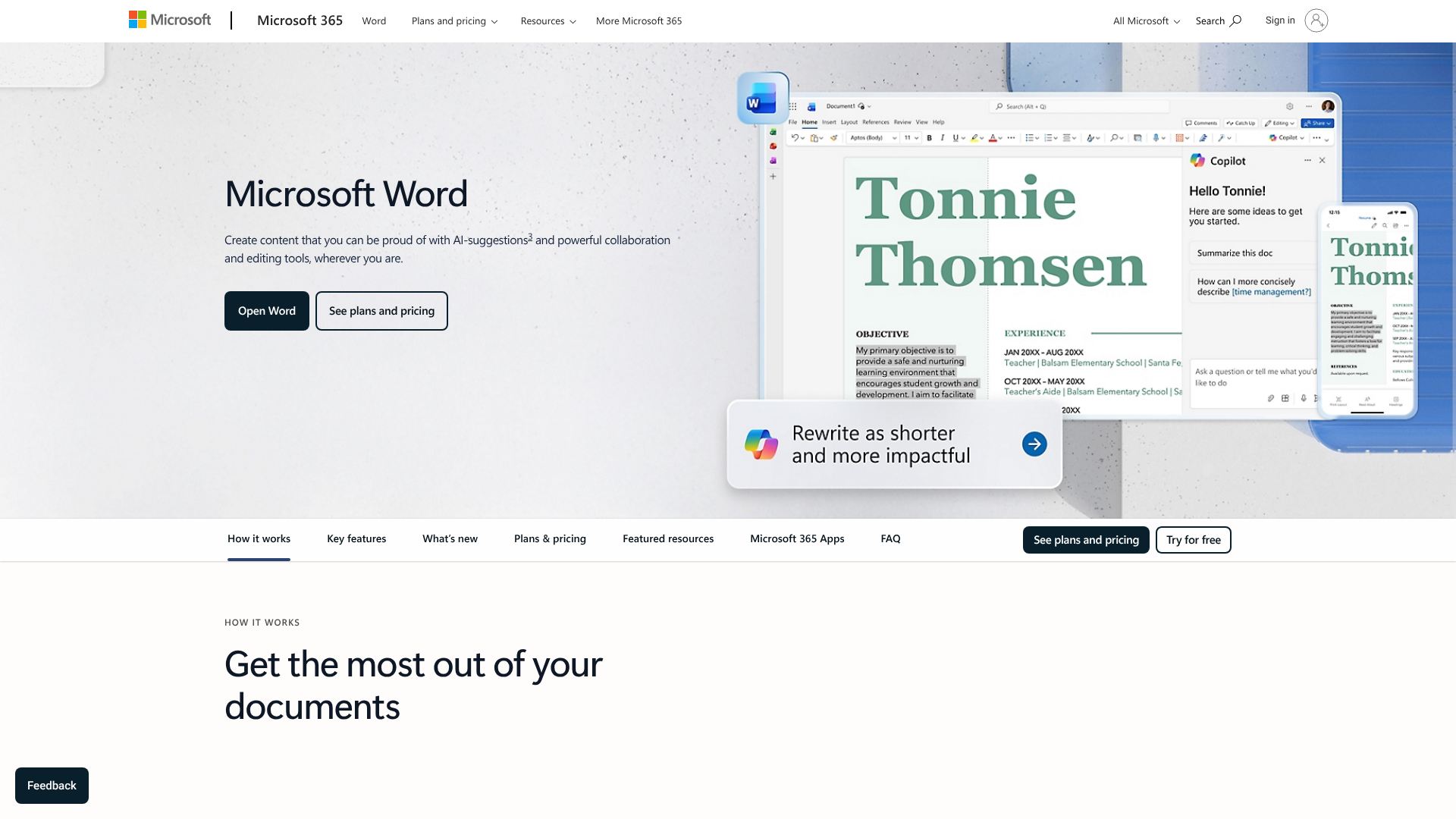
For official documents like contracts, proposals, or corporate reports, the Signature Line feature is the best choice. It adds a professional touch and signals that the document is a final version ready for formal approval. This method is primarily available in the desktop versions of Word for Windows and macOS.
What is a Signature Line?
A Signature Line is more than just a dotted line on the page. It's a placeholder field that contains information about the intended signer, such as their name, title, and email address. When the recipient signs it, Word can embed a digital signature, which helps verify the signer's identity and confirm that the document hasn't been altered since it was signed.
This makes it a more secure option than simply pasting an image. The digital signature acts as a cryptographic seal, providing a layer of authenticity that an image alone cannot. It's the closest Word's native tools get to a full-fledged eSignature solution.
Step-by-Step Guide to Adding a Signature Line
Adding a signature line is a simple process. Here’s how to do it:
- Position Your Cursor: Click on the location in your document where you want the signature line to appear.
- Navigate to the Insert Tab: In the Word ribbon at the top of the screen, click on the 'Insert' tab.
- Find the Signature Line Tool: Look for the 'Text' group on the Insert tab. Click the 'Signature Line' button (it often has a small pen icon). Select 'Microsoft Office Signature Line'.
- Configure the Signature Setup: A dialogue box will appear. Here, you can enter the details for the intended signer:
- Suggested signer: The full name of the person who will sign.
- Suggested signer's title: Their job title (e.g., 'Managing Director').
- Suggested signer's e-mail address: Their email address.
- Instructions to the signer: You can add specific instructions, like "Please verify all details before signing."
- Customise Options: You have two checkboxes at the bottom. You can allow the signer to add comments and show the sign date in the signature line. It's generally a good idea to check the date option for record-keeping.
- Insert the Line: Click 'OK'. The signature line will now appear in your document, ready to be signed.
Signing the Document with a Digital ID
Once the signature line is in place, the signer can double-click it to open the 'Sign' dialogue box. They can either type their name, which Word converts into a cursive-style font, or select an image of their handwritten signature. If they have a digital ID (also known as a digital certificate) from a trusted Certificate Authority, they can associate it with the signature here for maximum security. This action locks the document from further edits, preserving its integrity.
Method 2: Using an Image of Your Handwritten Signature
For a more personal touch or for documents that don't require the high security of a digital ID, inserting an image of your signature is an excellent and widely used method. It's fast, visually authentic, and perfect for letters, memos, and internal approvals. This approach shows you how to sign in Word in a way that replicates a real-world signature.
This video provides a great visual walkthrough of creating and inserting a signature image:
Step 1: Creating Your Signature Image
First, you need a high-quality digital version of your signature. The quality of this initial image is crucial for a professional result.
- Sign on White Paper: Take a plain, unlined white sheet of paper and sign your name using a black or dark blue pen. A pen with a medium thickness works best, as very fine lines can be difficult to capture digitally.
- Scan or Photograph Your Signature:
- Scanner: If you have access to a scanner, scan the signature at a resolution of at least 300 DPI (dots per inch). This will give you a crisp, clean image.
- Smartphone: You can also use your mobile phone. Place the paper in a well-lit area to avoid shadows. Hold your phone directly above the paper to prevent distortion and take a clear photo. Many modern phones have built-in document scanning features in their camera or notes apps, which are perfect for this.
- Save the Image: Transfer the image to your computer and save it in a common format like .PNG, .JPG, or .GIF. A .PNG file is often the best choice because it supports transparent backgrounds, which we'll discuss next.
Step 2: Inserting and Formatting the Image in Word
With your signature image saved, you can now place it in your document.
- Place Your Cursor: Click where you want your signature to go.
- Insert the Picture: Go to the 'Insert' tab, click 'Pictures', and choose 'This Device'. Navigate to where you saved your signature file and click 'Insert'.
- Resize and Position: The image will likely be too large. Click on the image to select it, then use the corner handles to resize it appropriately. Avoid using the side handles, as this will stretch and distort the signature.
- Set Text Wrapping: To move the signature freely, you'll need to change its text wrapping. Right-click the image, select 'Wrap Text', and choose 'In Front of Text' or 'Behind Text'. This allows you to drag the signature exactly where you want it, such as over a typed name or on a dotted line.
Pro Tip: For the most professional look, make your signature image's background transparent. After inserting the image, select it and go to the 'Picture Format' tab. Click 'Colour' > 'Set Transparent Colour'. Your cursor will change to a small pen; click on the white background of your signature image, and Word will make it disappear, leaving only the signature itself.
Method 3: Drawing Your Signature with the Draw Tool

If you have a touchscreen device like a Microsoft Surface or a tablet with Word installed, the Draw tool offers the most direct way to sign documents in Word. It allows you to use a stylus or even your finger to create a truly handwritten signature directly on the document. This method is also usable with a mouse, though it can be challenging to achieve a smooth result.
When to Use the Draw Tool
The Draw tool is best for quick, informal signatures where authenticity of the handwritten stroke is desired. It's perfect for:
- Quickly approving a draft.
- Adding personal notes or annotations alongside a signature.
- Signing on the go from a tablet or 2-in-1 laptop.
While it provides a genuine handwritten signature, it lacks the security features of a digital ID. Therefore, it's less suitable for high-value contracts or legally sensitive documents unless paired with other security measures.
How to Sign in Word Using a Mouse or Stylus
Using the Draw feature is intuitive and feels like writing on paper.
- Open the Draw Tab: In the Word ribbon, click on the 'Draw' tab. If you don't see it, you may need to enable it. Go to 'File' > 'Options' > 'Customize Ribbon', and check the box for 'Draw' in the right-hand list.
- Select a Pen: In the 'Pens' gallery, choose a pen style that you like. The 'Black Pen' is usually a good starting point. You can click on the pen again to change its colour and thickness.
- Sign the Document: Your cursor will turn into a pen tip. Click and drag your mouse, or use your stylus or finger on the screen, to write your signature directly on the document page.
- Finalise Your Signature: Once you're done, you can switch back to the standard cursor by clicking the 'Select' button (arrow icon) on the Draw tab or by simply clicking on the 'Home' tab. Your signature is now an object in the document. You can click it to resize, move, or delete it just like an image.
One of the benefits of this method is that the signature is treated as an 'ink object'. This means you can use the 'Eraser' tool on the Draw tab to correct any mistakes without having to start over completely.
Saving and Reusing Your Signature for Efficiency
If you frequently sign documents in Word, re-inserting and re-formatting your signature image every time can become tedious. Word's AutoText and Quick Parts features solve this problem by allowing you to save your formatted signature as a reusable block. Once saved, you can insert your complete signature—image, typed name, and title—in just two clicks.
Using AutoText and Quick Parts to Save Your Signature
Quick Parts is a gallery of reusable content snippets. By saving your signature as a Quick Part, you create a shortcut that saves you from repeating the same steps over and over. This is one of the most effective ways to streamline your Word document signing workflow.
Step-by-Step Guide to Saving Your Signature Block
Follow these steps to create and save your signature for future use.
- Create Your Signature Block: First, create the full signature block you want to save. This typically includes your signature image, your typed name, your job title, and any other contact information. Insert your signature image and format it as described in Method 2. Below it, type out your name and title.
- Select the Entire Block: Use your mouse to highlight everything you want to save—the image and the text lines below it.
- Open the Quick Part Gallery: Go to the 'Insert' tab. In the 'Text' group, click on 'Quick Parts'. A dropdown menu will appear.
- Save the Selection: At the bottom of the menu, click 'Save Selection to Quick Part Gallery…'.
- Name Your Signature: The 'Create New Building Block' dialogue box will open. In the 'Name' field, give your signature a memorable name, such as "MySignature" or "JSmith_Sig". You can leave the other options as their defaults.
- Save It: Click 'OK'. Your signature block is now saved.
To use your saved signature in a new document, simply place your cursor where you want it to appear, go to 'Insert' > 'Quick Parts', and click on your saved signature from the gallery. The entire block will be inserted instantly, perfectly formatted.
How to Create and Use a Verifiable Digital Signature
While inserting a signature image or drawing one is convenient, these methods don't offer strong proof of identity. For documents that require a higher level of security and non-repudiation (meaning the signer cannot later deny signing it), a verifiable digital signature is necessary. This is different from the visual signatures we've discussed so far.
A digital signature is a cryptographic seal that is unique to the signer and the document. It requires a digital certificate, also known as a Digital ID, which is issued by a trusted third-party Certificate Authority (CA). This certificate acts like a digital passport, verifying your identity.
When you sign a Word document with a digital ID, you accomplish three things:
- Authentication: It proves that you are who you say you are.
- Integrity: It shows that the document has not been tampered with since it was signed. Any change will invalidate the signature.
- Non-repudiation: It prevents you from denying that you signed the document.
To get a digital ID, you'll need to contact a CA. Microsoft partners with several third-party providers. Once you have a digital ID installed on your computer, you can use it with the 'Signature Line' feature in Word. When you double-click the signature line to sign, you'll have an option to sign with your certificate, which provides a much stronger layer of security.
Signing in Word Online vs. the Desktop App: What's Different?

Many users now rely on Word Online, the browser-based version of Microsoft Word included with a Microsoft 365 subscription. While it's convenient for collaboration and basic editing, there are important differences in its signing capabilities compared to the full desktop application.
The most significant difference is the lack of the formal 'Signature Line' feature in Word Online. As of 2026, you cannot create or insert a Microsoft Office Signature Line directly from the web interface. If a document created in the desktop app already contains a signature line, you can see it in Word Online, but you cannot sign it.
However, you can still use the image insertion and drawing methods to sign documents in Word Online:
- Inserting an Image: The process is nearly identical to the desktop version. You can go to 'Insert' > 'Picture' > 'This Device' and upload your saved signature image. You can then resize it and adjust the text wrapping.
- Using the Draw Tool: Word Online also includes a 'Draw' tab with pen tools. If you're using a touchscreen device, you can easily draw your signature directly in the browser.
In summary, for informal signing, Word Online is perfectly capable. However, for any document requiring the security and formality of a digital signature via the Signature Line feature, you must use the Word desktop application. This is a critical distinction for businesses that handle sensitive agreements.
Best Practices for Secure Word Document Signing
Signing a document is often the final step in a process, so it's important to do it securely to protect the document's integrity. Here are some best practices to follow when you sign documents in Word.
- Lock the Document After Signing: When you use a digital signature with a Signature Line, Word automatically marks the document as final to prevent further editing. If you're just inserting an image, consider protecting the document yourself. Go to 'File' > 'Info' > 'Protect Document' and choose 'Mark as Final' or 'Restrict Editing'.
- Save as PDF for Distribution: A Word document can be easily edited. After everyone has signed, it's a best practice to save the final version as a PDF before sharing it. PDFs are harder to alter and are the standard format for finalised documents. Go to 'File' > 'Save As' and choose 'PDF' from the file type dropdown.
- Verify Digital Signatures: If you receive a document signed with a digital signature, you can view its details. A 'Signatures' pane will appear, showing the validity of the certificate. If it shows an error, it could mean the document was altered after signing.
- Know When to Use a Dedicated Platform: Word's signing tools are excellent for many internal and low-risk external documents. However, they are not a substitute for a full-featured eSignature platform. For legally binding contracts, sales agreements, and HR documents, a dedicated service is the safer choice.
When Word Isn't Enough: Professional eSignature Platforms
While Word provides useful tools for basic signing, its features lack the comprehensive security, audit trails, and legal compliance required for many business-critical documents. For sales proposals, client contracts, and official agreements, dedicated electronic signature platforms offer a more robust and legally defensible solution.
Platforms like PandaDoc and eSignly are designed specifically for secure document signing workflows. They provide features that Word simply can't match:
- Advanced Audit Trails: These platforms capture a detailed log of every action taken on a document, including when it was opened, viewed, and signed, along with IP addresses and timestamps. This creates a strong evidence trail.
- Legal Compliance: They are built to comply with electronic signature laws around the world, such as the ESIGN Act in the United States and eIDAS in the European Union.
- Enhanced Security: They use advanced encryption and identity verification methods to ensure that only the intended recipient can sign.
- Workflow Automation: You can create templates, set up signing orders for multiple parties, and send automatic reminders, which streamlines the entire process.
If your business regularly handles documents that carry legal or financial weight, investing in a dedicated eSignature solution is a wise decision. While you can initiate the document in Word, using a platform like PandaDoc for the final signing step provides peace of mind and a higher level of legal protection.
Troubleshooting Common Signing Issues in Word
Even with a straightforward process, you might occasionally run into issues when trying to sign a document. Here are solutions to some of the most common problems.
"Signature Line" Option is Greyed Out
If you find that the 'Signature Line' button on the 'Insert' tab is disabled, it's usually for one of two reasons:
- Compatibility Mode: The document may be saved in an older Word format (e.g., .doc instead of .docx). To fix this, go to 'File' > 'Info' and click the 'Convert' button to update the document to the latest format. The feature should then become available.
- Protected View: The document might have been opened from an email attachment or internet location in Protected View. You'll see a yellow bar at the top of the document. Click 'Enable Editing' to unlock the document's features.
Signature Image Quality is Poor
If your inserted signature image looks blurry or pixelated, the issue is likely with the original image file. Ensure you are scanning or photographing your signature at a high resolution (300 DPI is recommended). Also, when resizing the image in Word, always use the corner handles to maintain its proportions. Stretching it horizontally or vertically will degrade the quality.
Cannot Edit Document After Signing
This is usually by design. When a document is signed using a digital signature via the Signature Line, Word marks it as final to protect its integrity. This is a feature, not a bug. If you need to make changes, the signature must be removed.
You can do this by right-clicking the signature line and selecting 'Remove Signature'. This will, of course, invalidate the signature, and the document will need to be re-signed after the edits are made.
Legal Considerations: Is a Signature in Word Legally Binding?
This is one of the most important questions surrounding Word document signing. The answer is nuanced: it depends on the type of signature used and the legal jurisdiction. In many parts of the world, including the US and the EU, electronic signatures are legally recognised. However, not all electronic signatures are created equal.
An electronic signature is broadly defined as any electronic sound, symbol, or process attached to a contract or record. An image of your signature in Word generally qualifies as a simple electronic signature. For many low-stakes agreements, this can be sufficient. However, its legal weight can be challenged because it's difficult to prove who actually inserted the image and to verify that the document wasn't changed after signing.
A digital signature (one that uses a certificate-based Digital ID) is a more secure and legally robust form of electronic signature. Because it's cryptographically linked to both the signer and the document, it provides stronger evidence of authenticity and integrity.
According to regulations like the UK's version of eIDAS (electronic identification and trust services), different levels of electronic signatures exist. While a simple signature in Word might be acceptable for some contracts, for others that require a higher level of assurance, an Advanced or Qualified Electronic Signature is needed. These are typically only achievable through dedicated eSignature platforms that provide third-party verification and comprehensive audit trails. For more information on UK regulations, you can refer to guidance from the Information Commissioner's Office (ICO).
Pro Tip: For any important legal or financial document, consult with a legal professional or use a compliant eSignature service. While Word is convenient, it may not provide the level of legal proof required for high-value transactions.
Frequently Asked Questions (FAQ)
How do I write my signature in a Word document?
You have several options. You can use the 'Draw' tab with a mouse or stylus to write it directly. Alternatively, you can sign a piece of paper, scan it or take a photo, and insert that image into your document via the 'Insert' > 'Pictures' menu. For a more formal approach, you can insert a 'Signature Line' and type your name, which Word will display in a script font.
Can an electronic signature be added to a Word document?
Yes, absolutely. All the methods described in this guide—inserting an image, drawing a signature, or using the Signature Line feature—are ways of adding an electronic signature to a Word document. The level of security and legal validity varies by method, with a certificate-based digital signature being the most secure.
Can I type my signature on a document?
Yes, you can. When you use the 'Signature Line' feature in Word, you are prompted to type your name in the signature box. Word then renders your typed name in a cursive font to resemble a signature. Legally, a typed name can be considered a valid electronic signature as long as all parties have agreed to conduct business electronically.
Does Microsoft have an eSignature tool?
Microsoft Word has built-in features for signing, like the Signature Line and Draw tools, but Microsoft does not offer a standalone, dedicated eSignature platform in the same way as companies like PandaDoc or DocuSign. For complex workflows requiring audit trails and advanced compliance, Microsoft's own documentation often suggests using solutions from their partners who specialise in eSignatures.
What Word font can I use for a signature?
If you prefer to type your name and format it to look like a signature, several script or cursive fonts that come with Word can work well. Some popular choices include 'Segoe Script', 'Lucida Handwriting', 'Mistral', and 'Vivaldi'. You can simply type your name, then select it and change the font to one of these to create a signature-like appearance.
Final Thoughts
Mastering how to sign documents in Word is a valuable skill that can significantly improve your productivity. For the majority of day-to-day tasks, using the Signature Line, inserting a signature image, or drawing your signature provides a quick and effective way to finalise documents without ever leaving the application. By saving your signature as a Quick Part, you can make the process nearly instantaneous.
However, it's crucial to understand the limitations. For high-stakes contracts and legally binding agreements, the security, audit trails, and compliance offered by dedicated eSignature platforms are indispensable. Tools like eSignly or PandaDoc are designed to provide the legal assurance that Word's built-in features cannot guarantee.
By choosing the right tool for the job, you can sign with confidence, knowing your documents are professional, secure, and appropriate for any business context. Use Word for convenience and speed, but turn to specialised platforms when legal validity is your top priority.