

How to Sign a PDF with a Digital Signature: A Step-by-Step Guide for 2026
In our increasingly paperless world, knowing how to sign a PDF with a digital signature is no longer a niche skill—it's an essential one. Whether you're finalising a sales contract, approving an invoice, or signing a new-hire agreement, the ability to apply a secure, legally binding signature to a document without a printer in sight is critical. This process saves time, reduces costs, and provides a level of security that a simple ink signature can't match. But with different types of signatures and various tools available, understanding the correct method can feel complicated.
- What You'll Learn
- What Exactly is a Digital Signature? (And How It Differs from Electronic)
- Key Features and Benefits of Using a Digital Signature PDF
- Unmatched Security and Authenticity
- Data Integrity and Non-Repudiation
- Legal Validity and Compliance
- Efficiency and Environmental Benefits
- How to Choose the Right Method to Sign a PDF Digitally
- Assessing Your Needs: Personal vs. Business Use
- Understanding the Legal Requirements for Your Documents
- Comparing Free Tools vs. Dedicated Platforms
- Step-by-Step: How to Digitally Sign a PDF (3 Common Methods)
- Method 1: Using the Free Adobe Acrobat Reader DC
- Method 2: Using Built-in Tools on Mac (Preview App)
- Method 3: Using a Dedicated eSignature Platform
- Top Recommendations for eSignature Software
- PandaDoc: Best for Sales Teams and Document Automation
- eSignly: A Versatile and Secure Option
- Integrated Solutions: Better Proposals & Proposify
- Understanding Pricing and Cost Structures
- The "Free" Tier: What You Get and What You Don't
- Subscription Models: Per User, Per Month
- Comparing the Value: Is a Paid Plan Worth It?
- Pros and Cons: A High-Level Comparison
- Frequently Asked Questions (FAQ)
- How do I create my own digital signature?
- Can I digitally sign a PDF for free?
- How can I sign a PDF with a digital signature without Adobe?
- Are digital signatures legally binding?
- What's the difference between a digital signature and an electronic signature?
- Is it safe to sign a PDF online?
- Final Thoughts
This guide breaks down everything you need to know. We'll explore the difference between a simple electronic signature and a true digital signature, walk through the step-by-step process using free tools, and review dedicated platforms that can automate your entire document workflow. By the end, you'll be able to sign PDF documents digitally with confidence, knowing your agreements are secure and professional.
What You'll Learn
- The Core Difference: Understand the crucial distinction between a basic electronic signature (a simple image) and a secure, encrypted digital signature (a cryptographic seal).
- Free Signing Methods: Learn how to digitally sign a PDF for free using widely available software like Adobe Acrobat Reader DC and the Preview app on Mac.
- When to Use Dedicated Software: Discover the benefits of using specialised eSignature platforms like PandaDoc for enhanced security, audit trails, and automated workflows.
- Legal and Security Implications: Gain clarity on the legal validity of digital signatures and the security features that protect your documents from tampering.
- Choosing the Right Tool: Get practical advice on selecting the best signing method based on your specific needs, from occasional personal use to high-volume business contracts.
What Exactly is a Digital Signature? (And How It Differs from Electronic)
Before we dive into the 'how', it's vital to understand the 'what'. The terms 'electronic signature' and 'digital signature' are often used interchangeably, but they represent two very different levels of security and authentication. Getting this distinction right is the first step to ensuring your documents are properly secured and legally sound.
The Simple Electronic Signature: A Digital Image
An electronic signature (or e-signature) is, in its most basic form, a digital representation of a person's handwritten signature. Think of it as pasting an image of your signature onto a document. When you use a tool to draw your signature with a mouse or upload a scanned image of it, you are creating an electronic signature.
While widely accepted for many everyday agreements, a basic e-signature's primary function is to show intent to sign. It lacks the robust security infrastructure to verify the signer's identity beyond doubt or to protect the document from being altered after signing. It's the digital equivalent of a signature on a delivery slip—functional, but not highly secure.
The Secure Digital Signature: A Cryptographic Seal
This is where we get to the core of our topic. A digital signature is a specific, highly secure type of electronic signature. It uses a technology called Public Key Infrastructure (PKI) to create a unique, encrypted 'fingerprint' that is tied to both the signer and the document. When you sign a PDF digitally, you are embedding a certificate-based Digital ID.
This process involves two key components: a private key (which only you have) and a public key (which you can share). The signature is created with your private key, and anyone with your public key can verify that it was indeed you who signed it. More importantly, this cryptographic seal also locks the document. If anyone tries to alter the PDF after it has been signed, the digital signature will immediately become invalid, providing clear evidence of tampering.
In short, while an electronic signature shows intent, a digital signature proves identity, guarantees document integrity, and provides a verifiable audit trail. For contracts, legal documents, and high-value agreements, a digital signature is the gold standard.
Key Features and Benefits of Using a Digital Signature PDF


Adopting digital signatures goes far beyond simply replacing ink and paper. It introduces a suite of features that enhance security, efficiency, and legal standing. Understanding these benefits helps clarify why this technology has become a cornerstone of modern business operations.
Unmatched Security and Authenticity
The primary benefit of a digital signature is its security. Each signature is cryptographically bound to the document and the signer's identity. This is typically verified by a trusted third party known as a Certificate Authority (CA), which issues the Digital ID. This process makes it exceptionally difficult to forge a signature, as it's not just an image but a complex piece of encrypted data.
It confirms who signed the document and that their identity was verified.
Data Integrity and Non-Repudiation
Once a document is signed with a digital signature, its integrity is sealed. The signature creates a unique hash (a digital fingerprint) of the document's content. If even a single character in the document is changed, the hash changes, and the signature is visibly invalidated. This ensures that what you signed is exactly what the other party received.
This feature leads to 'non-repudiation', a legal concept which means the signer cannot later deny having signed the document. Because the signature is uniquely linked to their verified identity and the document's state at the time of signing, it provides strong evidence in case of a dispute.
Legal Validity and Compliance
Digital signatures are legally recognised and binding in many countries around the world, including the UK (under the eIDAS regulation), the United States (with the ESIGN Act), and the European Union. These regulations give digital signatures the same legal weight as handwritten ones, provided they meet specific standards of security and authentication. Using a compliant digital signature solution ensures your agreements are enforceable.
Efficiency and Environmental Benefits
The practical benefits are immense. The 'print, sign, scan, email' cycle is eliminated entirely. Documents can be signed and returned in minutes, not days, accelerating sales cycles, onboarding processes, and project approvals. This speed significantly improves operational efficiency and reduces administrative overhead.
Furthermore, the environmental impact is substantial. By removing the need for paper, printing, ink, and physical transport or storage, businesses can drastically reduce their carbon footprint and contribute to sustainability goals. It's a win for your workflow and the planet.
How to Choose the Right Method to Sign a PDF Digitally
With a clear understanding of what a digital signature is and why it's valuable, the next question is which method to use. The right choice depends entirely on your specific context—your document volume, security requirements, and budget.
Assessing Your Needs: Personal vs. Business Use
First, consider your use case. Are you a freelancer who needs to sign one or two contracts a month? Or are you a sales manager overseeing a team that sends out dozens of proposals every week? For occasional, personal use, a free tool like Adobe Acrobat Reader is often sufficient.
For business use, however, you need to think about scale, collaboration, and tracking. Do you need an audit trail showing when a document was opened, viewed, and signed? Do you need to send a single document to multiple people to sign in a specific order? These are features where dedicated eSignature platforms excel, providing a level of control and visibility that free tools lack.
Understanding the Legal Requirements for Your Documents
Not all documents are created equal. Signing an internal memo has very different legal stakes than signing a multi-million-pound real estate transaction. For documents with significant legal or financial implications, using a method that provides a robust, verifiable audit trail and complies with industry-specific regulations (like HIPAA for healthcare or GDPR for data privacy) is non-negotiable.
A true digital signature with a certificate-based ID offers the highest level of legal assurance. Always consider the nature of the document and consult legal advice if you're unsure about the requirements for your industry or jurisdiction.
Comparing Free Tools vs. Dedicated Platforms
Free tools are excellent for getting started. They allow you to create a self-signed Digital ID and apply a secure signature to a PDF. However, their functionality is typically limited to just signing. You can't easily track the document's status, set up complex signing workflows, or store and manage all your signed documents in one place.
Dedicated platforms, while they come with a subscription cost, are complete document management solutions. They offer features like customisable templates, automated reminders for signers, deep integration with other business software (like CRMs), and comprehensive analytics. The cost is an investment in efficiency, security, and compliance.
Step-by-Step: How to Digitally Sign a PDF (3 Common Methods)
Now, let's get practical. Here are the step-by-step instructions for three of the most common ways to add a digital signature to a PDF document.
Method 1: Using the Free Adobe Acrobat Reader DC
This is the most common method for individuals, as Adobe Reader is installed on most computers. It allows you to create a self-signed Digital ID and apply a secure signature.
- Open the PDF: Launch Adobe Acrobat Reader DC and open the PDF file you need to sign.
- Access the Certificates Tool: In the right-hand pane, you might see a 'Fill & Sign' option, but for a true digital signature, go to the 'Tools' tab and select 'Certificates'.
- Select 'Digitally Sign': A new toolbar will appear at the top of your document. Click on 'Digitally Sign'. Your cursor will turn into a crosshair.
- Draw the Signature Box: Click and drag to draw a box in the location where you want your signature to appear. This is the visible part of your signature.
- Configure Your Digital ID: A dialogue box will appear. If you've never done this before, you'll need to create a new Digital ID. Select 'Configure New Digital ID'.
- Create a Self-Signed ID: Choose the option to 'Create a new Digital ID' and save it to a file on your computer. You'll be prompted to enter your name, email address, and other details. You will also set a password for your Digital ID file—do not forget this password, as you'll need it every time you sign.
- Apply the Signature: Once your ID is created and selected, you'll see a preview of your signature's appearance. You can customise how it looks. Enter your password when prompted and click 'Sign'.
- Save the Document: You will be prompted to save the PDF as a new file. This is crucial because saving locks the signature and the document. The signed document is now secure and tamper-evident.
Method 2: Using Built-in Tools on Mac (Preview App)
Mac users have a convenient tool built right into the operating system. While the signature created in Preview is technically an electronic signature (an image), it's incredibly quick and easy for documents that don't require high-level cryptographic security.
- Open the PDF in Preview: Double-click your PDF file to open it in the Preview app.
- Show the Markup Toolbar: Click the 'Show Markup Toolbar' button (it looks like a pen tip in a circle) or go to 'Tools' > 'Annotate' > 'Signature'.
- Create Your Signature: Click the 'Sign' button in the toolbar. If you don't have a signature saved, click 'Create Signature'. You'll have two options:
- Trackpad: Sign your name directly on your Mac's trackpad.
- Camera: Sign your name on a piece of white paper and hold it up to your Mac's camera. Preview will capture it and create a digital version.
- Place the Signature: Once created, your signature will be saved. Click the 'Sign' button again and select your signature from the list. Click on the document where you want it to appear, then resize and position it as needed.
- Save the File: Go to 'File' > 'Save' to embed the signature in the PDF.
Method 3: Using a Dedicated eSignature Platform
For businesses, a dedicated platform streamlines the entire process. The steps are generally simpler for the end-user and offer much more power to the sender.
- Upload the Document: Log in to your chosen platform (like PandaDoc or eSignly) and upload the PDF you need to have signed.
- Add Signer Fields: Drag and drop fields onto the document where you need signatures, initials, dates, or other information. Assign each field to a specific person by entering their email address.
- Customise and Send: Add a custom message, set a signing order if multiple people are involved, and configure automatic reminders.
- Signers Receive an Email: Each signer gets a secure email link. They click the link to open the document in their web browser—no software installation is needed.
- Sign Electronically: The signer is guided to each field they need to complete. They can adopt a pre-styled signature or draw their own. Once all fields are filled, they click a button to finalise and apply their signature.
- Receive the Completed Document: Once everyone has signed, all parties automatically receive a copy of the fully executed document, along with a certificate containing a detailed audit trail.
Pro Tip: When setting up a Digital ID in Adobe, consider creating a backup of the .pfx file (the file containing your ID) and storing it in a secure location, like an encrypted password manager. If you lose this file, you lose your ability to use that specific digital signature.
Top Recommendations for eSignature Software
When free tools aren't enough, dedicated software provides the features, security, and workflow automation that businesses need. Here are a few top recommendations that integrate signing capabilities into a broader document management context.
PandaDoc: Best for Sales Teams and Document Automation
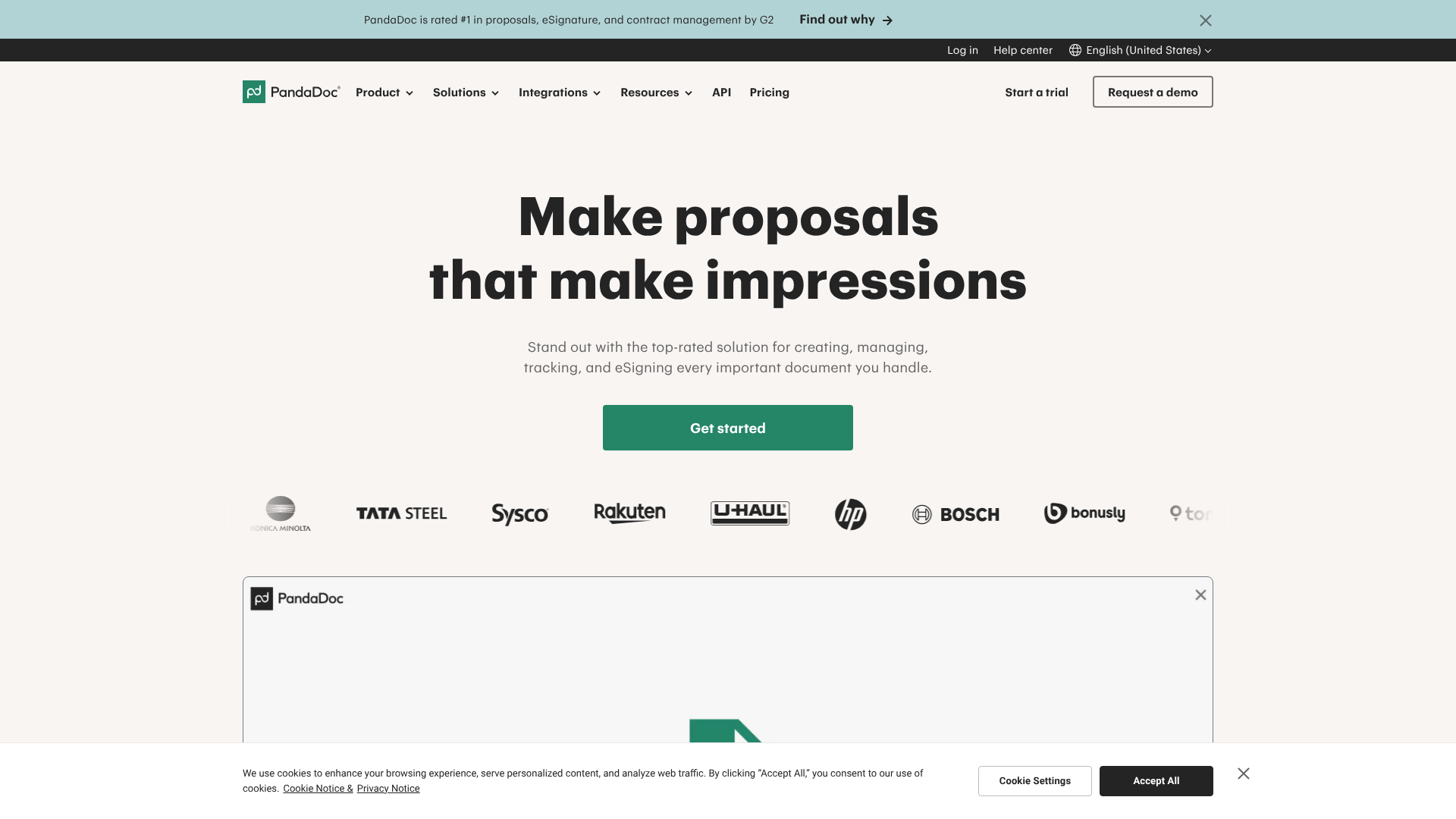
PandaDoc is more than just an e-signature tool; it's a comprehensive platform for creating, sending, tracking, and signing business documents like proposals, quotes, and contracts. Its strength lies in its ability to streamline the entire sales document workflow.
Users can create beautiful, interactive documents from a rich library of templates. The platform provides real-time analytics, showing you exactly when a recipient has opened, viewed, and spent time on each section of your proposal. This insight is invaluable for timely follow-ups. The e-signatures are legally binding and come with a detailed certificate of completion.
Pros
- Rich document creation and editing tools.
- Advanced analytics and tracking features.
- Strong integration with CRMs like HubSpot CRM and Zoho CRM.
Cons
- Can be more expensive than simpler e-signature tools.
- The extensive features may be overwhelming for users who only need basic signing.
eSignly: A Versatile and Secure Option
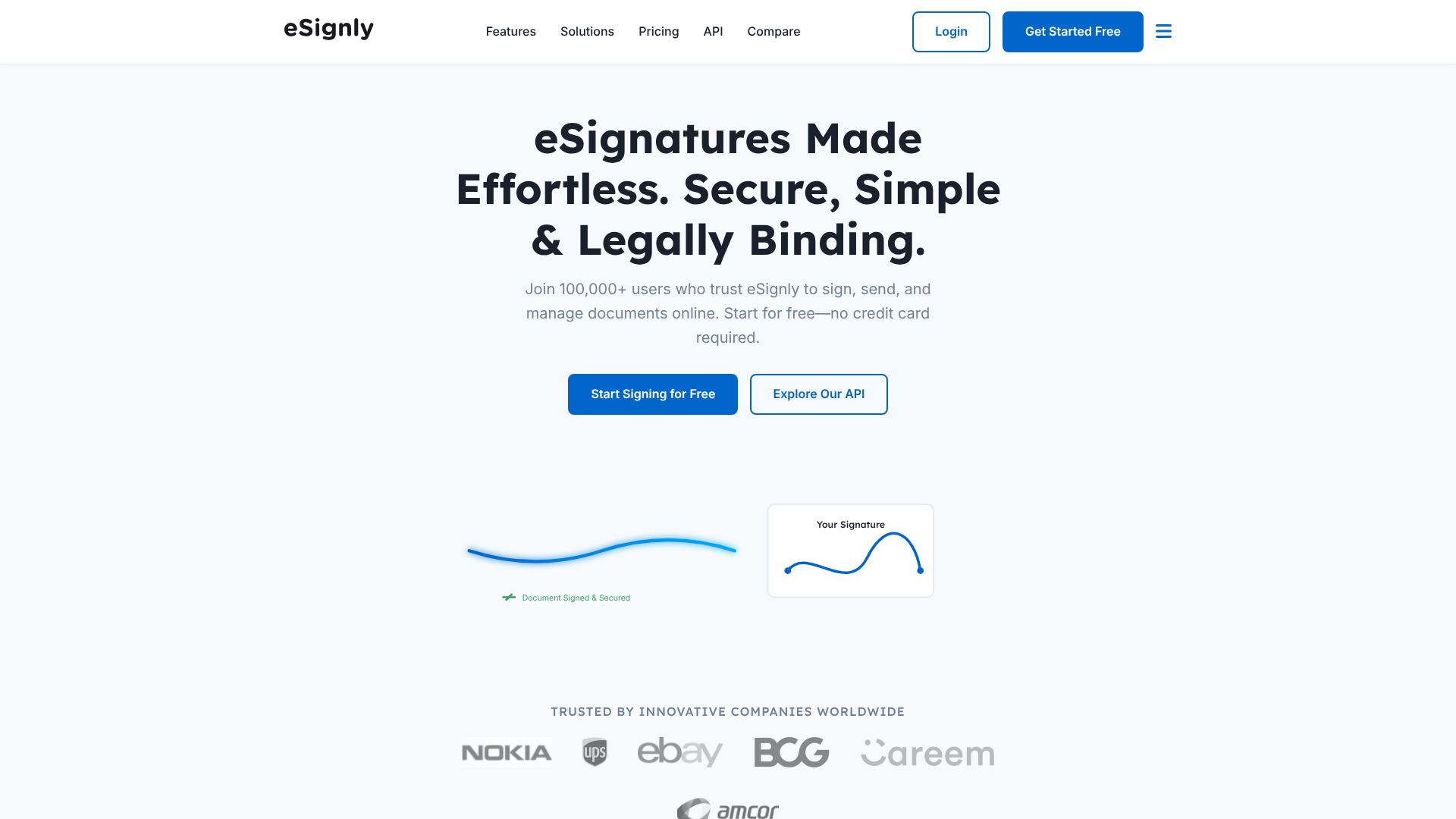
eSignly is a focused e-signature platform that prioritises security, compliance, and ease of use. It's a strong choice for businesses in regulated industries like finance, healthcare, and legal, offering compliance with standards like ESIGN, UETA, and HIPAA.
The platform provides a clean interface for uploading documents, adding signer fields, and managing workflows. It offers reusable templates, bulk sending capabilities, and in-person signing options, making it versatile for various business scenarios. Every signed document is accompanied by a comprehensive audit trail that captures every action taken.
Pros
- Strong focus on security and industry compliance.
- User-friendly interface and straightforward workflow.
- Flexible pricing plans suitable for different business sizes.
Cons
- Fewer document creation features compared to platforms like PandaDoc.
- The interface, while clean, is less modern than some competitors.
Integrated Solutions: Better Proposals & Proposify
For many sales-focused businesses, the signature is the final step in a longer process. Tools like Better Proposals and Proposify recognise this by building legally binding e-signatures directly into their proposal software. This creates a seamless experience from proposal creation to the final sign-off.
With these platforms, you can design stunning proposals, track client engagement, and allow clients to sign directly within the proposal document itself. This removes friction from the sales process and can significantly shorten the time it takes to close a deal. The key benefit is having one unified platform for the entire bottom-of-funnel sales motion.
Understanding Pricing and Cost Structures
When evaluating how to sign a PDF, cost is a significant factor. The market offers everything from completely free options to enterprise-level subscriptions, and the best choice depends on the value you place on advanced features.
The "Free" Tier: What You Get and What You Don't
Free solutions, like Adobe Acrobat Reader or basic online signing tools, are perfect for individuals with low-volume needs. You can typically apply a legally valid signature to a few documents per month without paying a penny. This is ideal for signing an occasional employment contract or a tenancy agreement.
However, the limitations are significant. You usually don't get an audit trail, you can't create templates, and there are no features for tracking or managing documents after they're sent. The security is also self-managed; the validity of a self-signed certificate relies on you proving your identity, whereas paid platforms use third-party verification.
Subscription Models: Per User, Per Month
Most dedicated eSignature platforms operate on a Software-as-a-Service (SaaS) model, typically charging a monthly fee per user. Plans are often tiered based on the number of documents you can send and the features included.
Basic paid plans might offer unlimited signing, reusable templates, and basic audit trails. More advanced tiers add features like bulk sending, custom branding, advanced signer authentication (like SMS verification), and integrations with other software. For the latest pricing, it's always best to visit the provider's website, such as PandaDoc or eSignly, as plans and features can change.
Comparing the Value: Is a Paid Plan Worth It?
For a business, the return on investment (ROI) of a paid plan can be substantial. Consider the time saved by your team by not having to manually prepare, send, and track documents. Think about the deals closed faster because of a frictionless signing process. Add the value of enhanced legal protection from detailed audit trails and the professionalism of custom-branded documents.
When you quantify these benefits—reduced administrative time, accelerated revenue, and mitigated legal risk—the monthly subscription fee often pays for itself many times over. The decision comes down to whether you view document signing as a simple task or a critical business process.
Pros and Cons: A High-Level Comparison
To help you decide, here is a direct comparison between using free, built-in tools and investing in a dedicated eSignature platform.
| Feature | Free Tools (e.g., Adobe Reader) | Dedicated Platforms (e.g., PandaDoc) |
|---|---|---|
| Cost | Free | Subscription-based (monthly/annual fee) |
| Security | Good (Certificate-based) | Excellent (Certificate-based + detailed audit trail) |
| Audit Trail | None or very basic | Comprehensive and legally admissible |
| Ease of Use | Moderate (Requires setup of Digital ID) | Very easy for both sender and signer |
| Workflow Automation | None | Advanced (templates, reminders, signing order) |
| Tracking & Analytics | None | Real-time tracking and document analytics |
| Integrations | None | Extensive (CRM, cloud storage, etc.) |
| Best For | Individuals, occasional personal use | Businesses of all sizes, high-volume signing |
Pro Tip: When sending a document for signature, always provide clear instructions for the signer. Many people may not be familiar with the process. A simple line like, "Please click the link and follow the on-screen prompts to sign the document digitally," can prevent confusion and delays.
Frequently Asked Questions (FAQ)
Here are answers to some of the most common questions people have about how to digitally sign a PDF.
How do I create my own digital signature?
To create a true digital signature, you need a Digital ID. You can create a 'self-signed' Digital ID for free using software like Adobe Acrobat Reader, as detailed in our step-by-step guide. This involves filling out your personal information and creating a password-protected file. For higher-stakes transactions, you can purchase a Digital ID from a commercial Certificate Authority (CA), which involves a more rigorous identity verification process.
Can I digitally sign a PDF for free?
Yes, absolutely. Using the 'Certificates' tool in the free version of Adobe Acrobat Reader DC allows you to apply a secure, certificate-based digital signature to any PDF document without any cost. Many online services also offer a limited number of free electronic signatures per month. The free options are best suited for individuals and those with infrequent signing needs.
How can I sign a PDF with a digital signature without Adobe?
While Adobe is the most common tool, several alternatives exist. Many PDF editing applications, such as Foxit Reader or Nitro PDF, offer similar digital signature functionalities. Additionally, all dedicated eSignature platforms like PandaDoc, eSignly, and DocuSign operate independently of Adobe, allowing you to manage the entire signing process through their web-based applications.
Are digital signatures legally binding?
Yes. In the United Kingdom, the eIDAS regulation provides the legal framework for electronic signatures, giving them legal effect. Similarly, in the United States, the ESIGN Act of 2000 grants electronic signatures the same legal status as handwritten ones. For a signature to be considered legally binding, it generally must prove the signer's intent, have their consent, and be associated with a secure, auditable record of the transaction, all of which are core features of reputable digital signature systems.
What's the difference between a digital signature and an electronic signature?
An electronic signature is a broad term for any signature applied in an electronic format, including an image of a signature pasted onto a document. A digital signature is a specific, highly secure type of electronic signature that uses encryption and a certificate-based Digital ID to verify the signer's identity and protect the document from tampering. All digital signatures are electronic signatures, but not all electronic signatures are digital signatures.
Is it safe to sign a PDF online?
Signing a PDF using a reputable online eSignature platform is very safe. These platforms use high levels of encryption (similar to online banking) to protect your documents both in transit and at rest. They also provide secure, unique links for each signer and create detailed audit trails to record every step of the signing process. It is significantly more secure than emailing sensitive documents back and forth.
Final Thoughts
Mastering how to sign a PDF with a digital signature is a crucial skill in the modern professional landscape. It streamlines workflows, enhances security, and ensures your agreements are legally sound. For simple, one-off tasks, the free tools built into software like Adobe Acrobat Reader are perfectly capable and provide the robust security of a true digital signature.
However, as your needs grow in volume and complexity, the limitations of free tools become apparent. For businesses, investing in a dedicated eSignature platform is a strategic move. These solutions transform document signing from a manual chore into an automated, trackable, and highly efficient business process, freeing up valuable time and accelerating your operations.
The right choice ultimately depends on your specific requirements for security, volume, and workflow integration. If your business relies on secure and efficient document workflows, exploring a dedicated platform like PandaDoc for its sales automation features or eSignly for its straightforward security is a logical next step to modernising your agreements.