

How to Sign a PDF with Digital Signature: A Step-by-Step Guide for Professionals
In our increasingly remote and fast-paced work environment, the need to finalise agreements without printing a single page is essential. Understanding how to sign a PDF with a digital signature is no longer a niche technical skill but a fundamental business practice. It’s the modern equivalent of the handshake, providing a secure, verifiable, and legally binding way to approve contracts, proposals, and official documents from anywhere in the world.
- What You'll Learn
- What's the Difference? Digital Signature vs. Electronic Signature
- Key Features and Benefits of Using a Digital Signature PDF
- How to Digitally Sign a PDF: 3 Common Methods
- Method 1: Using Adobe Acrobat Reader DC (The Free Option)
- Method 2: Using Built-in Tools on macOS (Preview App)
- Method 3: Using Online e-Signature Platforms (The Professional Choice)
- Top Recommendations for Digital Signature Software
- PandaDoc: Best for Sales Teams and Document Automation
- eSignly: A Focused and Secure e-Signature Solution
- Proposal Software with Built-in Signatures: Better Proposals & Proposify
- How to Choose the Right Digital Signature Option
- Understanding Pricing and Cost Structures
- Free Tiers and Trials
- Subscription Plans (Per User/Month)
- Pay-as-You-Go Models
- Comparison of Common Approaches
- Pros and Cons of Signing PDFs Digitally
- Frequently Asked Questions (FAQ)
- How do I add a digital signature to a PDF?
- How to turn a PDF into a signable document?
- How do I create a signature in a PDF document?
- How can I sign a PDF that was emailed to me?
- How do I insert my electronic signature?
- Does a PDF have a digital signature?
- Final Thoughts: Securing Your Documents in a Digital World
This guide breaks down the entire process. We'll explore the crucial differences between a simple electronic signature and a robust digital one, walk through step-by-step methods using both free and professional tools, and help you choose the right solution for your specific needs. Whether you're a freelancer signing your first contract or a business streamlining its document workflow, you'll find clear, actionable answers here.
What You'll Learn
- The Key Distinction: Understand the critical difference between a basic electronic signature (like an image of your name) and a highly secure, certificate-based digital signature.
- Step-by-Step Methods: Get clear, easy-to-follow instructions on how to digitally sign a PDF using free software like Adobe Acrobat Reader and professional online platforms.
- Why Pro Tools Are Better for Business: Discover how dedicated e-signature platforms like PandaDoc and eSignly offer superior security, audit trails, and legal compliance for business documents.
- Choosing the Right Solution: Learn the key factors to consider, from security and integrations to pricing, when selecting a digital signature tool that fits your workflow.
What's the Difference? Digital Signature vs. Electronic Signature
Before we go further, it's vital to clarify two terms that are often used interchangeably but mean very different things: electronic signatures and digital signatures. Understanding this distinction is the first step toward ensuring your documents have the level of security and legal standing you require.
An electronic signature (or e-signature) is a broad term for any electronic process that indicates acceptance of an agreement or record. This could be as simple as typing your name into a form, drawing your signature with a mouse or stylus, or even using a scanned image of your handwritten signature. While often legally binding for many common agreements, their security is limited. They prove intent, but they don't always offer strong proof of the signer's identity or protect the document from being altered after signing.
A digital signature, on the other hand, is a specific, highly secure type of electronic signature. It uses a certificate-based Digital ID, managed by accredited Certificate Authorities (CAs), to create a unique, encrypted "fingerprint" for the document. When you apply a digital signature, it cryptographically binds your verified identity to the document at that specific point in time. If anyone tries to change the document after it's signed—even by a single character—the digital signature is immediately invalidated.
Think of it this way: an electronic signature is like signing a letter, while a digital signature is like having that letter sealed in a tamper-proof envelope and notarised by a trusted third party.
Key Features and Benefits of Using a Digital Signature PDF

Adopting a digital signature workflow offers far more than just convenience. It provides a framework of security and trust that is essential for modern business. When you sign a PDF digitally, you are embedding layers of verification that protect all parties involved.
Key benefits include:
- Enhanced Security: Digital signatures use Public Key Infrastructure (PKI), a proven encryption method. This ensures that the signature is authentic and cannot be forged. It provides a level of security that a simple image of a signature cannot match.
- Document Integrity: This is perhaps the most critical feature. A digital signature creates a unique hash of the document. If the document is altered in any way after signing, the hash changes, and the signature becomes invalid. This provides undeniable proof that the document is in its original, agreed-upon state.
- Authentication and Non-Repudiation: Because digital signatures are tied to a verified Digital ID, they provide strong evidence of who signed the document. This concept, known as non-repudiation, prevents a signer from later denying that they signed the document, adding a powerful layer of legal protection.
- Legal Compliance: In many parts of the world, digital signatures have the same legal weight as handwritten ones. Regulations like the ESIGN Act in the United States and eIDAS in the European Union provide a legal framework for their use, making them valid for most business contracts.
- Workflow Efficiency: The process of printing, signing, scanning, and emailing documents is slow and inefficient. Digital signatures reduce document turnaround time from days to minutes. This accelerates sales cycles, onboarding processes, and project approvals, directly impacting your bottom line.
- Cost and Environmental Savings: By eliminating the need for paper, ink, printing, and postage, businesses can achieve significant cost reductions. Furthermore, a paperless workflow is an environmentally friendly practice that reduces waste and supports sustainability goals.
How to Digitally Sign a PDF: 3 Common Methods
Now that you understand the 'why', let's get into the 'how'. There are several ways to approach this, from free, readily available software to powerful, dedicated platforms. The right method for you depends on your specific needs, the frequency of signing, and the level of security required.
Method 1: Using Adobe Acrobat Reader DC (The Free Option)
For occasional, personal use, the free version of Adobe Acrobat Reader provides a straightforward way to apply a digital signature. This method involves creating a self-signed Digital ID, which is suitable for many situations but may not be accepted by organisations that require a higher level of identity verification.
Here’s a step-by-step guide:
- Open Your PDF: Launch Adobe Acrobat Reader and open the PDF document you need to sign.
- Access the Certificates Tool: In the top menu, click on 'Tools' and find the 'Certificates' option. Click 'Open'.
- Select 'Digitally Sign': A new toolbar will appear at the top of your document. Click on the 'Digitally Sign' button. A dialogue box will prompt you to draw a rectangle where you want your signature to appear. Click and drag to create the signature box.
- Configure Your Digital ID: If you don't have a Digital ID, Adobe will prompt you to create one. Select 'Configure New Digital ID' and choose the option 'Create a new Digital ID'. You'll be asked to save it to a file on your computer. Fill in your name and email address.
- Apply the Signature: Once your Digital ID is created and selected, you can customise the appearance of your signature (e.g., include your name, date, etc.). Click 'Sign' and save the document. The PDF is now digitally signed.
For a visual walkthrough, this video provides an excellent overview of the process in Adobe Reader:
Method 2: Using Built-in Tools on macOS (Preview App)
Mac users have a convenient tool built right into the operating system: Preview. It's important to note that this method creates a standard electronic signature, not a certificate-based digital signature. It's great for quickly signing informal documents but lacks the advanced security and verification of a true digital signature.
To create and add your signature:
- Open the PDF in Preview.
- Show the Markup Toolbar: Click the 'Show Markup Toolbar' button (it looks like a pen tip in a circle).
- Click the 'Sign' Button: Find the signature icon in the toolbar.
- Create Your Signature: If you haven't created one before, you'll be prompted to. You can sign your name on your trackpad, use your Mac's camera to capture your signature from a piece of paper, or type your name.
- Insert the Signature: Once created, you can click on your saved signature and drag it into position on the PDF. You can resize it as needed. Save the document to apply the changes.
Method 3: Using Online e-Signature Platforms (The Professional Choice)
For businesses, freelancers, and anyone needing robust security, audit trails, and a streamlined workflow, dedicated online platforms are the best choice. These services are designed to manage the entire lifecycle of a document, from creation and sending to signing and storage.
These platforms simplify the process for both the sender and the signer. As the sender, you upload your document, drag and drop fields for signatures, initials, and dates, and send it to the recipient's email. The recipient simply clicks a link, follows the on-screen instructions to adopt a signature, and signs the document in their browser. The platform then provides a comprehensive audit trail and a certificate of completion, offering superior legal evidence.
Top Recommendations for Digital Signature Software
When free tools don't offer the security, tracking, or professionalism your business requires, it's time to invest in a dedicated platform. These tools not only provide legally binding signatures but also automate your entire document workflow, saving you time and reducing errors.
PandaDoc: Best for Sales Teams and Document Automation
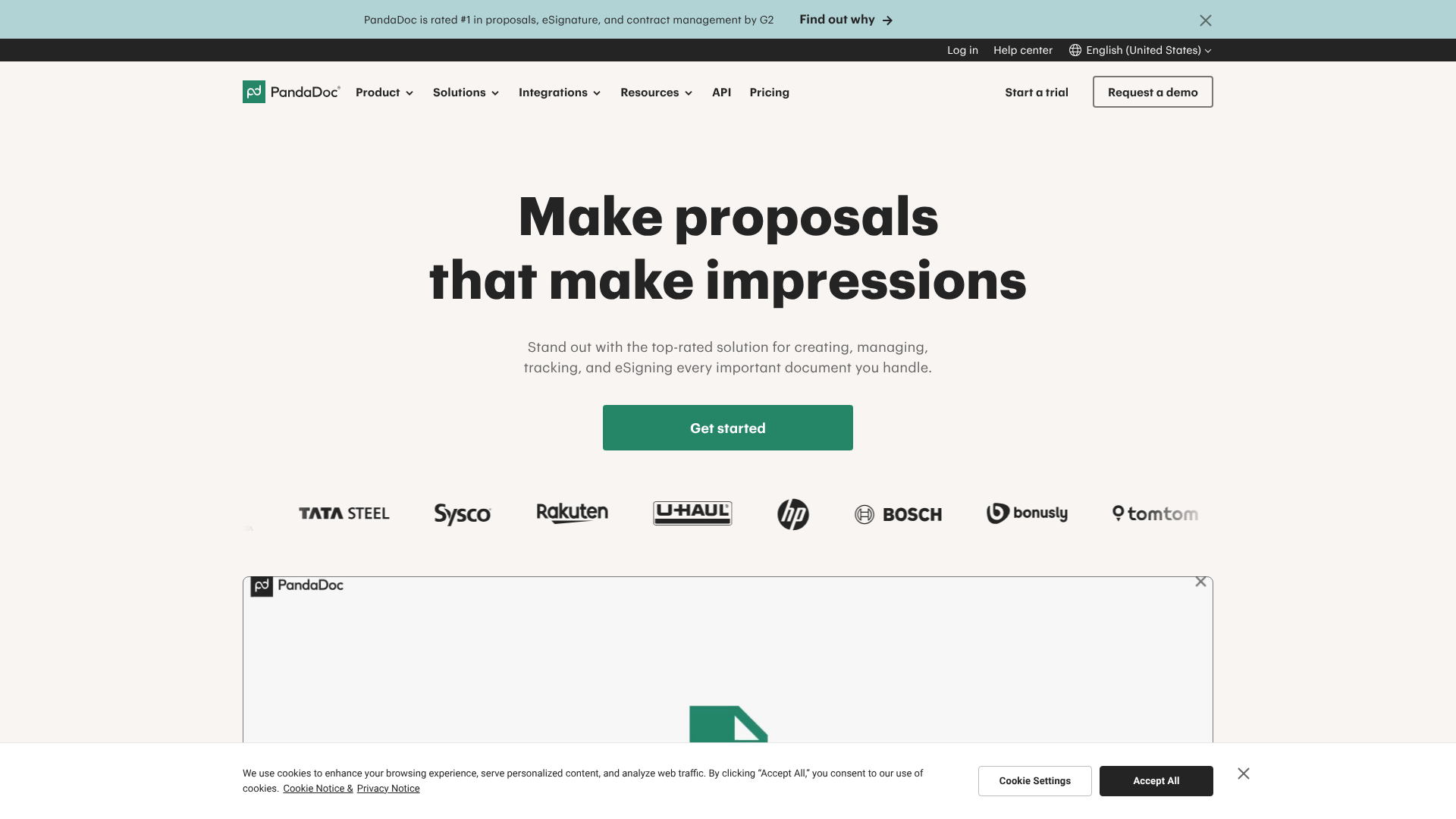
PandaDoc is more than just an e-signature tool; it's a complete document automation platform. It's particularly powerful for sales teams, allowing them to create, send, track, and get proposals, quotes, and contracts signed from one central hub. Its strength lies in its ability to manage the entire document lifecycle.
You can build beautiful, interactive documents with its easy-to-use editor, and its analytics provide deep insights into how recipients interact with your proposals—showing you which sections they viewed and for how long. This data is invaluable for timely follow-ups. PandaDoc also integrates seamlessly with popular CRMs like HubSpot and Zoho CRM, connecting your sales documents directly to your customer data.
Pros
- All-in-One Workflow: Manages document creation, sending, tracking, and signing.
- Powerful Analytics: Provides detailed insights into recipient engagement.
- Extensive Integrations: Connects with dozens of CRM, payment, and storage apps.
Cons
- More Than a Simple Signer: May be overly complex for users who only need basic signature functionality.
- Pricing: The more advanced features are on higher-tier plans.
eSignly: A Focused and Secure e-Signature Solution
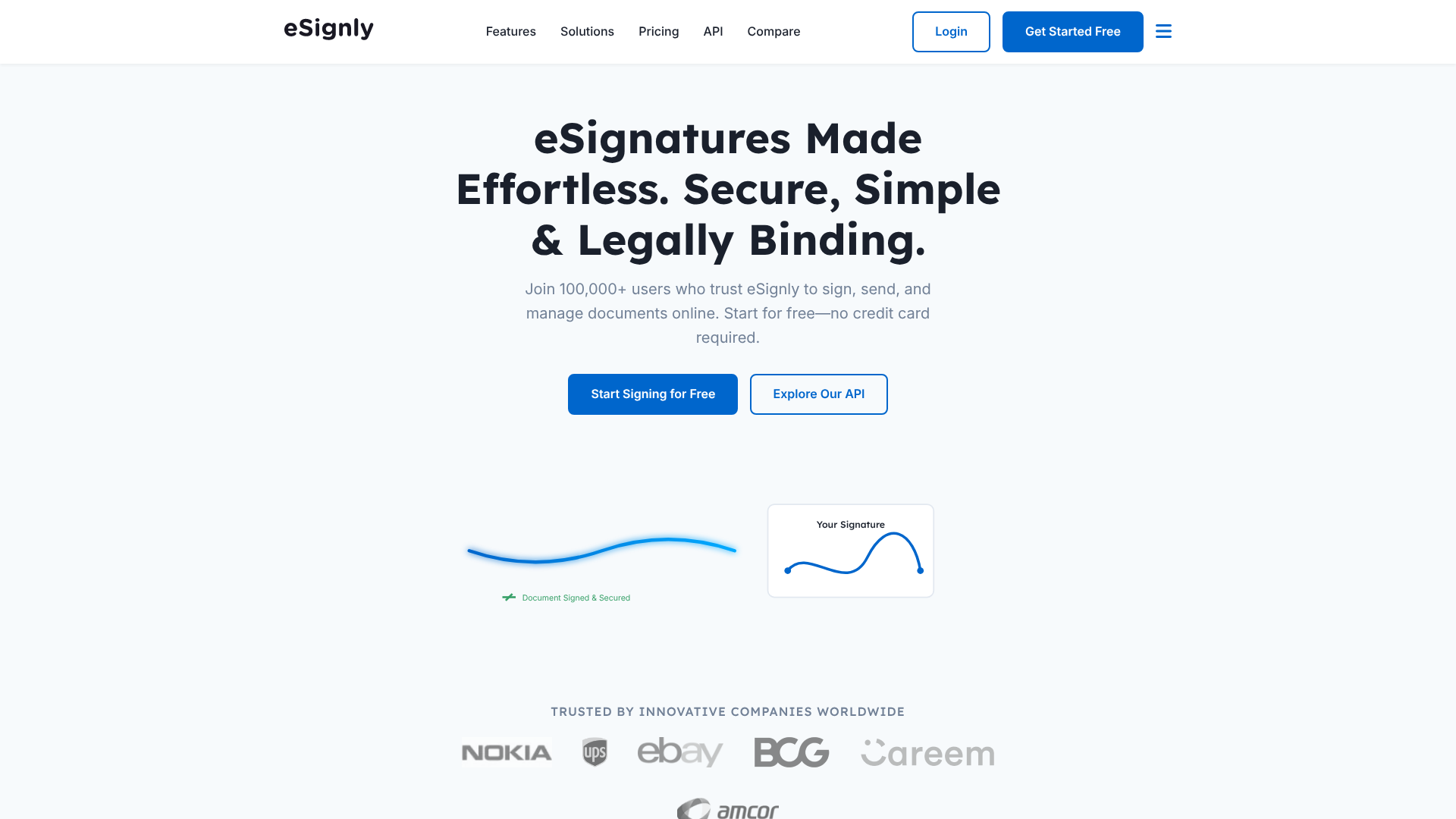
If your primary need is a straightforward, highly secure, and compliant way to get documents signed, eSignly is an excellent choice. It focuses on the core functionality of electronic and digital signatures, ensuring the process is both user-friendly and fortified with top-tier security measures.
eSignly is built with compliance in mind, adhering to major international regulations. It provides a clear, unalterable audit trail for every document, capturing every action from the moment it's sent to the moment it's finalised. This makes it a strong option for industries with strict compliance requirements, such as legal, finance, and real estate.
Pros
- Strong Security Focus: Emphasises compliance and tamper-proof document integrity.
- User-Friendly Interface: Simple for both senders and signers to navigate.
- Comprehensive Audit Trails: Provides robust legal evidence for all signed documents.
Cons
- Less Document Creation Focus: Not as feature-rich in document editing and creation as all-in-one platforms.
Proposal Software with Built-in Signatures: Better Proposals & Proposify
For many sales and marketing teams, the need to sign a PDF digitally comes at the final stage of a proposal. In this case, using a separate e-signature tool can feel redundant. This is where proposal software with integrated signature capabilities shines. Platforms like Better Proposals and Proposify are designed to help you create stunning proposals and include legally binding electronic signatures as a core part of the workflow.
This approach streamlines the sales process completely. Your client can review your beautiful proposal online, get an instant quote, and sign the agreement in the same window without ever needing to download a PDF or use another application. It creates a smooth, professional experience that can help close deals faster.
Pro Tip: If you send more than five proposals or contracts per month, an integrated solution like PandaDoc or Better Proposals will almost always provide a better return on investment through time savings and improved client experience compared to a standalone signing tool.
How to Choose the Right Digital Signature Option

Selecting the right tool to sign a PDF digitally depends entirely on your context. A freelancer signing a few contracts a year has very different needs from a large enterprise onboarding hundreds of employees. Here’s a framework to help you make the right choice.
Assess Your Needs: Personal vs. Business Use
First, define your use case. Are you signing a one-off rental agreement, or are you sending dozens of sales contracts every week? For infrequent, personal use, a free tool like Adobe Acrobat Reader is often sufficient. It gets the job done without any cost.
For any form of business use, you should strongly consider a professional platform. The legal protection offered by detailed audit trails, the efficiency gains from templates and integrations, and the professional image it presents to clients are well worth the modest monthly investment.
Key Factors to Compare
When evaluating professional platforms, look beyond the price tag. The right features can save you hours of administrative work and provide critical legal protection.
- Security & Compliance: Is the platform compliant with regulations in your industry and region (e.g., eIDAS, ESIGN, HIPAA)? Does it offer features like two-factor authentication for signers?
- Audit Trails: A detailed audit trail is your best friend in a dispute. The platform should log every event in the document's history: when it was sent, opened, viewed, and signed, along with IP addresses and timestamps.
- Ease of Use: The tool should be intuitive for your team and, just as importantly, for your clients. A complicated signing process can create friction and delay agreements.
- Integrations: A tool that connects with your existing software stack is a massive advantage. Look for integrations with your CRM (like HubSpot CRM or Zoho CRM), cloud storage (Google Drive, Dropbox), and other business applications.
- Customisation and Branding: Can you add your company logo and colours to the signing interface and emails? This creates a more professional and trustworthy experience for your clients.
Understanding Pricing and Cost Structures
Pricing for digital signature software can vary significantly. Most providers use a Software-as-a-Service (SaaS) model with monthly or annual subscriptions, but the specifics of each plan differ.
Free Tiers and Trials
Many platforms offer a free plan or a free trial. These are great for testing the software's functionality and user interface. However, free plans are typically limited, often allowing only a small number of signatures per month (e.g., 3-5) and excluding advanced features like templates or branding.
Subscription Plans (Per User/Month)
This is the most common model. You pay a recurring fee for each user on your team. Plans are usually tiered, with more expensive tiers unlocking more features. A typical entry-level business plan might cost between £10 and £25 per user per month.
Higher-tier plans with advanced features like custom branding, bulk sending, and advanced integrations can range from £30 to £50+ per user.
Pay-as-You-Go Models
While less common, some services cater to users with sporadic needs by offering document packs or envelopes. You purchase a set number of signatures upfront and use them as needed. This can be cost-effective if your signing volume is low and unpredictable.
Comparison of Common Approaches
To help you decide, here's a quick comparison of the top options discussed:
| Feature | PandaDoc | eSignly | Adobe Acrobat Pro |
|---|---|---|---|
| Best For | Sales Document Automation | Secure, Focused Signing | General PDF Editing & Signing |
| Free Plan | Yes, with limited features | Visit their website for current offers | Adobe Reader is free; Pro requires a subscription |
| Typical Pricing | Subscription-based, tiered plans | Visit their website for current pricing | Monthly or annual subscription |
| Key Differentiator | All-in-one document workflow and analytics | High-level security and compliance focus | Deep PDF editing and creation capabilities |
Always visit the provider's website for the most current pricing information, as plans and features can change.
Pros and Cons of Signing PDFs Digitally
While the move to digital signatures is overwhelmingly positive, it's helpful to have a balanced view of the practice. Understanding both the advantages and potential challenges can help you implement the process smoothly.
The Advantages
- Unmatched Speed: Documents can be signed and returned in minutes, not days. This dramatically accelerates business processes.
- Superior Security: A true digital signature PDF is more secure than a paper document. It's tamper-evident and provides strong authentication of the signer.
- Significant Cost Savings: Eliminating paper, printing, ink, postage, and physical storage costs can lead to substantial savings over time.
- Improved Tracking and Visibility: You always know the status of your document. Platforms show you when it's been delivered, opened, and signed, ending the guesswork.
- Accessibility and Convenience: Sign documents from any device, anywhere in the world. This is essential for remote teams and international business.
The Potential Downsides
- Subscription Costs: While professional tools provide great value, they represent an ongoing operational cost.
- Initial Setup: Implementing a new platform and integrating it into your existing workflows requires some initial time and effort.
- Recipient Adoption: While most people are comfortable with e-signatures today, some less tech-savvy recipients may be hesitant or require guidance through the process.
- Technology Dependence: The process relies on internet access and functioning devices for all parties involved.
Frequently Asked Questions (FAQ)
Here are answers to some of the most common questions people have about how to digitally sign a PDF.
How do I add a digital signature to a PDF?
To add a true digital signature, the most common method is using software that supports certificate-based IDs, like Adobe Acrobat Reader or Pro. You'll typically go to the 'Certificates' tool, select 'Digitally Sign', draw a box where you want the signature, and then configure or create your Digital ID. This ID is what cryptographically links you to the document.
How to turn a PDF into a signable document?
To make a standard PDF signable for others, you need to use a platform like PandaDoc or eSignly. You upload your existing PDF to the platform, and then you can drag and drop signature fields, text fields, date fields, and checkboxes onto the document. When you send it, these fields become interactive for the recipient to fill out and sign.
How do I create a signature in a PDF document?
Most tools offer three ways to create your signature appearance. You can type your name and select a font style, draw your signature using a mouse or stylus, or upload a scanned image of your handwritten signature. For a true digital signature, this visual representation is then linked to your secure Digital ID when you apply it to the document.
How can I sign a PDF that was emailed to me?
First, download the PDF attachment from your email to your computer. Then, open the file using an application like the free Adobe Acrobat Reader. Use its 'Fill & Sign' tool for a simple electronic signature or the 'Certificates' tool for a digital signature. After signing, save the new version of the PDF and email it back to the sender.
How do I insert my electronic signature?
Inserting a simple electronic signature is very easy in most PDF viewers. In Adobe Reader, the 'Fill & Sign' tool lets you add your signature anywhere on the document. In macOS Preview, you use the 'Markup Toolbar' to create and place your signature. These methods are quick and easy but don't offer the security of a full digital signature.
Does a PDF have a digital signature?
A PDF does not have a digital signature by default. It is a feature that must be added to the document. A signed PDF will have a visible signature block and a 'Signature Panel' (usually accessible from the top of the document in Adobe) that shows the validity of the signatures, the signers' identities, and whether the document has been modified since it was signed.
Final Thoughts: Securing Your Documents in a Digital World
Mastering how to sign a PDF with a digital signature is a crucial skill in today's business landscape. It's about more than just convenience; it's about embracing a more secure, efficient, and professional way of conducting business. From simple, free tools for personal tasks to powerful platforms that automate entire document workflows, there is a solution available for every need.
For casual, one-off signing, the tools built into your operating system or Adobe Reader are perfectly adequate. However, if your business relies on signed documents for sales, contracts, or agreements, the investment in a dedicated platform is a logical and valuable next step. They provide the security, legal standing, and efficiency that modern business demands.
If you're ready to streamline your document process, exploring a comprehensive platform like PandaDoc for its all-in-one workflow or eSignly for its focused security can transform how you manage agreements. They can save you countless hours, enhance your professional image, and give you peace of mind knowing your documents are secure and legally sound.