How to Sign a PDF with a Digital Signature: A Guide for Professionals
Signing documents has moved far beyond pen and paper. In a world of remote work and digital contracts, knowing how to sign a PDF with a digital signature is no longer a niche skill—it's an essential one for professionals. This method provides a level of security and authenticity that a simple image of your signature can't match, ensuring your agreements are tamper-proof and legally sound.
- What You'll Learn
- What is a Digital Signature? (And How It Differs from an E-Signature)
- The Core Component: Understanding Digital Certificates
- How to Create Your Digital Signature ID
- How to Sign a PDF with a Digital Signature: A Step-by-Step Guide
- Choosing the Right Digital Signature Software
- How to Verify a Digital Signature in a PDF
- Common Problems When You Sign a PDF Digitally (And How to Fix Them)
- Are Digital Signatures Legally Binding? Compliance and Considerations
- Best Practices for Securing Your Digital Signature
- Electronic Signatures: A Simpler Alternative for Everyday Use
- Frequently Asked Questions (FAQ)
- How do I add a digital signature stamp to a PDF?
- How can I sign a PDF that was emailed to me?
- Can I copy and paste a signature to a PDF?
- How do I add a signature to a PDF without Adobe?
- Can I digitally sign a PDF for free?
- Final Thoughts
Whether you're finalising a sales contract, approving an official report, or submitting a legal document, using a digital signature verifies your identity and locks the document from further changes. This guide will walk you through the entire process, from understanding the technology to applying your own secure signature, step by step.
What You'll Learn
- The Key Difference: A digital signature is a secure, encrypted type of electronic signature, not just an image of your name. It uses a certificate-based digital ID to verify your identity.
- The Role of Certificates: Digital signatures rely on digital certificates issued by a trusted Certificate Authority (CA) to prove the signer's identity is genuine and to encrypt the signature.
- The Step-by-Step Process: You can sign a PDF digitally using common software like Adobe Acrobat Reader by accessing the 'Certificates' tool, creating a signature field, and applying your digital ID.
- Legal and Security Importance: Properly executed digital signatures are legally binding in many parts of the world and provide integrity, authentication, and non-repudiation for your documents.
What is a Digital Signature? (And How It Differs from an E-Signature)
Many people use the terms 'digital signature' and 'electronic signature' (e-signature) interchangeably, but they are fundamentally different. Understanding this distinction is the first step to securing your documents properly. An electronic signature is a broad term that refers to any electronic process signifying acceptance of an agreement. This could be as simple as typing your name into a form, drawing your signature with a mouse or stylus, or inserting an image of your handwritten signature.
While often legally acceptable for many common agreements, a standard e-signature doesn't offer much in the way of security. It's relatively easy to copy and paste an image of a signature, making it difficult to prove who actually signed the document. It serves more as a symbol of intent, much like a traditional wet ink signature.
A digital signature, on the other hand, is a specific, highly secure type of electronic signature. It uses a sophisticated cryptographic method to bind a signer's identity to a document. When you sign a PDF digitally, a unique digital 'fingerprint' is created using a private key that only you control. This fingerprint is then encrypted and attached to the document.
Anyone with your corresponding public key can decrypt the signature, confirming that it was indeed you who signed it and that the document has not been altered since.
Think of it like this: an e-signature is like signing a letter with a pen. A digital signature is like sealing that letter in a tamper-evident envelope with a unique wax seal that can be traced back only to you. This provides three critical assurances: authentication (proof of who signed), integrity (proof the document hasn't changed), and non-repudiation (the signer cannot deny signing it).
The Core Component: Understanding Digital Certificates

The technology that powers a digital signature is a Digital Certificate or Digital ID. This is the component that verifies your identity and makes your signature trustworthy. Without a valid digital certificate, a digital signature is just an unverified claim. A digital certificate acts as an electronic passport, confirming your identity in the digital world.
These certificates are issued by a trusted third party known as a Certificate Authority (CA). Reputable CAs, like IdenTrust or GlobalSign, have rigorous identity verification processes. To get a digital certificate from a CA, you must provide proof of your identity, similar to getting a passport or driving licence. Once verified, the CA issues a certificate that contains your name, your public key, the certificate's expiry date, and the CA's own digital signature, which vouches for the certificate's authenticity.
When you sign a PDF digitally, this certificate is embedded within the signature. When someone opens the signed document, their PDF software checks the certificate. It verifies the CA's signature to confirm the certificate is legitimate and hasn't been revoked. This process is what allows the software to display a green checkmark or a message stating the signature is valid.
It tells the recipient that a trusted authority has confirmed you are who you say you are, adding a powerful layer of trust and security to the transaction.
How to Create Your Digital Signature ID
Before you can sign a PDF digitally, you need a Digital ID. You have two main options for creating one: obtaining a certificate-based ID from a trusted Certificate Authority or creating a self-signed Digital ID directly within software like Adobe Acrobat.
1. Obtaining a Digital ID from a Certificate Authority (CA)
This is the most secure and widely accepted method, especially for high-value legal, financial, or official documents. You'll need to choose a CA and go through their identity verification process. This often involves submitting identification documents and can take a few days.
Once approved, the CA provides you with a certificate file (often with a .pfx or .p12 extension) that you can import into your computer's certificate store and your PDF software.
While this option usually involves a fee, it provides the highest level of assurance. When recipients see your signature, it will be automatically trusted by their software because it's backed by a recognised CA. This is the standard for professional and inter-company transactions.
2. Creating a Self-Signed Digital ID
For internal documents or situations where third-party verification isn't critical, you can create a self-signed Digital ID for free using software like Adobe Acrobat Reader. This ID is created by you, on your computer, and isn't verified by a CA. While it still provides the cryptographic benefits of locking the document, recipients will see a warning that the signature's authenticity cannot be verified because the certificate isn't from a trusted source.
To make a self-signed signature work between parties, the recipient must manually trust your certificate. This involves them opening the signature details, exporting your certificate, and adding it to their list of trusted identities. It's a workable solution for collaborating with a small, known group of people but isn't suitable for sending documents to external parties who need immediate, verifiable trust.
Pro Tip: When creating any Digital ID, use a strong, unique password to protect it. This password is the only thing preventing someone with access to your computer from using your digital identity. Store it securely and never share it.
How to Sign a PDF with a Digital Signature: A Step-by-Step Guide
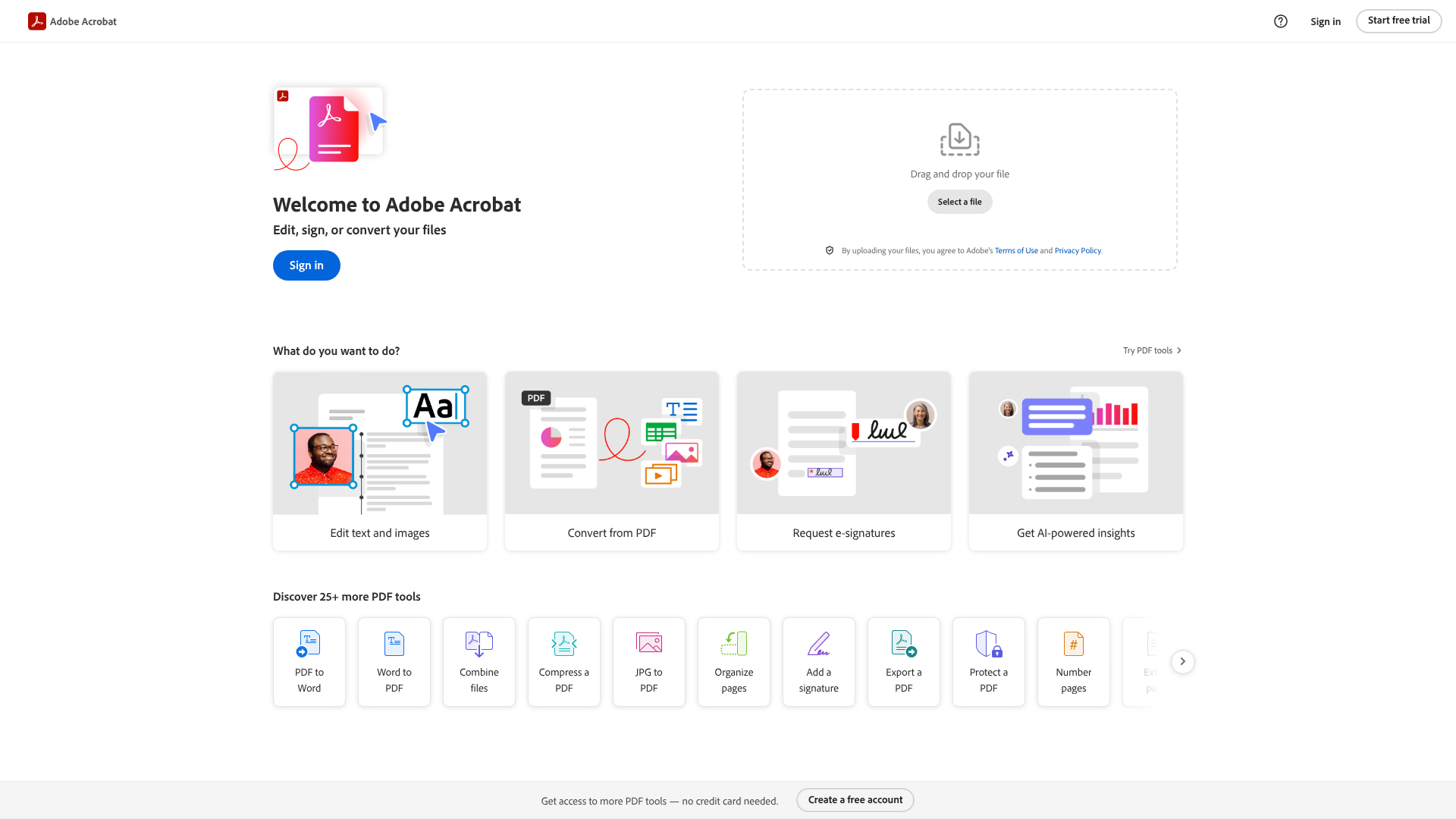
Once you have your Digital ID, the process of applying it to a PDF is straightforward. We'll use Adobe Acrobat Reader DC, the most common free PDF software, as our example. The steps are similar in other professional PDF editors.
Step-by-Step Instructions
Open Your PDF Document: Launch Adobe Acrobat Reader and open the PDF file you need to sign.
Access the Certificates Tool: In the right-hand pane, find and click on Tools. If you don't see it, you can find it in the top menu under 'View' > 'Tools' > 'Certificates'. In the Tools centre, scroll down to the 'Forms & Signatures' section and click Open under the Certificates icon.
Select the 'Digitally Sign' Option: A new toolbar will appear at the top of your document. Click on the Digitally Sign button. Your cursor will turn into a crosshair.
Draw Your Signature Field: Click and drag your mouse to draw a box where you want your signature to appear on the document. This box will define the size and location of your digital signature block.
Choose Your Digital ID: As soon as you release the mouse button, a dialogue box will appear, showing a list of available Digital IDs on your system. Select the ID you want to use for signing. If you haven't set one up yet, Adobe will prompt you to configure one now.
Customise and Sign: After selecting your ID, click Continue. You'll see a preview of how your signature will look. You can customise its appearance (e.g., include your name, date, logo) through the 'Create' button. Once you're satisfied, click the Sign button.
Enter Your Password and Save: You will be prompted to enter the password for your Digital ID to authorise its use. After entering it, you'll be asked to save the document. It's best practice to save it as a new file (e.g., 'Contract-Signed.pdf') to preserve the original unsigned version. Once saved, the digital signature is applied and the document is cryptographically sealed.
For a visual walkthrough of this process, the video below provides a clear demonstration:
Choosing the Right Digital Signature Software
While Adobe Acrobat is a powerful tool for handling PDFs, the world of digital signing extends to specialised platforms designed to manage the entire document workflow, from creation to secure signing and storage. These solutions are particularly useful for businesses that handle a high volume of contracts, proposals, and agreements.
Key factors to consider when choosing software include:
Security and Compliance: Does the platform comply with legal standards like ESIGN and eIDAS. Does it offer robust security features. * Ease of Use: Is the interface intuitive for both you and your signers. * Workflow Automation: Can it automate reminders, track document status, and integrate with other tools you use, like your CRM.
Audit Trails: Does it provide a comprehensive, court-admissible audit trail for every signed document.
Here are a few excellent options that cater to different business needs:
Dedicated E-Signature and Document Workflow Platforms
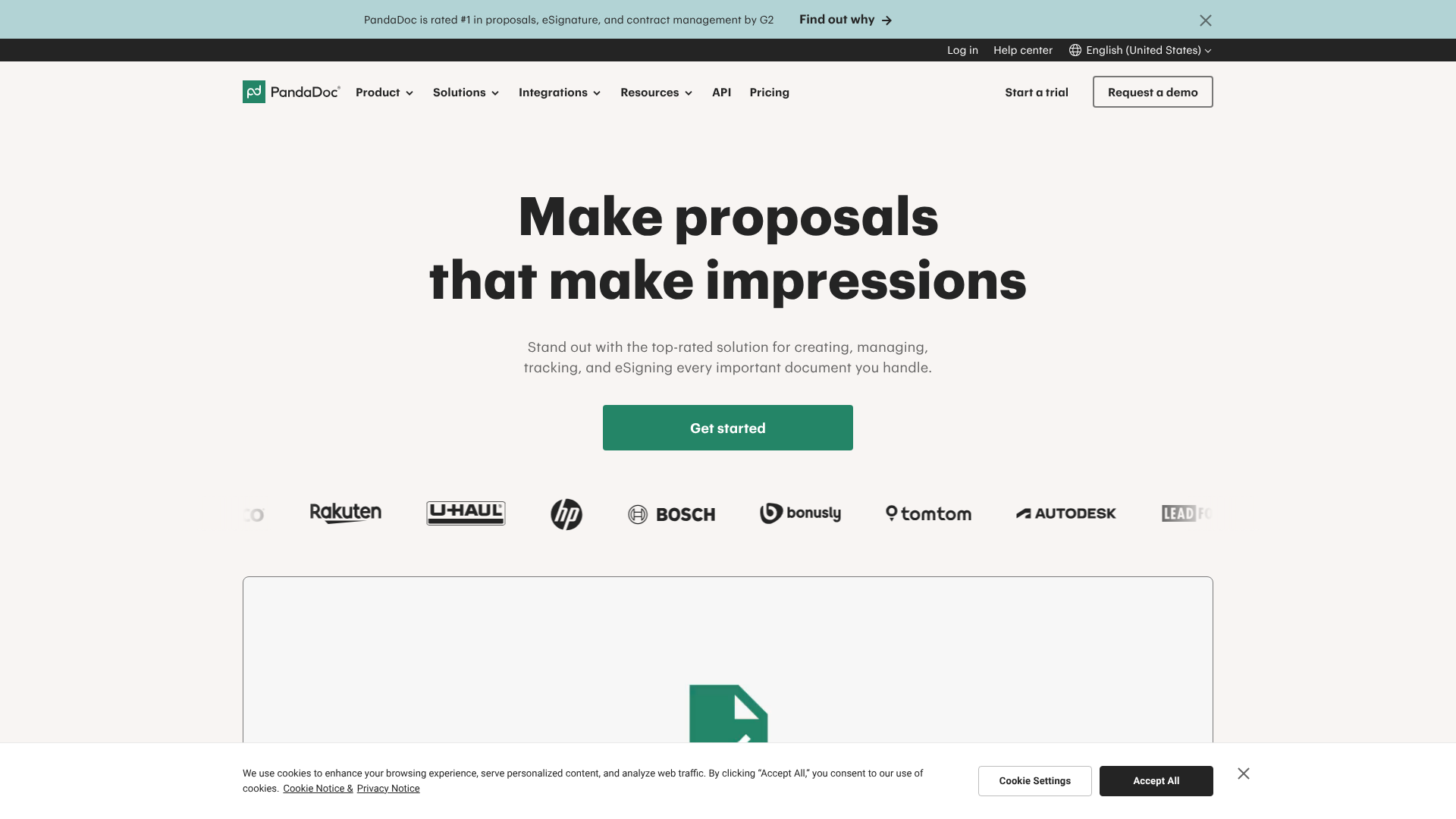
For businesses, especially in sales and operations, managing documents is more than just getting a signature. It's about creating, sending, tracking, and storing them efficiently. Platforms in this category integrate signing into a broader workflow.
- PandaDoc: An all-in-one solution perfect for sales teams. PandaDoc allows you to create beautiful proposals, quotes, and contracts with its powerful editor, then send them for legally binding e-signing. Its key strength is its analytics, which show you when a recipient has opened, viewed, and spent time on different sections of your document.
- Proposify: Similar to PandaDoc, Proposify focuses on helping creative and sales teams streamline their proposal process. It offers a high degree of design control and content management, ensuring brand consistency across all documents. Its electronic signature feature is a core part of its workflow, making it easy to close deals faster.
- Better Proposals: This platform excels at creating modern, web-based proposals that look great on any device. It includes signature capabilities and payment integrations, allowing clients to sign and pay in one seamless step. The focus is on speed and conversion, with detailed tracking to help you follow up intelligently.
- eSignly: If your primary need is a straightforward, secure, and compliant signing solution without the extensive document creation features, eSignly is a strong contender. It focuses purely on the e-signature process, making it a simple and effective tool for getting documents signed quickly and securely.
| Feature | PandaDoc | Proposify | eSignly |
|---|---|---|---|
| Primary Use Case | Sales Documents & Contracts | Design-Heavy Proposals | General E-Signing |
| Document Editor | Yes, advanced | Yes, advanced | No (uploads only) |
| Analytics & Tracking | Yes, detailed | Yes, detailed | Basic status tracking |
| CRM Integration | Extensive | Extensive | Limited |
| Compliance | ESIGN, UETA, eIDAS | ESIGN, UETA, eIDAS | ESIGN, UETA, eIDAS |
Choosing the right tool depends on your workflow. If you just need to sign existing PDFs, a tool like Adobe or eSignly is sufficient. If you need to manage the entire lifecycle of sales documents, a platform like PandaDoc or Proposify offers far more value.
How to Verify a Digital Signature in a PDF

Applying a digital signature is only half the process; knowing how to verify one is just as important. Verification confirms the signer's identity and ensures the document hasn't been tampered with since it was signed. Thankfully, most PDF readers make this process simple.
When you open a signed PDF in Adobe Acrobat, a blue banner will typically appear at the top, providing a summary of the signature's status. This is your first clue. For a more detailed look, you can click on the Signature Panel button in that banner. This opens a side panel that lists all signatures on the document.
Clicking on a specific signature in the panel reveals its details. Here's what to look for:
Signature Validity Status: This is the most critical piece of information. You'll usually see one of three statuses:
- Green Checkmark (Valid Signature): This is what you want to see. It means the signer's identity was verified by a trusted authority, the certificate is valid, and the document has not been altered since signing.
- Yellow Warning Triangle (Signature has Problems): This indicates a potential issue. Common reasons include the signer's certificate not being trusted by your system (common with self-signed IDs), the certificate having expired, or the document being modified in a permissible way (like filling in form fields).
- Red 'X' (Invalid Signature): This is a major red flag. It means the document was altered after signing, the signature is corrupted, or the signer's certificate has been revoked. You should not trust a document with an invalid signature.
Signer's Identity: The panel will show the name of the person or organisation that signed the document, as listed in their digital certificate.
Time of Signing: A timestamp indicates the exact date and time the signature was applied. Some high-security signatures use a trusted third-party Time Stamp Authority (TSA) to certify this time is accurate.
Document Integrity: The verification process confirms that the document's content is exactly the same as it was at the moment of signing. Even changing a single character will invalidate the signature.
By checking these details, you can be confident in the authenticity and integrity of the documents you receive.
Common Problems When You Sign a PDF Digitally (And How to Fix Them)
While the process is generally smooth, you can occasionally run into issues when you sign a PDF digitally. Here are some of the most common problems and their solutions.
1. The "Signature is Invalid" or "Author's Identity is Unknown" Error
This is the most frequent issue, especially when dealing with self-signed certificates. It doesn't necessarily mean the signature is fraudulent; it just means your software doesn't trust the certificate used to create it. * The Fix: You need to manually add the signer's certificate to your list of trusted identities.
In Adobe Acrobat, you can do this by clicking on the signature, going to 'Signature Properties' > 'Show Signer's Certificate'. From there, navigate to the 'Trust' tab and click 'Add to Trusted Certificates'. Be absolutely sure you trust the source of the certificate before doing this.
2. The Document Was Modified After Signing
If a signature becomes invalid, it's often because a change was made to the document after it was signed. Digital signatures are designed to lock the document content. * The Fix: There is no 'fix' for this, as it's a security feature working as intended.
The only solution is to have the document re-signed after all changes are finalised. Some documents allow for certain changes, like filling in form fields or adding comments, without invalidating the signature, but this must be enabled by the original author before the first signature is applied.
3. Your Digital Certificate Has Expired
Digital IDs, like passports, have an expiry date. If you try to sign a document with an expired certificate, the signature will be flagged as invalid. * The Fix: You must renew your certificate with the issuing Certificate Authority or create a new self-signed ID.
It's good practice to keep track of your certificate's expiry date and renew it in advance to avoid any disruption.
4. You Forgot the Password to Your Digital ID
Your Digital ID is protected by a password. If you forget it, you cannot use it to sign documents. * The Fix: Unfortunately, for security reasons, there is usually no 'forgot password' option for a Digital ID.
If the password is lost, the ID is unusable. You will need to create or purchase a new one. This highlights the importance of using a memorable but secure password and storing it safely.
Are Digital Signatures Legally Binding? Compliance and Considerations
A primary reason for using digital signatures is to create legally enforceable agreements. In most industrialised nations, digital signatures carry the same legal weight as traditional handwritten signatures, provided they meet certain criteria. The specific laws can vary, but they generally follow similar principles.
In the United States, the Electronic Signatures in Global and National Commerce (ESIGN) Act of 2000 established at a federal level that electronic records and signatures cannot be denied legal effect solely because they are in electronic form. Similarly, the Uniform Electronic Transactions Act (UETA) has been adopted by most states to provide a legal framework for e-signatures at the state level.
In the European Union, the Electronic Identification, Authentication and Trust Services (eIDAS) regulation sets the standard. It defines three levels of electronic signatures: Simple, Advanced, and Qualified. A digital signature using a certificate from a qualified trust service provider (a Qualified Electronic Signature or QES) is recognised as the legal equivalent of a handwritten signature across all EU member states.
For a digital signature to be considered legally binding under these frameworks, it generally must demonstrate:
- Intent to Sign: The signer must have clearly intended to sign the document electronically.
- Consent to Do Business Electronically: All parties must have agreed to conduct the transaction electronically.
- Clear Attribution: The signature must be uniquely linked to the signer.
- Record Integrity: The signed document must be protected from alteration and retained for future reference.
Disclaimer: While this information provides a general overview, it does not constitute legal advice. It's always best to consult with a legal professional to ensure your digital signing process complies with all relevant laws and regulations for your specific jurisdiction and use case. For official guidance in the UK, you can refer to government resources on electronic signatures.
Best Practices for Securing Your Digital Signature
Your digital signature is a powerful representation of your identity. Protecting it is as important as protecting your physical passport or credit cards. Adhering to a few best practices can ensure your digital identity remains secure and under your control.
1. Protect Your Private Key: The private key associated with your Digital ID is the secret ingredient that creates your unique signature. Store it in a secure location. If it's a file on your computer (like a .pfx file), ensure it is password-protected with a strong, unique password that you don't use for other services.
Avoid storing it on shared drives or unsecured cloud storage.
2. Use Hardware Tokens for High-Security Needs: For maximum security, store your Digital ID on a dedicated hardware token, such as a USB smart card or token. This device requires both physical possession of the token and a PIN or password to sign a document. This two-factor authentication makes it extremely difficult for an unauthorised person to use your signature, even if they gain access to your computer.
3. Choose Reputable Certificate Authorities: When obtaining a certificate-based ID, always use a well-known and trusted CA. These organisations have robust security protocols and verification processes, ensuring the integrity of the certificates they issue. A signature from a reputable CA is more likely to be automatically trusted by recipients.
4. Be Wary of Phishing: Never respond to emails or messages asking you to share your Digital ID file or its password. Scammers may try to trick you into revealing your credentials to impersonate you. Your private key and its password should never be shared with anyone.
5. Regularly Review and Manage Your Certificates: Periodically check the status and expiry dates of your digital certificates. Revoke any certificates that are no longer needed or may have been compromised. This ensures that only your current, valid credentials are in circulation.
Electronic Signatures: A Simpler Alternative for Everyday Use
While digital signatures offer the highest level of security, they aren't always necessary for every situation. For many day-to-day tasks, a standard electronic signature is perfectly adequate, faster, and more convenient. This is the method most people are familiar with from platforms like DocuSign or the 'Fill & Sign' features in PDF readers.
An electronic signature captures the intent to sign without the complex cryptographic backbone of a digital signature. Common forms include:
- Drawing your signature with a mouse, trackpad, or stylus.
- Typing your name and selecting a cursive-style font.
- Uploading an image of your handwritten signature.
These methods are ideal for low-risk documents where the primary goal is to record agreement or acknowledgement. Examples include signing for a delivery, approving an internal memo, filling out an HR form, or signing a petition. The legal validity of these signatures is strong, but they lack the robust identity verification and tamper-proofing of a digital signature.
Platforms that facilitate electronic signatures typically provide an audit trail that records the email address, IP address, and timestamps associated with the signing event. This trail provides evidence of the signing process, which is often sufficient for many business and personal transactions. However, if you are dealing with high-value contracts, government documents, or any situation where irrefutable proof of identity and document integrity is paramount, a digital signature remains the superior choice.
Frequently Asked Questions (FAQ)
How do I add a digital signature stamp to a PDF?
When you create or customise the appearance of your digital signature in a program like Adobe Acrobat, you can often include an image or 'stamp'. In the signature appearance settings, you can choose to display an image instead of or in addition to your typed name. You can upload an image file, such as a company logo, a professional seal, or an image of your handwritten signature, to act as the visual representation of your secure digital signature.
How can I sign a PDF that was emailed to me?
First, download the PDF attachment from your email to your computer. Then, open the saved file using a PDF reader that supports digital signatures, such as Adobe Acrobat Reader. Follow the standard steps: go to the 'Certificates' tool, click 'Digitally Sign', draw a box where you want the signature to go, and select your Digital ID. After signing, save the new version of the PDF and email it back to the sender.
Can I copy and paste a signature to a PDF?
While you can copy and paste an image of your signature onto a PDF, this is not a digital signature. It is a simple electronic signature with very low security. It offers no proof of who placed the image there and does not protect the document from being altered. Anyone with a copy of that image could potentially reuse it.
For any document that requires security and authenticity, you should never rely on a copy-pasted image.
How do I add a signature to a PDF without Adobe?
Many other applications and online services allow you to sign PDFs. For simple electronic signatures, online tools like Smallpdf or DocuSign's free version are popular. For true digital signatures, professional PDF editors like Nitro PDF Pro or Foxit PDF Editor offer similar functionality to Adobe Acrobat Pro. Additionally, some operating systems have built-in tools; for example, the Preview app on macOS allows you to add a saved image of your signature to a PDF.
Can I digitally sign a PDF for free?
Yes. You can digitally sign a PDF for free using software like Adobe Acrobat Reader DC. The software itself is free, and it allows you to create a self-signed Digital ID at no cost. This provides the full cryptographic security of a digital signature.
However, because the ID is self-signed, recipients will need to manually trust your certificate. The cost associated with digital signatures typically comes from purchasing a certificate from a commercial Certificate Authority (CA) for third-party validation.
Final Thoughts
Mastering how to sign a PDF with a digital signature is a crucial skill in modern business. It elevates your document security from a simple symbol of intent to a cryptographically secure, verifiable, and legally robust process. By understanding the roles of Digital IDs and Certificate Authorities, you can ensure your agreements are protected against tampering and your identity as a signer is authenticated.
For everyday tasks, a simple electronic signature may suffice. But for contracts, legal documents, and high-value transactions, the integrity and non-repudiation offered by a true digital signature are indispensable. By choosing the right tools and following best practices, you can sign and manage your documents with confidence and professionalism.
If your work involves managing a steady stream of proposals and contracts, consider how a dedicated platform can streamline your entire workflow. Solutions like PandaDoc or Proposify not only handle secure signing but also help you create, track, and manage your most important business documents from start to finish.