
How to Create a Digital Signature: A Step-by-Step Guide for 2026
In a world where contracts are sent across continents in seconds, the traditional pen-and-paper signature can feel outdated and slow. If you're wondering how to create a digital signature, you're looking for a way to speed up agreements, enhance security, and modernise your workflow. This process is simpler than you might think, and the right approach can transform how you handle important documents.
- What You'll Learn
- What is a Digital Signature? (And How Is It Different from an Electronic Signature?)
- Key Features and Benefits of Using Digital Signatures
- How to Create a Digital Signature: 4 Common Methods
- Method 1: Using Free Online Signature Generators
- Method 2: Creating a Signature in Common Applications (Word & PDF)
- Method 3: Scanning Your Handwritten Signature
- Method 4: Using a Dedicated Digital Signature Service (Highest Security)
- Choosing the Right Digital Signature Solution
- Top Digital Signature Platforms for Professionals
- 1. PandaDoc: Best for Sales Teams and Proposals
- 2. eSignly: A Straightforward and Secure Option
- 3. Proposify: Ideal for Creating and Signing Proposals
- Pricing and Cost Comparison
- Pros and Cons of Digital Signatures
- Frequently Asked Questions (FAQ)
- Can I create an electronic signature for free?
- How to digitize a signature for free?
- Is there a free digital signature app?
- Can I create a digital signature on my phone?
- Is Google eSignature free?
- How can I create a digital signature on my iPhone?
- Final Thoughts: Making Your Digital Signature Setup a Success
Whether you're a freelancer signing your first client contract, a small business owner streamlining operations, or part of a large sales team closing deals, understanding the digital signature setup is essential. It’s not just about pasting an image of your name; it’s about using a secure, verifiable, and legally binding method to formalise agreements. This guide will walk you through everything you need to know, from simple free methods to robust professional software.
What You'll Learn
- The Key Difference: An electronic signature is a simple image of your signature, while a true digital signature is a highly secure, encrypted, and verifiable version that protects document integrity.
- Multiple Creation Methods: You can make a digital signature by drawing it with a mouse, typing your name and choosing a font, or uploading a scanned image of your handwritten signature.
- Security is Paramount: For important business documents, using dedicated software is crucial. These platforms provide certificate-based signatures with comprehensive audit trails that record every step of the signing process.
- Free vs. Paid Options: While free tools are available for creating a basic signature image, paid services offer the legal validity, security, and workflow features necessary for professional use.
What is a Digital Signature? (And How Is It Different from an Electronic Signature?)
Before you create a digital signature, it's vital to understand what it is—and what it isn't. The terms "electronic signature" and "digital signature" are often used interchangeably, but they represent two different levels of security and verification. Understanding this distinction is the first step in choosing the right solution for your needs.
An electronic signature (or e-signature) is the broader, more common term. It's a digital representation of a person's intent to agree to the terms of a document. This can be as simple as a typed name at the bottom of an email, a scanned image of a handwritten signature pasted into a Word document, or a signature drawn on a screen with a finger or stylus. It's legally binding in many places for many types of agreements, but its security can be limited.
A digital signature, on the other hand, is a specific, highly secure type of electronic signature. It uses a technology called Public Key Infrastructure (PKI) to create a unique, encrypted "fingerprint" for a document. When you sign a document with a digital signature, a certificate-based digital ID is attached. If anyone tries to alter the document after it's been signed, the digital signature is invalidated, making tampering immediately obvious.
Think of it this way: an electronic signature is like signing a letter, while a digital signature is like sealing that letter in a tamper-evident envelope with a unique wax seal that can be traced back to you.
This technology provides three core security benefits:
Authentication: It verifies that the person signing the document is who they claim to be. 2. Integrity: It ensures that the document has not been altered since it was signed.
Non-repudiation: It provides proof that the signatory intentionally signed the document and cannot deny it later.
For casual agreements, a simple electronic signature might be enough. But for high-value contracts, legal documents, or financial agreements, the enhanced security of a true digital signature is the professional standard.
Key Features and Benefits of Using Digital Signatures

Adopting a digital signature setup offers far more than just a convenient way to sign documents. It brings a host of operational benefits that can improve efficiency, reduce costs, and strengthen security across your business. Whether you're a solo operator or part of a large enterprise, these advantages are compelling.
First and foremost is the enhanced security. As mentioned, true digital signatures are tamper-evident. This cryptographic protection ensures that a signed contract cannot be altered without leaving a clear digital trail. This is crucial for legally sensitive documents where document integrity is non-negotiable.
Platforms that offer this provide a level of assurance that a simple image signature cannot match.
Another major benefit is speed and efficiency. The traditional process of printing, signing, scanning, and emailing (or posting) a document can take days. With digital signatures, this entire workflow is condensed into minutes. You can send a contract to a client on the other side of theworld, and they can sign and return it before you've finished your morning coffee.
This acceleration is particularly valuable in sales, where closing deals quickly is a competitive advantage.
This efficiency leads directly to significant cost savings. By eliminating the need for paper, ink, printers, scanners, and postage, you can cut down on direct operational expenses. While there may be a subscription fee for a digital signature service, it's often far less than the cumulative cost of manual, paper-based processes, not to mention the value of the time saved.
Finally, digital signature platforms provide a comprehensive audit trail. Every action related to the document—when it was sent, opened, viewed, and signed—is logged with a timestamp and IP address. This detailed record serves as powerful evidence in the event of a dispute, providing a clear and impartial history of the agreement. This feature alone makes professional services a worthwhile investment for any serious business.
How to Create a Digital Signature: 4 Common Methods
There are several ways to make a digital signature, ranging from quick and free methods for casual use to highly secure options for professional contracts. The best method for you depends on your specific needs, particularly the level of security and legal validity required.
Method 1: Using Free Online Signature Generators
For a quick, no-frills electronic signature, free online generators are a popular choice. Websites like Canva, Signaturely, and the free versions of DocuSign or Adobe Sign allow you to create a signature image in seconds. The process is straightforward: you visit the website, choose a creation method, and download the result.
Typically, you have three options:
- Type: Enter your name, and the tool will generate several cursive font styles for you to choose from.
- Draw: Use your mouse, trackpad, or a touchscreen to draw your signature directly on the screen.
- Upload: Sign your name on a piece of paper, take a photo of it, and upload the image to the tool.
Once created, you can download the signature as a transparent PNG file. You can then insert this image into documents as needed. While this method is fast and free, it's important to remember that it creates a basic electronic signature image with no underlying security or audit trail. It's suitable for low-stakes situations but not for sensitive legal or financial documents.
Method 2: Creating a Signature in Common Applications (Word & PDF)
Many of the applications you already use have built-in features for adding a signature. This is a convenient option that doesn't require any third-party tools. The two most common examples are Microsoft Word and Adobe Acrobat Reader.
In Microsoft Word:
- Create the Signature Line: In your document, place the cursor where you want the signature. Go to the
Inserttab, clickSignature Line, and fill in the details. 2.
Sign the Line: Double-click the signature line in the document. You can then type your name or, if you have a tablet PC, draw your signature. 3. Use a Scanned Image: A more common method is to sign a piece of paper, scan it, and save it as an image.
You can then use Insert > Pictures to place your signature in the document. You can even save it as an AutoText entry for quick reuse.
In Adobe Acrobat Reader:
Open the PDF: Open the document you need to sign in Adobe Reader. 2. Use the Fill & Sign Tool: Click on the
Fill & Signtool in the right-hand pane or theSignicon in the top toolbar.Add Your Signature: Click
Add Signature. You'll get the same options as online generators: type, draw, or upload an image. Once created, you can place it anywhere on the PDF and resize it as needed.
These built-in tools are excellent for convenience, but like online generators, they typically create simple electronic signatures rather than secure, certificate-based digital signatures.
Method 3: Scanning Your Handwritten Signature
This is a do-it-yourself method to create a high-quality, reusable signature image that you can use across various platforms. It gives you a clean, professional-looking signature with a transparent background, so it looks natural when placed over text or a signature line.
Here’s a step-by-step guide:
- Sign on Paper: Use a black pen to sign your name on a clean, white, unlined piece of paper. A medium-thickness pen often works best. 2.
Scan or Photograph: Scan the signature at a high resolution (at least 300 DPI) or take a well-lit, shadow-free photo of it with your smartphone. 3. Edit the Image: Open the image in an editor. Even basic software can work.
Crop the image tightly around the signature. 4. Remove the Background: Use a background removal tool to make the background transparent. Many free online tools or software like Adobe Express can do this automatically.
This step is crucial for a professional look. 5. Save as a PNG: Save the final image as a PNG file. The PNG format supports transparent backgrounds, whereas JPEG does not.
You now have a versatile signature image file that you can insert into documents, emails, or upload to e-signature platforms.
Method 4: Using a Dedicated Digital Signature Service (Highest Security)
When security, legal validity, and a professional workflow are your top priorities, using a dedicated digital signature service is the only way to go. These platforms are designed to provide true, certificate-based digital signatures that are legally binding and come with a complete audit trail.
Services like PandaDoc or eSignly manage the entire signing process. The workflow typically looks like this:
- Upload Your Document: You upload your contract, proposal, or agreement to the platform. 2.
Add Signatory Fields: You drag and drop fields onto the document where you need signatures, initials, or other information. 3. Send to Signers: You enter the email addresses of the recipients and send the document for signing. 4.
Signers Receive a Link: Each signer gets a unique, secure link to view and sign the document. They are guided through the process and can create their signature by typing or drawing. 5. Receive the Final Document: Once everyone has signed, all parties receive a final, executed copy along with a certificate of completion that details the audit trail.
This method provides the highest level of security and compliance, making it the standard for business, legal, and financial transactions.
Choosing the Right Digital Signature Solution

With so many options available, selecting the right one can feel overwhelming. The key is to evaluate your needs based on a few critical factors. Don't just pick the first free tool you find; consider the long-term requirements of your work or business.
Factors to Consider
Security & Compliance: This is the most important factor for business use. Does the solution provide a true digital signature with encryption? Does it comply with legal standards like the eIDAS regulation in the UK and EU or the ESIGN Act in the US? For sensitive documents, look for platforms that offer certificate-based digital IDs and detailed audit trails.
Ease of Use: A powerful tool is useless if no one can figure out how to use it. The platform should be intuitive for both you and the people who need to sign your documents. A clunky or confusing interface can cause delays and frustrate clients. Many services offer free trials, which are a great way to test the user experience firsthand.
Audit Trails: A strong audit trail is your proof in case of a dispute. A good service will provide a detailed certificate upon completion that logs every event: who sent the document, who opened it, their IP address, when they signed, and more. This level of detail is a key differentiator between free tools and professional platforms.
Integrations: How well does the solution fit into your existing workflow? Look for integrations with tools you already use, such as cloud storage (Google Drive, Dropbox), CRM software (HubSpot CRM, Zoho CRM), or proposal software. Seamless integrations prevent you from having to manually move documents between systems, saving time and reducing errors.
Volume and Scalability: Consider how many documents you need to get signed each month. Free plans or basic tiers often have strict limits. Choose a plan that accommodates your current volume and can scale with you as your business grows.
Pro Tip: When evaluating platforms, pay close attention to the experience of the signer. The process should be simple, mobile-friendly, and not require them to create an account or download software just to sign your document. A smooth signing experience reflects well on your business.
Top Digital Signature Platforms for Professionals
While free tools are fine for one-off, casual use, professionals and businesses need a reliable, secure, and feature-rich platform. These services go beyond just creating a signature; they manage the entire document workflow, providing security, tracking, and automation. Here are a few top recommendations.
1. PandaDoc: Best for Sales Teams and Proposals
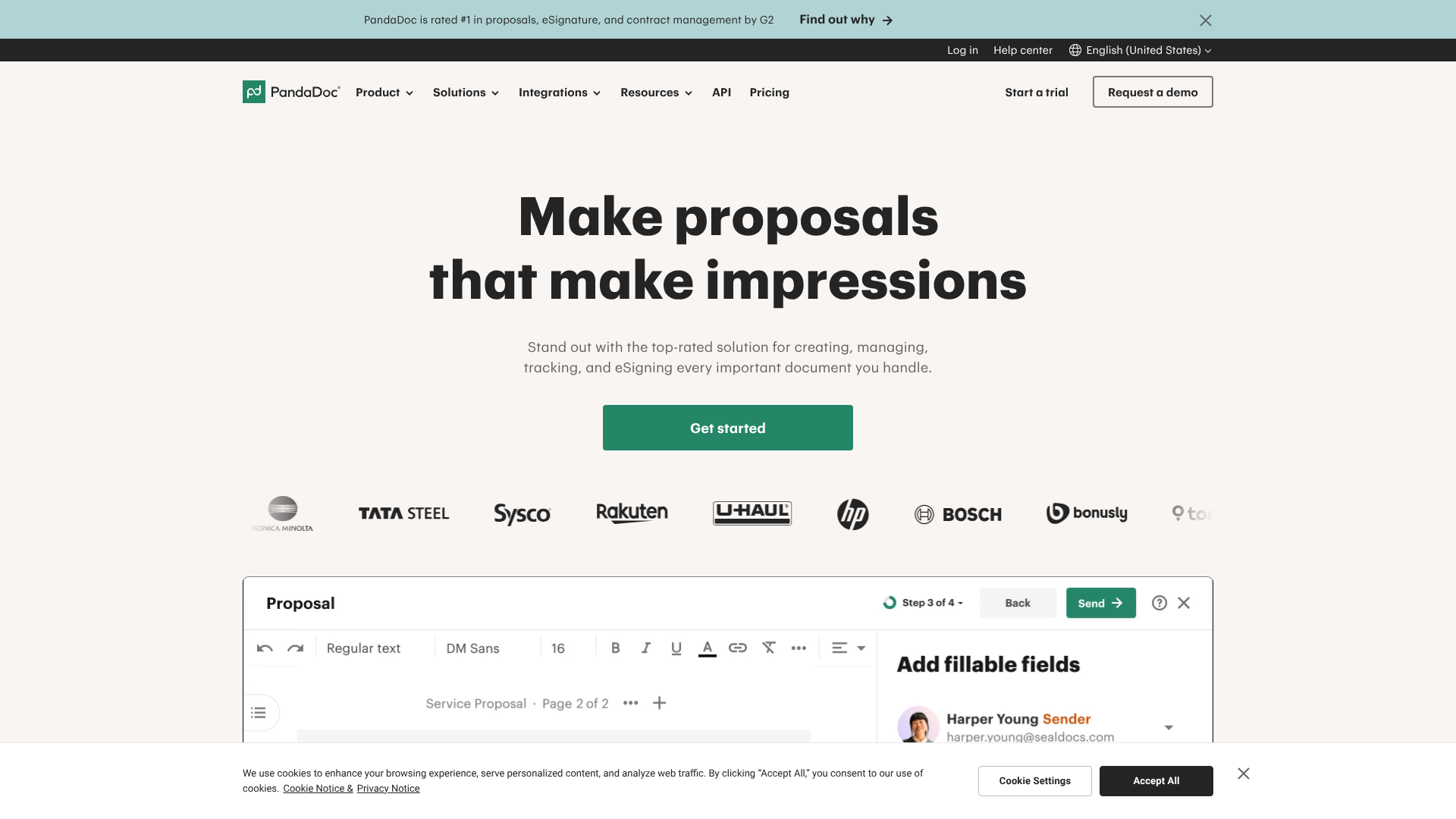
PandaDoc is more than just an e-signature tool; it's a comprehensive document automation platform. It's particularly popular with sales teams because it allows you to create, send, track, and get signatures on proposals, quotes, and contracts all in one place. Its powerful editor and template library make it easy to generate professional-looking documents quickly.
PandaDoc's key strength lies in its analytics. You receive real-time notifications when a recipient opens, views, and comments on your document, giving you valuable insight into their engagement. This allows for timely follow-ups to close deals faster. All signatures are legally binding and come with a detailed electronic certificate.
Pros
- All-in-one platform for document creation, tracking, and signing.
- Powerful analytics provide insights into recipient engagement.
- Extensive template library and rich media support.
Cons
- Can be more complex than a simple, dedicated e-signature tool.
- Some advanced features are locked behind higher-priced plans.
2. eSignly: A Straightforward and Secure Option
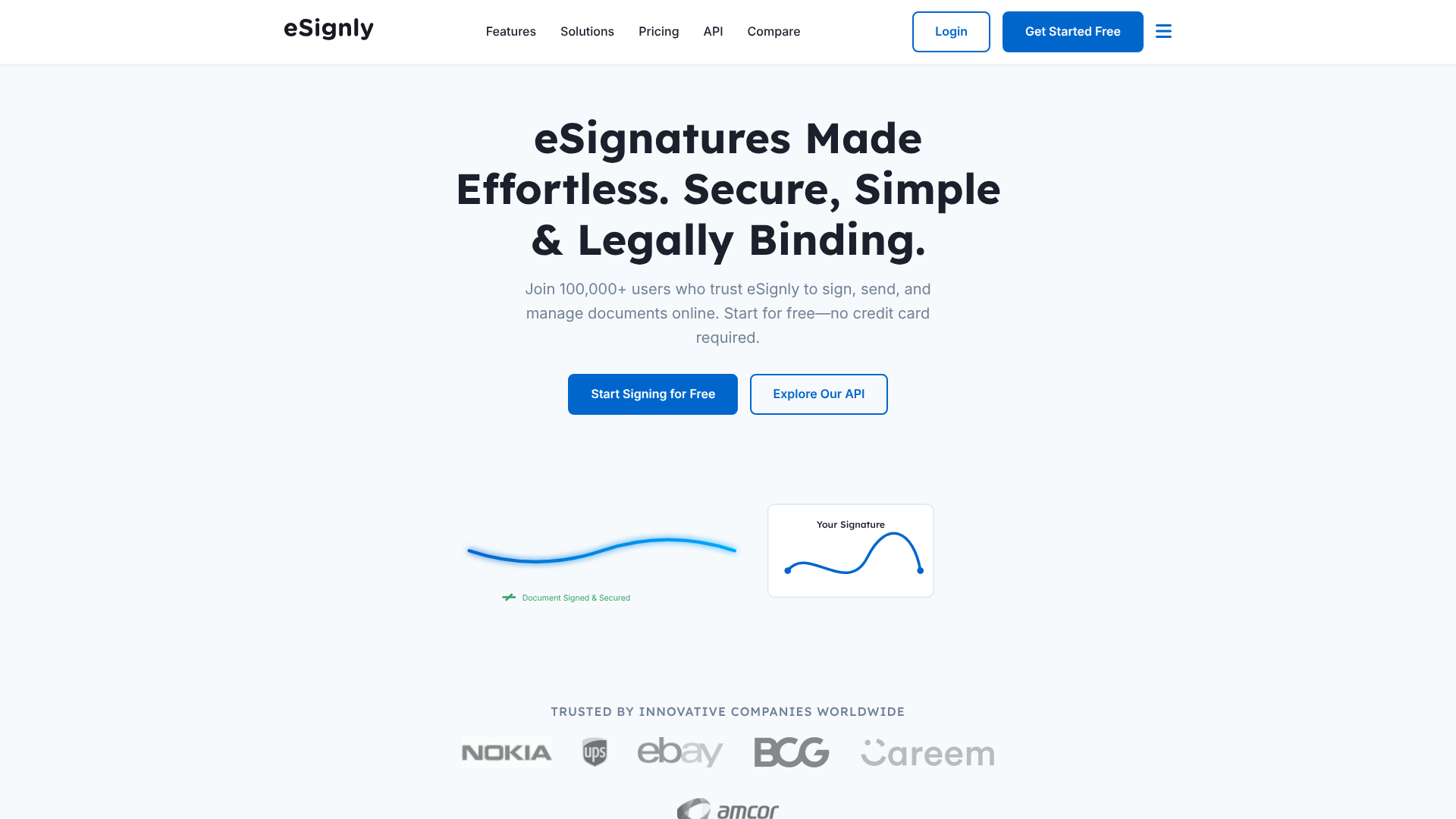
If you're looking for a dedicated, no-fuss solution focused purely on security and ease of use, eSignly is an excellent choice. It provides a clean and intuitive interface that makes sending and signing documents incredibly simple for all parties involved. It strips away some of the document creation complexities of other platforms to focus on its core strength: getting documents signed securely and efficiently.
eSignly is fully compliant with major e-signature laws worldwide, ensuring your agreements are legally enforceable. It offers robust features like reusable templates, in-person signing, and detailed audit trails. It's a great fit for businesses of all sizes, from freelancers to enterprises, that need a reliable and straightforward digital signature setup.
Pros
- Very user-friendly and intuitive interface.
- Strong focus on security and legal compliance.
- Affordable pricing plans suitable for small businesses.
Cons
- Fewer document creation and editing features compared to all-in-one platforms.
- Integrations may not be as extensive as some larger competitors.
3. Proposify: Ideal for Creating and Signing Proposals
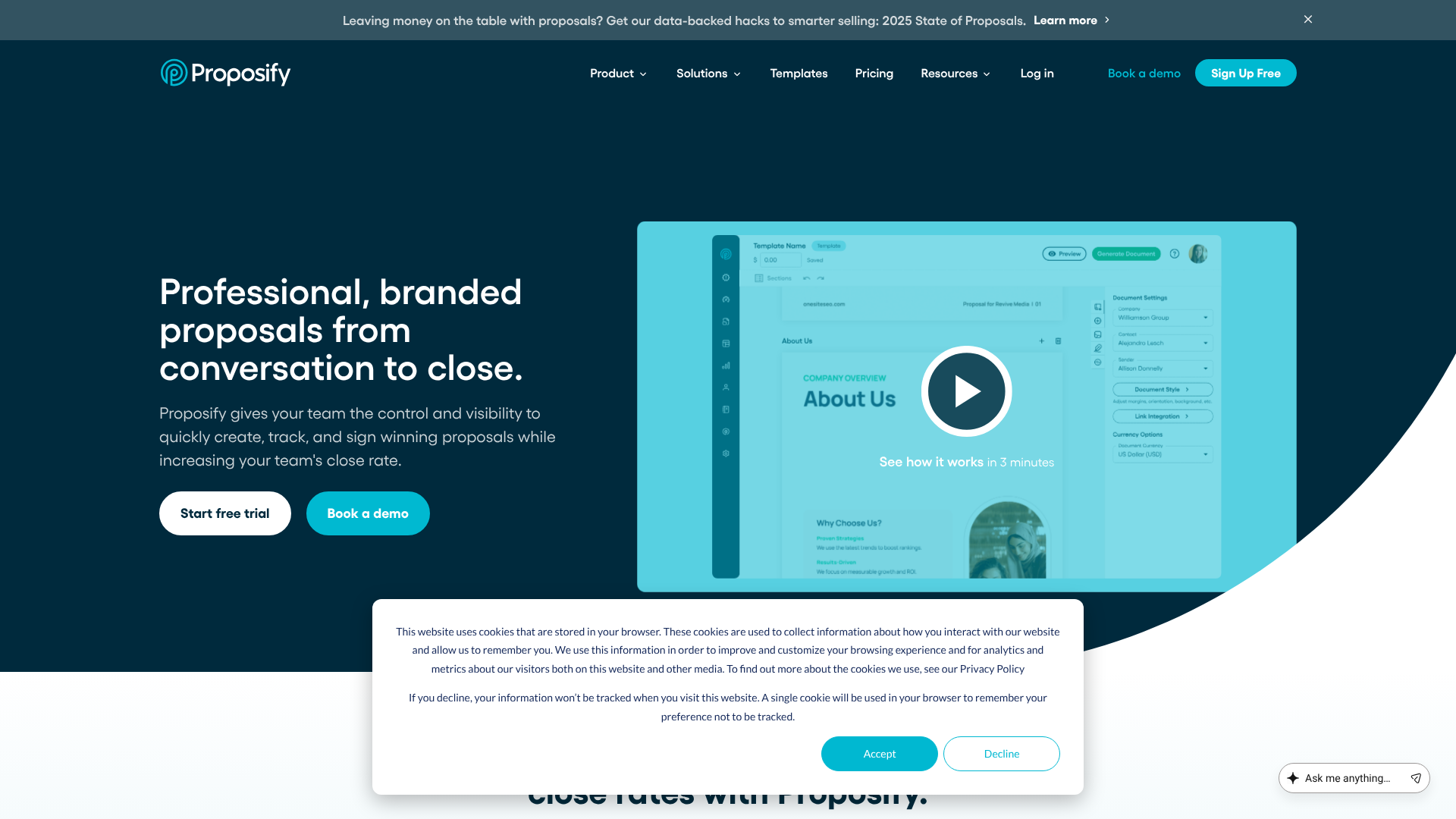
Similar to PandaDoc, Proposify is a specialised tool aimed at streamlining the proposal process for sales and marketing teams. Its core function is helping you create beautiful, interactive proposals that stand out. Naturally, a key part of that workflow is getting the proposal signed, and Proposify has legally binding electronic signatures built right in.
The platform offers design flexibility, content libraries to store your best material, and metrics to track how clients interact with your proposals. When your client is ready to commit, they can sign directly within the proposal document, creating a seamless path from pitch to closed deal. If your primary use case is sending proposals, Proposify is a purpose-built solution that excels.
Pros
- Excellent design tools for creating visually appealing proposals.
- Built-in content and fee tables simplify proposal creation.
- Tracks proposal metrics like view time and section engagement.
Cons
- Highly specialised for proposals; may not be the best fit for general-purpose contract signing.
- The focus is more on design and sales than on advanced signature security features.
Pricing and Cost Comparison
Choosing a digital signature service often comes down to budget. The market includes everything from free plans with basic features to enterprise-level solutions with advanced security and customisation. Understanding the different pricing structures will help you find the best value for your needs.
Free plans are great for individuals with very low signing volume—typically 1 to 5 documents per month. They usually only include the most basic e-signature functionality. Paid plans unlock the features that businesses need, such as unlimited documents, reusable templates, custom branding, and detailed audit trails.
Here’s a general comparison of the platforms discussed. Note that pricing changes, so always visit the official websites for the most current information.
| Feature | PandaDoc | eSignly | Proposify |
|---|---|---|---|
| Free Plan | Yes, with limited features and documents. | Offers a free trial. | Offers a free trial. |
| Starting Price | Typically starts around £15-£25 per user/month. | Often has competitive entry-level pricing. | Typically starts around £30-£40 per user/month. |
| Best For | Sales teams needing an all-in-one document automation tool. | Businesses seeking a simple, secure, and dedicated e-signature solution. | Agencies and teams focused on creating and closing high-impact proposals. |
The investment in a paid plan is often justified by the time saved and the legal protection offered. The audit trail alone can be invaluable in a dispute, making the monthly fee a small price to pay for peace of mind.
Pros and Cons of Digital Signatures
While the move to digital signatures is overwhelmingly positive, it's helpful to have a balanced view. Understanding both the advantages and potential drawbacks will help you implement the technology effectively.
The Advantages
- Unmatched Efficiency: Finalise agreements in minutes instead of days, accelerating business cycles.
- Enhanced Security: Cryptographic encryption and tamper-evident technology protect document integrity.
- Cost-Effective: Drastically reduces expenses related to paper, printing, and postage.
- Global Accessibility: Sign documents from anywhere in the world, on any device.
- Ironclad Audit Trails: Provides a detailed, time-stamped record of all signing activities for legal proof.
- Environmentally Friendly: A paperless workflow reduces your carbon footprint.
Potential Disadvantages and Considerations
- Initial Setup and Cost: Professional platforms come with subscription fees and may require some initial setup and training for your team.
- Recipient Adoption: While widely accepted, some individuals or organisations may still be unfamiliar with or hesitant to use digital signatures, requiring some education.
- Technology Dependence: The process relies on internet access and compatible devices for all parties involved. An outage or lack of access can cause delays.
- Varying Legal Standards: While broadly accepted, the specific legal requirements for digital signatures can vary by country and document type. It's important to use a service that complies with the regulations relevant to you.
For most businesses, the advantages far outweigh these considerations, which can typically be managed with the right platform and clear communication.
Frequently Asked Questions (FAQ)
Here are answers to some of the most common questions people have when they first start exploring how to make a digital signature.
Can I create an electronic signature for free?
Yes, you absolutely can. There are many free online tools and features within software like Adobe Reader that allow you to type, draw, or upload an image of your signature. These are perfect for creating a basic electronic signature image for personal or low-stakes use. However, these free options typically lack the security, audit trails, and legal compliance certificates that come with paid, professional services.
How to digitize a signature for free?
Digitizing a signature for free is a simple process. The most common method is to sign your name clearly on a blank white piece of paper using a black pen. Then, take a high-quality photo of it with your smartphone or scan it. You can then use a free online background removal tool to make the background transparent and save the final image as a PNG file.
This gives you a clean digital version of your handwritten signature.
Is there a free digital signature app?
Many leading digital signature providers, such as Adobe Sign and DocuSign, offer mobile apps with free tiers or trials. These apps allow you to sign documents on the go and often include a limited number of free signatures per month. They are incredibly convenient for signing documents you receive via email on your phone or tablet. For sending documents for others to sign, you will typically need a paid subscription.
Can I create a digital signature on my phone?
Yes, creating a digital signature on your phone is very easy. Most digital signature apps and mobile-friendly websites allow you to draw your signature directly on the touchscreen with your finger or a stylus. You can also choose to type your name and select a font style. The process is designed to be quick and intuitive, enabling you to sign and return documents from anywhere.
Is Google eSignature free?
Google has an eSignature feature integrated into Google Workspace, specifically within Google Docs and Google Drive. As of 2026, this feature is available to users on specific Google Workspace paid plans, such as the Business Standard and Enterprise editions. While it's not available on the free personal Google accounts, it provides a convenient, integrated way for businesses already using Workspace to manage simple signature workflows without a third-party tool.
How can I create a digital signature on my iPhone?
Your iPhone has a built-in feature called Markup that lets you add a signature to documents and images. When you open a PDF in Mail or a photo, tap the Markup icon (it looks like a pen tip). From there, tap the '+' button and select 'Signature'. You can draw your signature with your finger, and your iPhone will save it for future use.
This is a quick and convenient way to sign documents directly on your device.
Final Thoughts: Making Your Digital Signature Setup a Success
Learning how to create a digital signature is a crucial step in modernising your administrative processes. From simple, free image generators to highly secure, certificate-based platforms, there is a solution for every need and budget. The key is to match the tool to the task. For casual, internal documents, a simple digitized image may suffice.
But for anything that carries legal or financial weight, investing in a professional service is essential.
By choosing a platform that offers robust security, a clear audit trail, and an intuitive user experience, you not only protect your agreements but also accelerate your entire workflow. You can close deals faster, onboard clients more smoothly, and manage contracts with greater confidence and efficiency.
If you're ready to streamline your document workflows with a secure and professional solution, platforms like PandaDoc for sales automation or eSignly for dedicated signing offer powerful features worth exploring. Adopting the right tool will save you time, money, and give you peace of mind.