

How to Create a Digital Signature: A Step-by-Step Guide for Professionals
If you're wondering how to create a digital signature, you're in the right place. In a world where business moves at the speed of a click, waiting for paper documents to be printed, signed, and scanned is a major bottleneck. Learning the process for making a digital signature is no longer a niche technical skill; it's a fundamental requirement for professionals in almost every industry to keep workflows moving efficiently and securely.
- Quick Summary
- What Exactly Is a Digital Signature?
- Key Features and Benefits of Using Digital Signatures
- How Do I Create a Digital Signature? 4 Methods Explained
- Method 1: Using Dedicated eSignature Software (Most Secure & Recommended)
- Method 2: Creating a Signature in Microsoft Word and Adobe Acrobat
- Method 3: Using Free Online Signature Generators
- Method 4: The DIY Paper-to-Digital Method
- How to Choose the Right Digital Signature Option
- Top Recommendations for Digital Signature Software
- Pricing and Cost Comparison
- Frequently Asked Questions (FAQ)
- Can I create a digital signature for free?
- What is the easiest way to create a digital signature?
- How do I create a signature that I can upload?
- Is a digital signature in Word legally binding?
- Can I create my own digital signature?
- Final Thoughts
This guide will walk you through everything you need to know, from the basic concepts to detailed, step-by-step instructions for different methods. We'll cover free and paid tools, explain the critical security features that make a digital signature legally binding, and help you choose the right approach for your specific needs, whether you're a freelancer signing a single contract or a large enterprise managing thousands of documents.
Quick Summary
- Digital vs. Electronic: A digital signature is a highly secure, encrypted type of electronic signature. It uses a certificate-based digital ID to verify identity and protect the document from tampering, whereas a basic electronic signature can be as simple as an image of your name.
- Key Methods: You can create a digital signature using dedicated software like PandaDoc or eSignly (most secure), within applications like Adobe Acrobat and Microsoft Word, or with free online generators (less secure).
- Legal Validity: True digital signatures are legally binding in many parts of the world, including the UK, EU (eIDAS regulation), and the US (ESIGN Act), because they provide strong authentication, data integrity, and non-repudiation.
- Choosing a Tool: When selecting a service, prioritise security and compliance standards, ease of use, and its ability to integrate with other software you use, such as your CRM or proposal tools.
- Getting Started: For most business purposes, using a dedicated e-signature platform is the recommended approach. It simplifies the entire digital signature setup, manages security certificates for you, and provides a clear audit trail for every document.
What Exactly Is a Digital Signature?
Before we dive into the 'how', it's crucial to understand the 'what'. The terms "electronic signature" and "digital signature" are often used interchangeably, but they represent different levels of security and verification. Understanding this distinction is the first step in ensuring your documents are not just signed, but truly secure and legally enforceable.
An electronic signature (or e-signature) is a broad term for any signature applied in an electronic format. This could be an image of your handwritten signature pasted into a document, your typed name at the end of an email, or a signature drawn with your finger on a tablet. While often legally acceptable for simple agreements, its security is limited because it doesn't inherently prove who signed the document or if the document was altered after signing.
A digital signature, on the other hand, is a specific, highly secure type of electronic signature. It relies on a technology called Public Key Infrastructure (PKI). When you create a digital signature, you are using a unique, certificate-based digital ID issued by a trusted Certificate Authority (CA). This process embeds a cryptographic 'hash' into the document.
If anyone changes even a single character in the document after it's signed, the digital signature is invalidated. This provides three essential security guarantees: Authentication (proof of the signer's identity), Integrity (proof the document hasn't been tampered with), and Non-repudiation (the signer cannot deny having signed it).
Think of it this way: an electronic signature is like a picture of your signature, while a digital signature is like a notarised, tamper-proof wax seal that is unique to you and the specific document you signed.
Key Features and Benefits of Using Digital Signatures
Adopting a digital signature setup offers far more than just a modern way to sign documents. It fundamentally improves the way you conduct business by enhancing security, streamlining workflows, and reducing operational costs. The benefits are tangible and impact multiple facets of an organisation, from sales and legal to HR and finance.
First and foremost is the enhanced security and compliance. As explained, digital signatures provide robust protection against fraud and tampering. The cryptographic encryption ensures that the document you sign is the exact document the recipient receives. This is critical for high-value contracts, legal agreements, and sensitive internal documents.
Platforms that facilitate this process are often compliant with major regulations like eIDAS in Europe and the ESIGN Act in the United States, giving you peace of mind that your agreements are legally sound.
Another major benefit is the dramatic increase in efficiency and speed. The traditional signing process can take days or even weeks, involving printing, physical delivery, signing, and returning the document. With a digital signature, this entire cycle can be completed in minutes. A sales team can send a proposal and get it signed before a prospect's interest wanes, or an HR department can onboard a new employee from anywhere in the world without shipping a single piece of paper.
This acceleration directly impacts revenue and operational agility.
Finally, there are significant cost and environmental savings. Consider the cumulative costs of paper, ink, printing equipment, postage, and document storage. These expenses add up quickly, especially for document-heavy businesses. Making a digital signature eliminates these direct costs entirely.
Furthermore, it reduces your company's carbon footprint by minimising paper waste and eliminating the need for physical transportation, contributing to your corporate sustainability goals.
How Do I Create a Digital Signature? 4 Methods Explained

Now we get to the practical steps. There are several ways to create a digital signature, ranging from highly secure methods ideal for business contracts to simpler options for less formal documents. We'll explore the four most common approaches, starting with the most recommended for professional use.
Method 1: Using Dedicated eSignature Software (Most Secure & Recommended)
This is the gold standard for businesses. Platforms like PandaDoc and eSignly are designed specifically for this purpose. They handle all the complex security and certificate management behind the scenes, providing you with a simple interface and a legally binding outcome.
- Choose a Provider: Select a reputable e-signature platform. Look for one that offers features you need, such as document tracking, templates, and integrations.
- Upload Your Document: Log in to your account and upload the document (usually a PDF, Word doc, etc.) that needs to be signed.
- Place Signature Fields: Drag and drop fields onto the document where you and other signers need to sign, initial, or fill in information like date or name.
- Create Your Signature: The first time you sign, the platform will prompt you to create your signature. You typically have three options:
- Type: Type your name and choose a font style that looks like a signature.
- Draw: Use your mouse, trackpad, or a touchscreen to draw your signature.
- Upload: Upload an image of your handwritten signature.
- Send for Signature: Add the email addresses of the other signers and send the document. The platform will email them a secure link to review and sign the document.
- Receive the Final Document: Once everyone has signed, all parties receive a final, executed copy with a certificate of completion. This certificate acts as a detailed audit trail, recording every action taken on the document, including IP addresses and timestamps.
This method is superior because the platform manages the digital certificate and PKI encryption, ensuring the signature is not just an image but a secure, verifiable seal.
Method 2: Creating a Signature in Microsoft Word and Adobe Acrobat
Many people don't realise that the tools they already use have built-in signature capabilities. This is a great option for individuals or small businesses that only need to sign documents occasionally.
In Microsoft Word
Word allows you to add a 'Signature Line' which can then be signed with a digital ID. Here’s a quick guide on how to do it.
- Create a Digital ID: If you don't have one, you'll need to get a digital certificate from a Microsoft partner or create a self-signed one (less secure, but fine for internal use). To create a self-signed one, find the
Selfcert.exetool in your Microsoft Office program files folder. - Insert a Signature Line: In your Word document, place your cursor where you want the signature. Go to the
Inserttab, clickSignature Linein theTextgroup, and fill in the signer's details. - Sign the Document: Right-click the signature line in the document and select
Sign. If you have a digital ID, you'll be prompted to select it and enter your password. You can also type your name or add an image of your signature. - Save the Document: Once signed, the document becomes read-only to prevent further changes, and a 'Signatures' icon appears at the bottom.
In Adobe Acrobat Reader DC
Adobe is the creator of the PDF, so its signature tools are robust and widely accepted.
- Open the PDF: Open the document you need to sign in Adobe Acrobat Reader.
- Access the Fill & Sign Tool: Click on
Fill & Signin the right-hand pane. Alternatively, click theSignicon in the top toolbar. - Add Your Signature: Click
Add Signature. You'll get the same options as dedicated software: type, draw, or upload an image. Create your signature and clickApply. - Place the Signature: Your signature will appear as a movable object. Drag it to the correct line on the document and resize it as needed.
- Save the Signed PDF: Save the file. The signature is now embedded in the document.
Pro Tip: When using Adobe for important documents, use the Certificates tool instead of Fill & Sign. This allows you to sign with a true digital ID, creating a cryptographically secure digital signature rather than just a simple electronic one.
Method 3: Using Free Online Signature Generators
Numerous websites offer free tools to create an image of your signature. You can type your name and download it in a cursive font, or draw your signature and save it as a PNG file. These are useful for creating a high-quality image of your signature that you can reuse.
However, it's critical to understand the limitation: these tools only create an electronic signature, not a digital one. They give you an image file (e.g., a transparent PNG). When you paste this image into a document, it has no underlying security, no audit trail, and no way to verify if the document has been altered. They are fine for low-stakes situations, like signing off on an informal internal memo, but should not be used for contracts or legally binding agreements.
Method 4: The DIY Paper-to-Digital Method
This is a low-tech way to create a reusable signature image.
- Sign on Paper: Write your signature clearly in black ink on a clean, white piece of paper.
- Scan or Photograph: Scan the paper at a high resolution (at least 300 DPI) or take a well-lit, shadow-free photo of it with your smartphone.
- Edit the Image: Open the image in an editor (even basic ones like Paint 3D on Windows or Preview on Mac work). Crop the image tightly around the signature.
- Make the Background Transparent: Use a tool like an online background remover or the 'magic wand' tool in more advanced software to remove the white background. Save the final image as a PNG file to preserve the transparency.
Like the generator tools, this method only produces a simple electronic signature image. It offers no security and should be used with caution.

How to Choose the Right Digital Signature Option
With several methods available, choosing the right one depends on your specific needs, particularly the volume and importance of the documents you're signing. A freelancer signing a few contracts a year has different requirements than a multinational corporation processing thousands of agreements daily. Here are the key factors to consider when evaluating your options.
First, assess your security and compliance needs. Are you handling legally binding contracts, financial documents, or sensitive personal data. If so, you must opt for a solution that provides true digital signatures with PKI encryption and is compliant with regulations like eIDAS or ESIGN. Free generators or simple image-based signatures are not suitable for these use cases.
Look for providers that offer detailed audit trails and certificate-based digital IDs.
Next, consider ease of use and user experience. The best tool is one that people will actually use. A complicated digital signature setup will lead to low adoption and users reverting to old, inefficient methods. The platform should be intuitive for both the sender and the signer.
Look for a clean interface, clear instructions, and mobile-friendliness, as many people sign documents on their phones or tablets.
Integrations are another critical factor for business efficiency. Your signature tool shouldn't exist in a silo. Can it connect to the other software you rely on. For example, integration with a CRM like HubSpot CRM or Zoho CRM allows your sales team to generate and send contracts directly from a customer's record.
Integration with proposal software like Better Proposals or Proposify streamlines the entire sales cycle from quote to close. These connections eliminate manual data entry and create a more fluid workflow.
Finally, think about scalability and pricing. Your needs may be simple today, but what about in a year. Choose a solution that can grow with you. This includes evaluating the pricing model.
Some providers charge per user, while others charge per document (or 'envelope'). Consider your signing volume to determine which model is more cost-effective. Many services offer tiered plans, allowing you to start small and upgrade as your needs become more complex.
Top Recommendations for Digital Signature Software
When you need reliability, security, and advanced features, investing in a dedicated platform is the best path forward. These tools are built to manage the entire lifecycle of a document, from creation and sending to signing and storage. Here are a few top recommendations that serve different business needs.
1. PandaDoc
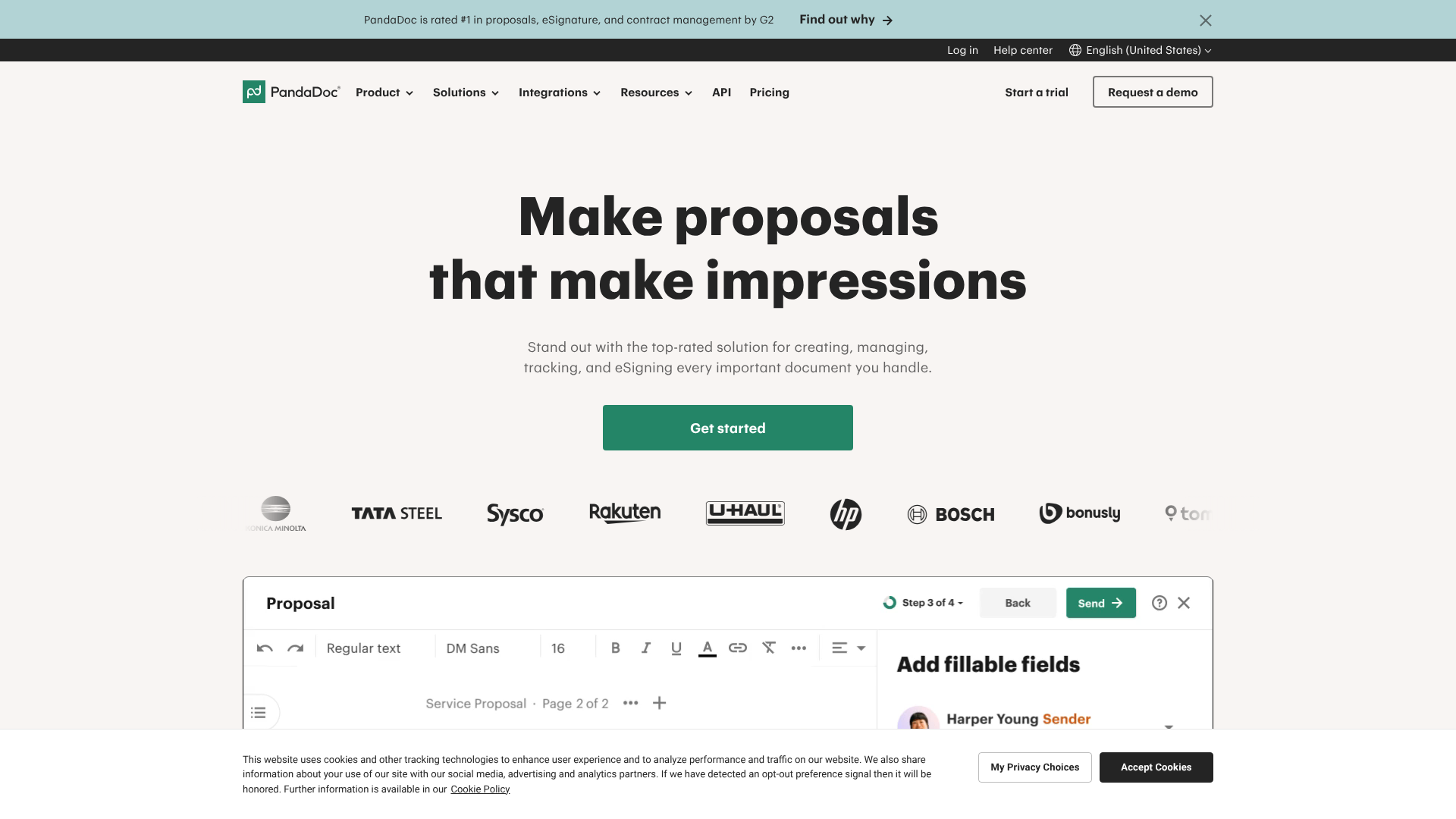
PandaDoc is more than just an e-signature tool; it's a comprehensive document automation platform. It's particularly popular with sales and marketing teams because it combines document creation, tracking, and signing into one seamless workflow. You can build beautiful, interactive proposals, quotes, and contracts with its powerful editor.
Its key strength lies in document analytics. PandaDoc notifies you the moment a recipient opens, views, and signs your document. This insight is invaluable for sales teams, as it allows them to follow up at the perfect moment. It also integrates deeply with a wide range of CRMs and payment gateways.
Pros
- All-in-one document creation, tracking, and signing.
- Powerful analytics provide insights into recipient engagement.
- Extensive library of templates and integrations.
Cons
- Can be more expensive than simpler, signature-only tools.
- The extensive feature set might be overwhelming for users who only need basic signing capabilities.
2. eSignly
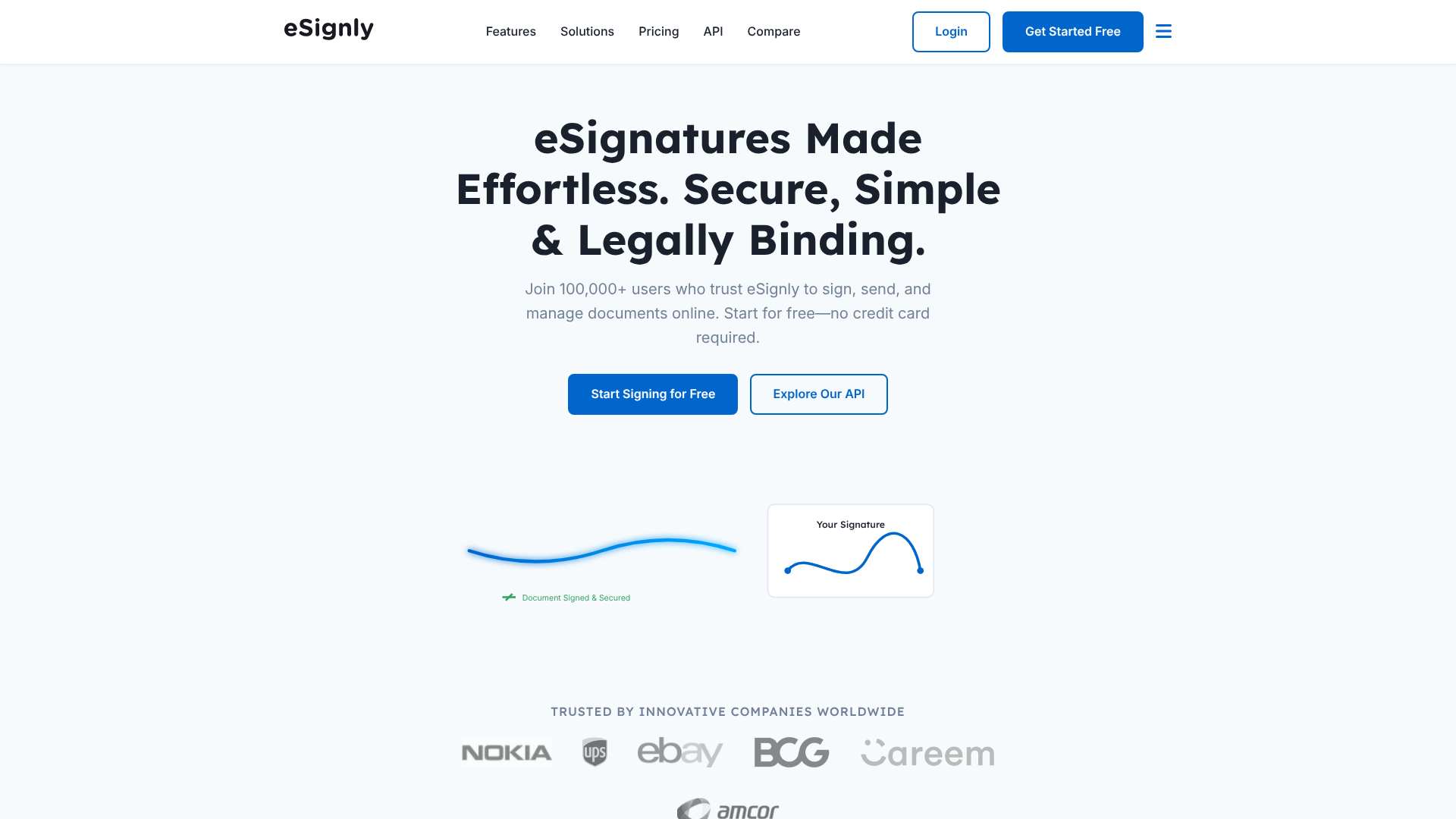
If your primary need is a straightforward, secure, and reliable e-signature solution, eSignly is an excellent choice. It focuses on doing one thing exceptionally well: getting documents signed securely and efficiently. The platform is known for its user-friendly interface, making the digital signature setup process simple for everyone involved.
eSignly provides all the essential features, including legally binding signatures, detailed audit trails, and bank-level security. It's a great option for businesses of all sizes, from small firms to large enterprises, that need a dedicated tool without the complexity of a full document automation suite. It supports a wide range of document types and offers flexible API options for custom integrations.
Pros
- Clean, intuitive, and easy-to-use interface.
- Strong focus on security and legal compliance.
- Competitive pricing for a dedicated e-signature solution.
Cons
- Fewer built-in document creation and editing features compared to platforms like PandaDoc.
- Analytics are focused on the signing process, not on document engagement.
3. Adobe Acrobat Pro
Adobe is an industry giant, and Acrobat Pro is one of the most powerful tools for creating, editing, and signing PDFs. Its 'Adobe Sign' functionality is robust, secure, and globally recognized. If your workflows are heavily reliant on PDFs, using Acrobat Pro can be a very efficient choice as it keeps everything within one ecosystem.
It offers advanced features, such as collecting signatures from multiple people in a specific order and creating web forms to collect data and signatures online. Because it's an Adobe product, its integration with other Creative Cloud apps is flawless. However, the full suite can be complex, and the subscription cost is higher if you don't need all the other PDF editing features.
Pros
- Industry-standard tool for PDF management.
- Advanced signature workflow and form-building features.
- Excellent integration with other Adobe products.
Cons
- The user interface can be less intuitive than modern, web-based alternatives.
- Subscription cost can be high if you only need the e-signature functionality.
Pricing and Cost Comparison
Understanding the cost of making a digital signature is key to choosing a sustainable solution. Pricing for these services typically falls into a few common models, and the best one for you depends entirely on your usage patterns. It's rarely a case of one being objectively cheaper than another; it's about finding the best value for your specific needs.
Most providers offer a tiered subscription model, often with a free plan for very light use. Free plans are great for testing a platform or for individuals who only sign one or two documents a month. However, they are usually limited in the number of documents you can send and often lack advanced features like templates, custom branding, and integrations.
Paid plans are generally structured in one of two ways:
Per-User, Per-Month: This is the most common model for business plans. You pay a flat fee for each user on your team every month (e.g., £20 per user/month). This model usually includes a generous or unlimited number of documents you can send for signature. It's ideal for teams where multiple people need to send documents regularly, such as a sales or HR department.
Per-Envelope or Per-Document: Some services, particularly at the enterprise level or via an API, use a consumption-based model. You purchase a block of 'envelopes' (an envelope is one signing transaction, which can contain multiple documents for multiple signers). This model can be more cost-effective for businesses with fluctuating or unpredictable signing volumes.
Here’s a general comparison of what you might expect. Please note that these are illustrative ranges, and you should always check the provider's website for current pricing.
| Provider | Typical Starting Price (per user/month) | Target Audience | Key Value |
|---|---|---|---|
| PandaDoc | £15 – £40 | Sales & Marketing Teams | All-in-one document automation |
| eSignly | £10 – £30 | SMBs, General Business Use | Secure, easy-to-use e-signatures |
| Adobe Acrobat Pro | £20 – £25 | Creative Professionals, Legal | Advanced PDF editing & signing |
When comparing costs, look beyond the sticker price. Consider the value of included features. A slightly more expensive plan that includes integrations with your CRM could save your team hours of manual work each week, providing a far greater return on investment.
Frequently Asked Questions (FAQ)
Here are answers to some of the most common questions people have about creating and using digital signatures.
Can I create a digital signature for free?
Yes, you can. Many leading platforms, including PandaDoc and Adobe Sign, offer free plans that allow you to send a limited number of documents for signature each month. Additionally, you can use the built-in features in software like Adobe Acrobat Reader or Microsoft Word at no extra cost. For very basic needs, online signature generators can create a free image of your signature.
However, for regular business use, paid plans offer crucial features like audit trails, templates, and unlimited sending.
What is the easiest way to create a digital signature?
The easiest and most secure method for most people is to use a dedicated e-signature platform. These services guide you through the process step-by-step: you upload your document, drag and drop a signature field, and send it to the recipient's email. The platform handles all the technical aspects of signature creation and security, making it a simple, foolproof process for both sender and signer.
How do I create a signature that I can upload?
To create a signature image for uploading, you can use the 'paper-to-digital' method. Sign your name on a white piece of paper with a black pen, scan it or take a clear photo, and then use an image editor to crop it and remove the background. Save the final image as a PNG file. This will give you a high-quality, transparent signature image that you can upload to e-signature platforms or use in documents.
Is a digital signature in Word legally binding?
A digital signature created properly in Microsoft Word can be legally binding, provided it is created using a trusted, certificate-based digital ID. A simple typed or inserted image signature carries less legal weight. The enforceability depends on the jurisdiction's laws (like eIDAS in the EU) and the ability to prove the signer's identity and the document's integrity. For high-stakes agreements, using a dedicated platform with a comprehensive audit trail is always the safer option.
Can I create my own digital signature?
Yes, you can create your own digital signature within various applications. When you use a platform like eSignly or PandaDoc, you are guided to create your signature by typing, drawing, or uploading an image. This signature is then linked to your identity and applied to documents with cryptographic security by the platform. You can also create a 'self-signed' digital ID in programs like Word or Adobe, which is suitable for internal use but lacks the third-party verification of a certificate from a trusted Certificate Authority.
Final Thoughts
Mastering how to create a digital signature is an essential skill in today's fast-paced business environment. It's a process that enhances security, boosts efficiency, and cuts unnecessary costs associated with traditional paperwork. Whether you choose a dedicated, all-in-one platform or use the built-in features of software you already own, the key is to select a method that matches the importance of your documents.
For casual, low-risk use, a simple electronic signature created in Word or Adobe may suffice. But for any legally binding contract, sales proposal, or sensitive agreement, using a trusted digital signature provider is non-negotiable. These platforms provide the cryptographic security, identity verification, and detailed audit trails that ensure your documents are protected and enforceable.
If you're ready to streamline your document workflows, consider exploring a dedicated solution. Platforms like PandaDoc offer powerful document automation features perfect for sales teams, while eSignly provides a focused, secure, and user-friendly signing experience for all types of businesses. Many offer free trials, giving you a risk-free way to see the benefits for yourself.