

WP Site Migration Plugin Buyer's Guide: How to Choose for 2026
Moving a WordPress website can feel like a high-stakes operation. Whether you're switching hosting providers, changing your domain name, or setting up a staging environment, the process is filled with potential pitfalls. A single misstep during a manual transfer can lead to data loss, broken links, or frustrating downtime. This is precisely why a reliable wp site migration plugin is an essential tool for any website owner, simplifying a complex task into a few manageable clicks.
- What to Know
- What is a WP Site Migration Plugin and Why Do You Need One?
- How to Choose the Right WordPress Migration Plugin: A Buyer's Guide
- Assess Your Website's Size and Complexity
- Consider Your Technical Skill Level
- Check for Essential Features
- Evaluate Your Budget: Free vs. Premium Tools
- Top 5 WP Site Migration Plugins for 2026 (Tested & Compared)
- The Easiest Option? Your Hosting Provider's Migration Tool
- A Step-by-Step Guide to Using a WordPress Migration Plugin
- 1. Prepare Your Destination
- 2. Install the Plugin on Both Sites
- 3. Create a Full Backup
- 4. Export Your Site File
- 5. Import to the New Site
- 6. Final Checks and Testing
- Common Migration Problems and How to Solve Them
- Frequently Asked Questions (FAQ)
- Is it safe to use a WordPress migration plugin?
- Can I migrate a WordPress site for free?
- How long does a site migration take?
- Will a migration affect my SEO?
- Do I need to install WordPress on the new server first?
- Final Thoughts: Choosing Your WP Site Migration Plugin
These tools are designed to package your entire website—database, media files, themes, and plugins—into a single, portable file. Instead of manually moving files via FTP and exporting databases, a good plugin automates the entire process, drastically reducing the risk of human error. It handles the tricky parts, like updating URLs in your database, ensuring your site works perfectly in its new location from the moment it arrives.
What to Know
- Automation is Key: A WordPress migration plugin automates the complex process of moving a site, which saves significant time and prevents common errors associated with manual transfers.
- Essential Features: Look for critical features like one-click migration, automatic search-and-replace for URLs, large site compatibility, and robust backup capabilities before making a choice.
- Your Needs Dictate the Tool: The best plugin depends on your technical skill, website size, and budget. Free plugins are suitable for small, simple sites, while premium options provide the power and support needed for larger, more complex projects.
- Check Your Host First: Many top hosting providers, including WP Engine and SiteGround, offer their own free, purpose-built migration tools. These are often the easiest and most reliable options available.
What is a WP Site Migration Plugin and Why Do You Need One?
A WP site migration plugin is a specialised tool that automates the process of moving a WordPress installation from one server to another. Think of it as a professional moving service for your website. It carefully packs every part of your site—your posts, pages, user data, plugins, themes, and settings—into a secure package, ready for transport.
Without such a tool, you'd be left with the manual method. This involves using an FTP client to download all your website files, accessing your hosting control panel to export the MySQL database via phpMyAdmin, and then reversing the process on the new server. This manual approach is not only time-consuming but also fraught with risk. A single mistake, like an interrupted file transfer or an incorrect database import, can corrupt your site and lead to significant downtime.
A WordPress migration plugin eliminates these dangers. It handles the entire process within the WordPress dashboard, providing a guided, user-friendly experience. The plugin ensures that all database entries, particularly those containing your site's URL, are automatically updated. This search-and-replace function is critical, as it prevents the broken links and missing images that often plague manual migrations.
Whether you're a beginner avoiding technical complexities or a developer streamlining your workflow, a migration plugin is an indispensable asset.
How to Choose the Right WordPress Migration Plugin: A Buyer's Guide

Selecting the right site migration tool is crucial for a smooth transition. With numerous options available, each with different strengths, it's important to assess your specific needs before making a decision. This guide breaks down the key factors to consider.
Assess Your Website's Size and Complexity
The first step is to evaluate your site. A simple blog with a few hundred megabytes of data has very different requirements than a large e-commerce store with gigabytes of product images and customer data. Many free plugins impose upload size limits, often around 512MB, which makes them unsuitable for larger sites without purchasing a premium extension.
For large or complex sites, look for plugins specifically designed to handle them. Tools like Migrate Guru process the migration on their own servers, which prevents timeouts on your hosting environment. Others, like the pro versions of Duplicator or All-in-One WP Migration, use chunking technology to import large files without hitting server limits.
Consider Your Technical Skill Level
Your comfort level with technical tasks should heavily influence your choice. If you're a beginner, you'll want a plugin with a simple, intuitive interface. All-in-One WP Migration is famous for its straightforward drag-and-drop process, making it a favourite among non-technical users.
Developers and advanced users, on the other hand, might prefer a WP migration tool with more powerful features. WP Migrate, for example, offers a 'push/pull' workflow that is ideal for syncing changes between development, staging, and live environments. It also includes support for WP-CLI (WordPress Command Line Interface), allowing for scripted and automated migrations.

Check for Essential Features
Regardless of your skill level, certain features are non-negotiable for a reliable migration:
- Comprehensive Backup: The plugin should be able to create a complete, restorable backup of your entire site before starting the migration.
- Automatic Search & Replace: This is arguably the most important feature. It must intelligently find and replace all instances of your old domain and file paths with the new ones, including within serialised data arrays where a simple find-and-replace would break things.
- Compatibility: Ensure the plugin is compatible with your version of WordPress, PHP, and your hosting environments (both old and new).
- Ease of Use: The process should be clear and straightforward, with minimal steps required from export to import.
Evaluate Your Budget: Free vs. Premium Tools
Many excellent migration plugins offer a free version, which is often sufficient for small, straightforward websites. However, these free versions typically come with limitations, such as file size caps, no cloud storage integrations, or limited customer support.
Investing in a premium plugin or extension often provides significant value. Paid versions typically unlock features like multisite support, direct server-to-server transfers, cloud backup storage (e.g., Google Drive, Dropbox), and access to dedicated customer support. If your website is business-critical, the small investment for a premium tool is a worthwhile insurance policy against migration-related problems.
Pro Tip: Before purchasing any premium plugin, always check your new hosting provider's website. Many managed hosts offer their own powerful migration tools for free to new customers, which can save you both time and money.
Top 5 WP Site Migration Plugins for 2026 (Tested & Compared)
After evaluating the key features, we've compiled a list of the best migration plugins available. Each one caters to a different type of user, from absolute beginners to seasoned developers.
1. All-in-One WP Migration
All-in-One WP Migration is widely regarded as one of the most user-friendly migration plugins on the market. Its core strength lies in its simplicity. The entire process involves exporting your site into a single .wpress file and then dragging and dropping that file onto a fresh WordPress installation at the new location.
It cleverly bypasses hosting upload limits by importing the site in small chunks, a feature that many other plugins lack in their free versions. This makes it incredibly reliable for users on shared hosting environments with strict server configurations.
Pros
- Extremely Simple: The drag-and-drop interface is perfect for beginners.
- Bypasses Upload Limits: The chunked import system is a major advantage.
- Wide Compatibility: Works with a vast range of hosting providers.
Cons
- Free Version Size Limit: The free plugin often has a 512MB upload limit, which is too small for many modern websites. Unlocking unlimited size requires a paid extension.
2. Duplicator
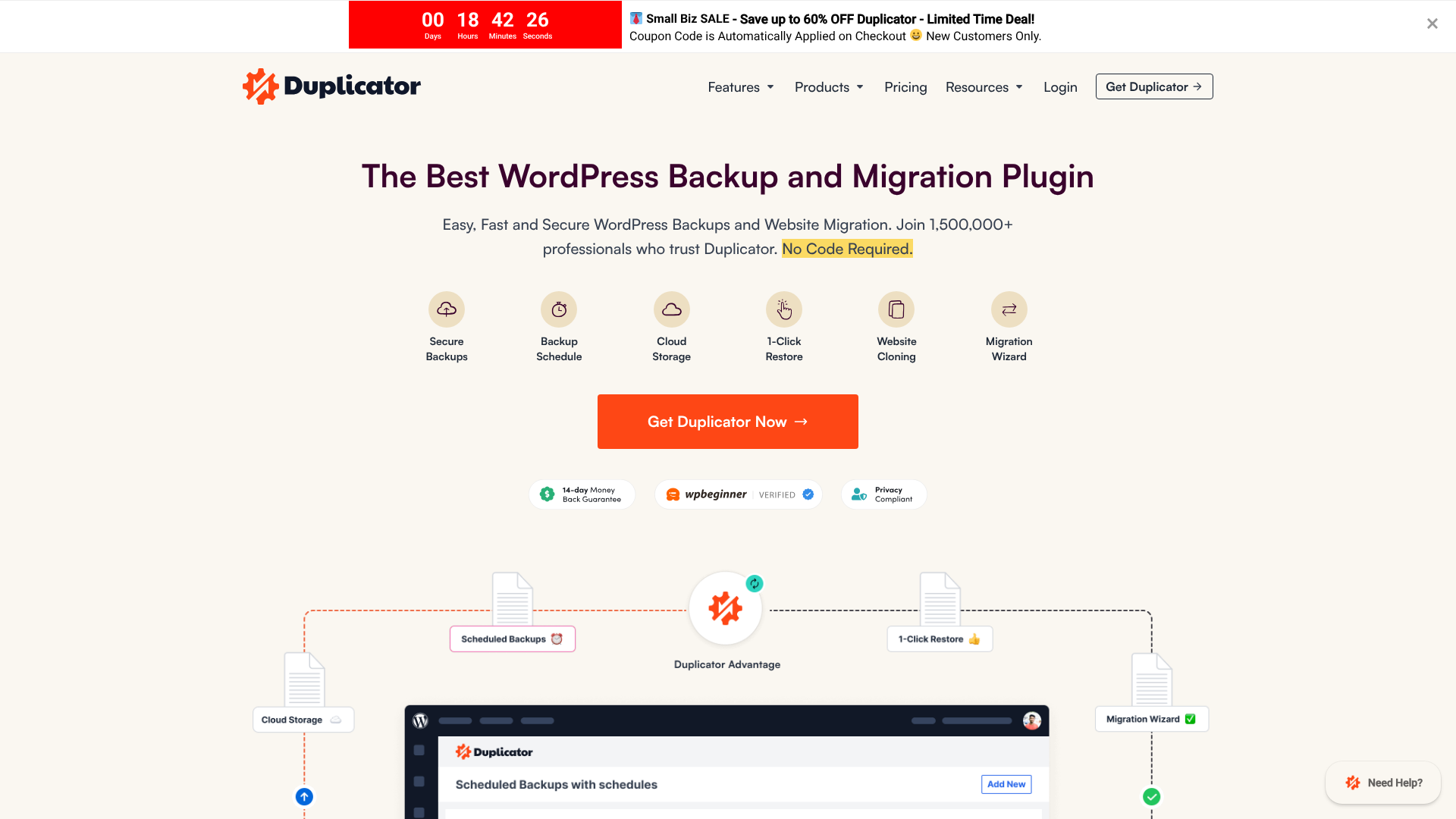
Duplicator is a powerful and popular plugin that bundles your entire site into two files: a zip archive and an installer script. This approach is slightly more technical than All-in-One's but offers more flexibility. You can use Duplicator to install your site on a completely empty server, as the installer script handles creating the configuration file and setting up the database.
It's an excellent all-around tool that serves as both a migration and a backup solution. The pro version adds valuable features like scheduled backups, cloud storage integration, and support for very large sites.
Pros
- All-in-One Package: Creates a self-contained archive and installer for easy deployment.
- Versatile: Can be used for migrations, backups, or creating staging sites.
- Reliable: A long-standing plugin with a strong reputation.
Cons
- Slightly Technical: The installer process requires you to enter database credentials, which can be intimidating for first-time users.
- Server Requirements: Can sometimes struggle on low-resource shared hosting environments during the package-building phase.
3. Migrate Guru

Migrate Guru is a unique and powerful option because it is completely free and built to handle massive websites—up to 200GB. It achieves this by offloading the migration work to its own powerful servers. You simply install the plugin, enter the details of your destination host, and Migrate Guru's servers do all the heavy lifting.
This approach means your own website's server resources are never stressed, virtually eliminating the risk of timeouts or crashes during the migration. It's an incredibly fast and reliable solution for moving large e-commerce stores or media-heavy sites.
Pros
- Completely Free: No size limits or premium features to unlock.
- Handles Huge Sites: Built to migrate sites up to 200GB without issue.
- No Server Strain: The migration is processed externally, protecting your site's performance.
Cons
- Host-Specific: Only works with a specific list of supported hosting companies.
- No Localhost Support: Cannot be used to migrate a site from a local development environment to a live server.
4. WP Migrate
WP Migrate (formerly WP Migrate DB) is the tool of choice for developers. Its core functionality revolves around syncing databases and files between different WordPress installations. The 'push' and 'pull' features in the Pro version are exceptional for development workflows, allowing you to easily move a database from a live site to a staging site, or push theme and plugin files from staging to live.
It has a sophisticated find-and-replace feature that correctly handles serialised data, a common pain point for developers. While the free version is limited to database exports, the full suite of tools in the pro version is unmatched for professional use.
Pros
- Developer-Focused: Perfect for managing staging and production environments.
- Advanced Find & Replace: Reliably handles complex data structures.
- WP-CLI Integration: Allows for powerful command-line operations and automation.
Cons
- Free Version is Limited: The free plugin only handles the database, not files.
- Complex for Beginners: The interface and feature set are aimed at technical users.
5. UpdraftPlus Migrator
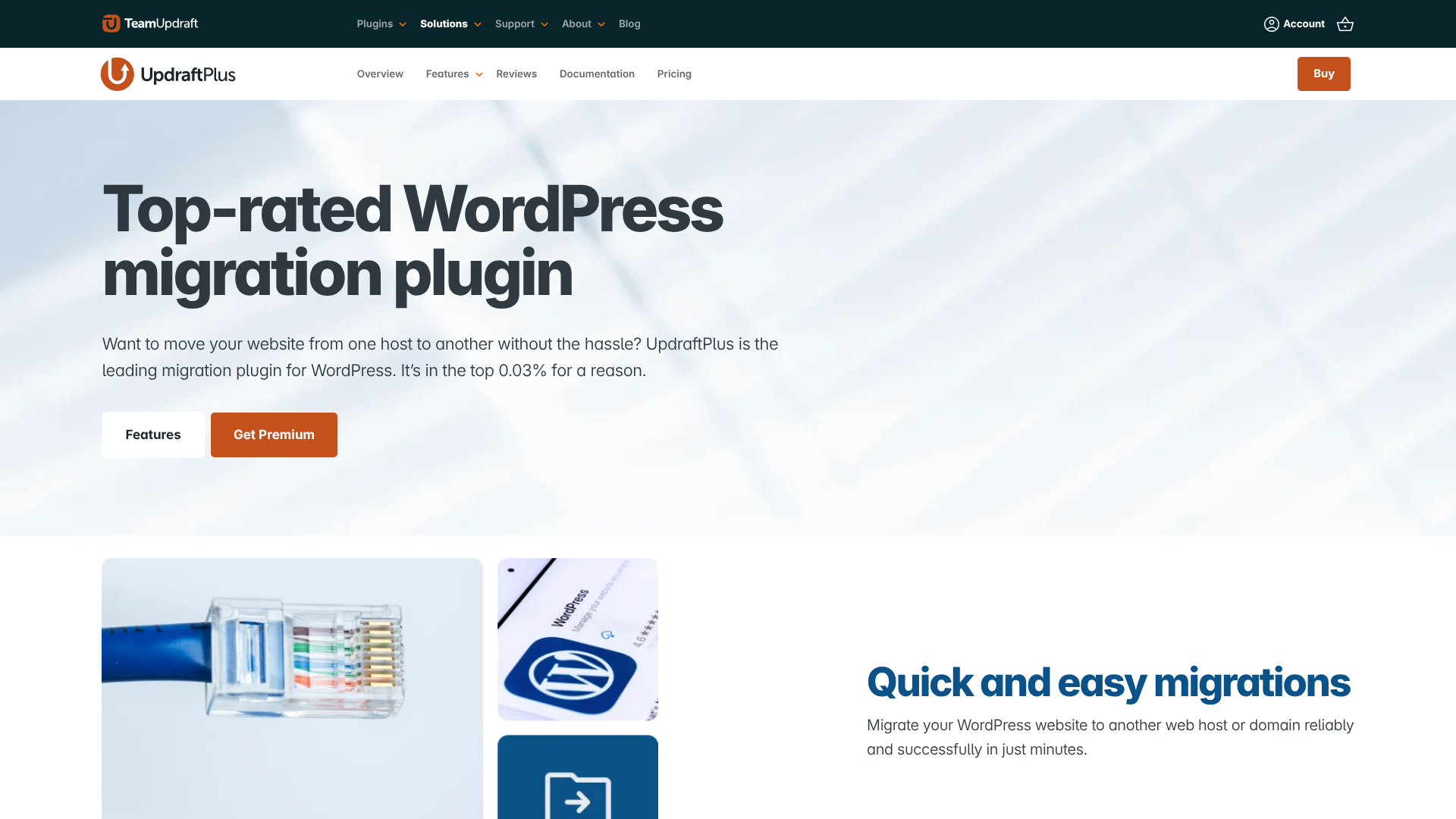
UpdraftPlus is one of the world's most popular WordPress backup plugins. The migration functionality is available as a paid add-on called 'Migrator'. If you already use and trust UpdraftPlus for your backups, using its migrator tool is a natural choice.
It allows you to create a clone of your site and restore it to a new location directly from your UpdraftPlus dashboard. It's a reliable and well-supported option that integrates perfectly into an existing backup strategy.
Pros
- Trusted Name: Built by the team behind a leading backup solution.
- Seamless Integration: Works perfectly if you already use UpdraftPlus.
- Good Support: Premium users get access to dedicated customer support.
Cons
- Migration is a Paid Feature: You cannot migrate a site with the free version of UpdraftPlus.
- Primarily a Backup Tool: The interface is focused on backups, with migration as a secondary function.
The Easiest Option? Your Hosting Provider's Migration Tool
While third-party plugins are powerful, they aren't always necessary. Often, the simplest and most reliable site migration tool is the one provided by your new web host. Managed WordPress hosting companies invest heavily in creating a seamless onboarding experience, and free, automated migrations are a key part of that.
These tools are built specifically for their platform, which means they are optimised for the server environment you are moving to. This eliminates compatibility issues and ensures the highest chance of a successful, error-free transfer. Before you even look at the WordPress plugin directory, check what your new host offers.
WP Engine Automated Migration
For those moving to a premium managed host, WP Engine provides a free Automated Migration plugin. This tool makes the process incredibly simple. You install it on your existing site, enter your WP Engine credentials, and the plugin securely transfers your entire site to their platform. Because the tool is designed by WP Engine, it's perfectly tuned to their architecture.
SiteGround Migrator Plugin
Similarly, SiteGround offers its own WordPress Migrator plugin, available for free to all its customers. It allows you to transfer an unlimited number of websites to their platform. You generate a token from your SiteGround control panel, paste it into the plugin on your old site, and it handles the rest. It's a fast and efficient way to get started on their service.
Other Top Hosts with Easy Migration
This trend is common among quality hosts. Providers like Kinsta, Hostinger, and Bluehost also offer either a free automated plugin or a service where their support team will migrate your site for you. Using your host's dedicated tool is almost always the path of least resistance.
A Step-by-Step Guide to Using a WordPress Migration Plugin
While each plugin has a slightly different interface, the general process for migrating a WordPress site is quite similar across the board. Here is a typical workflow you can expect, using a tool like All-in-One WP Migration as an example.
1. Prepare Your Destination
First, you need a place for your site to go. This typically means setting up a brand new, empty WordPress installation on your new hosting account. Most hosting providers offer a one-click WordPress installer to make this step easy.
2. Install the Plugin on Both Sites
Log in to the WordPress dashboard of your original (source) site and install your chosen migration plugin. You must then log in to the dashboard of your new, empty WordPress installation (destination) and install the exact same plugin there.
3. Create a Full Backup
Before you do anything else, create a complete backup of your source site using a separate backup plugin or your host's backup feature. This is your safety net. Never start a migration without a fresh, verified backup in hand.
4. Export Your Site File
On your source site, navigate to the migration plugin's menu and find the 'Export' option. The plugin will then process your database, media files, themes, and plugins, compiling them into a single downloadable file. Once it's finished, download this file to your local computer.
5. Import to the New Site
Now, go to the dashboard of your new WordPress site. Navigate to the migration plugin's menu and select the 'Import' option. You will be prompted to upload the file you just downloaded. Depending on the plugin, you may drag and drop the file or use a standard file browser. The plugin will then unpack and install your entire site.
6. Final Checks and Testing
After the import is complete, the plugin will prompt you to save your permalink structure. This is a critical step to ensure your URLs work correctly. Once that's done, log in to your newly migrated site (using your old username and password) and thoroughly test everything. Check your pages, posts, images, and forms to confirm everything is working as expected before pointing your domain's DNS to the new server.
Common Migration Problems and How to Solve Them
Even with the best tools, migrations can sometimes hit a snag. Understanding common issues can help you troubleshoot them quickly.
The 500 Internal Server Error
This is a generic error that means something went wrong on the server. During a migration, it's often caused by a corrupted .htaccess file or by the process exceeding the server's PHP memory limit. The first step is to try re-saving your permalinks. If that doesn't work, you may need to contact your host to have them increase your memory allocation.
Database Connection Errors
Seeing an 'Error Establishing a Database Connection' message on your new site usually means the credentials in your wp-config.php file are incorrect. While most migration plugins handle this automatically, a manual check is sometimes needed. Ensure the database name, username, password, and host match the ones provided by your new hosting provider.
Mixed Content Warnings
If your site uses SSL/TLS (HTTPS) but some images or scripts are still loading over HTTP, browsers will show a 'mixed content' warning. This happens when the search-and-replace process missed some URLs. A plugin like Better Search Replace can help you run a thorough 'dry run' to find any remaining HTTP links and update them to HTTPS.
Pro Tip: Always clear all caches after a migration—your browser cache, any caching plugins (like W3 Total Cache or WP Rocket), and your host's server-level cache. Caching is a common cause of seeing an old version of your site after a move.
Frequently Asked Questions (FAQ)
Is it safe to use a WordPress migration plugin?
Yes, it is generally very safe, especially when using a well-regarded and updated plugin. These tools are designed to perform migrations without altering the original site. However, it is absolutely essential to create a complete, independent backup of your site before you begin, just in case something unexpected occurs.
Can I migrate a WordPress site for free?
Absolutely. Many excellent plugins like Migrate Guru are completely free with no limitations. Others, like All-in-One WP Migration and Duplicator, offer powerful free versions that are perfectly suitable for smaller websites. Furthermore, many hosting providers offer free migration services, which is often the best free option available.
How long does a site migration take?
The duration of a migration depends heavily on the size of your website and the speed of your internet connection and servers. A small blog might take only 10-15 minutes. A large e-commerce site with several gigabytes of data could take an hour or more to export, upload, and import.
Will a migration affect my SEO?
If done correctly, a migration should have minimal to no negative impact on your SEO. A good WordPress migration plugin ensures all URLs are updated correctly, preventing broken links. If you are changing domains, you must also implement 301 redirects from your old URLs to your new ones to pass along your search engine rankings. This is a separate step that happens at the server level, not within the plugin.
Do I need to install WordPress on the new server first?
It depends on the plugin. For plugins like All-in-One WP Migration, you need to have a fresh, empty WordPress installation ready at the destination to import your site into. For plugins like Duplicator, you do not; its installer package can set up WordPress and your site on a completely empty server directory.
Final Thoughts: Choosing Your WP Site Migration Plugin
Choosing the right wp site migration plugin transforms a daunting technical challenge into a straightforward, manageable task. By automating the most complex parts of the process, these tools empower you to move your website with confidence, knowing your data is secure and your downtime will be minimal.
Your final decision should be guided by your specific circumstances. For the vast majority of users, the first and best step is to check for a dedicated migration tool from your hosting provider. Companies like WP Engine and SiteGround offer purpose-built solutions that are optimised for their platforms, providing the smoothest possible experience.
If a host-provided tool isn't an option, your choice depends on your needs. For beginners with smaller sites, All-in-One WP Migration offers unparalleled simplicity. For large, complex sites, Migrate Guru's free and powerful off-server processing is an outstanding choice. And for developers needing precise control over their workflow, WP Migrate remains the professional standard.
By matching the tool to the task, you can ensure your next site migration is a success.